
Getting started · Administrator
Review the main survey settings
Understand the purpose of the survey settings tabs and the choices that affect access, feedback, and reporting.
Screenshots illustrate the controls below. Layouts and labels may vary with your survey configuration. Select an image or “View full size” to open it in a new tab.
Find the settings
Click the survey title in My Delphi Surveys to open Survey Settings. Options depend on your account and the question types in use.
| Tab | Use it for |
|---|---|
| Survey Details | Participant group, administrator group, privacy, consensus method, public access, response limit, testing, and languages. |
| Consensus | Consensus labels, change alerts, and RAND/UCLA options. Question-level settings still need review. |
| Statistics | Enable statistical measures and decide whether they are visible to administrators, participants, or both. |
| Display Settings | Navigation, button labels, feedback presentation, banner, progress, chat, and style sheet. |
| Survey Access | Select the registration or direct-access links you will distribute. |
| Responses Used | Review the response-usage log, including records that were subsequently deleted. |
| External Metrics | Optional external KPI data used by advanced analytics. |
Configure before collecting data
- Confirm the participant group and privacy level.
- Choose the consensus method and required statistics.
- Review question and matrix-column consensus settings; do not assume a survey default is your intended rule.
- Configure public access only if your recruitment plan needs it.
- Set a response limit, if needed, to allocate the account’s available allowance across projects.
- Check the footer, progress calculation, languages, and feedback permissions.
More screenshots and examples (1)
What settings do not do
A response limit controls access for new respondents; it is not a consensus threshold. A minimum-answer threshold controls when a question’s feedback becomes visible; it does not start a new round. A survey round preserves response data at a point in the study; it is not a version of the questionnaire design.
Detailed instructions: Responses Used Tab
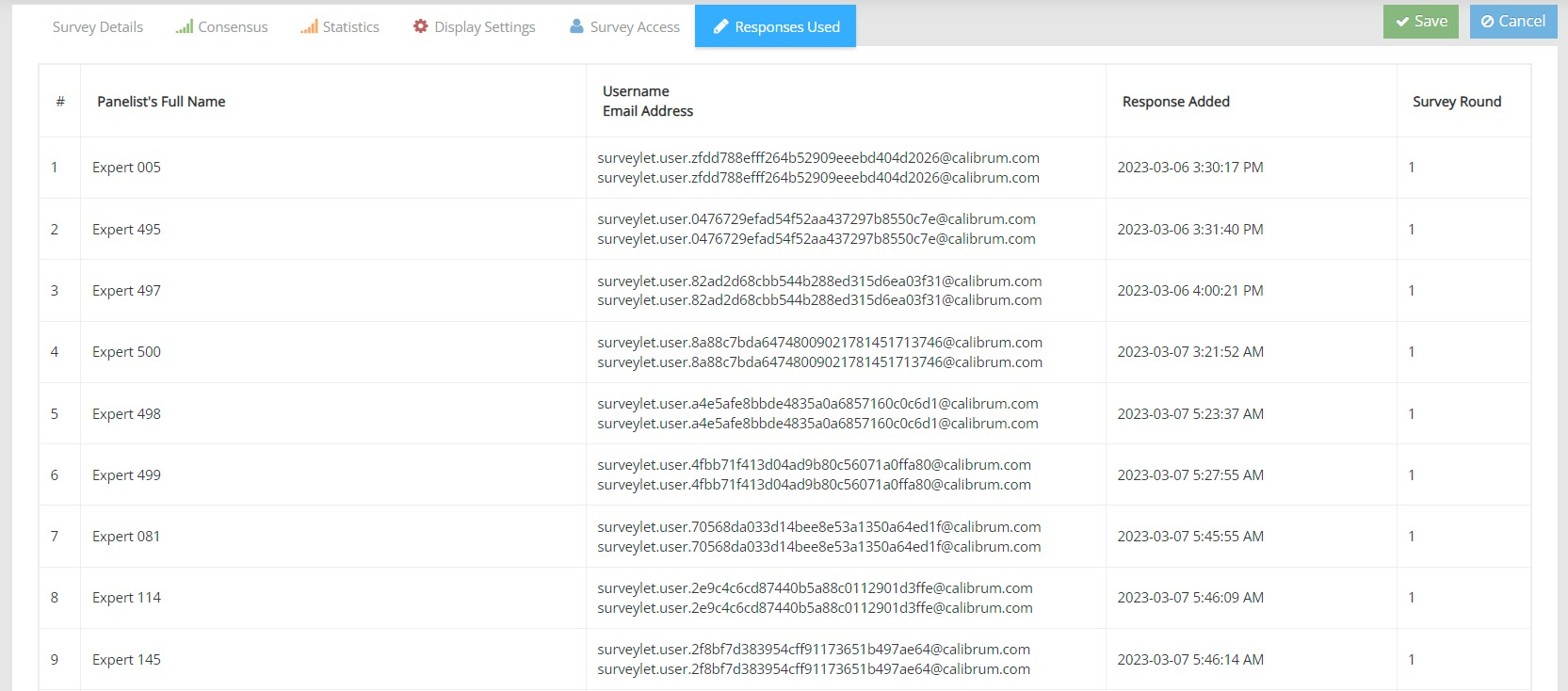
This page displays the log of all responses used, even if the response was already deleted by the survey admin. The Username/Email Address column shows both the username and email address of the panelist, which may be the same. Once a response has been used, it will show up on this page and cannot be removed. For High Privacy surveys, the user information is blanked out and not shown.
Detailed instructions: Survey Details Tab
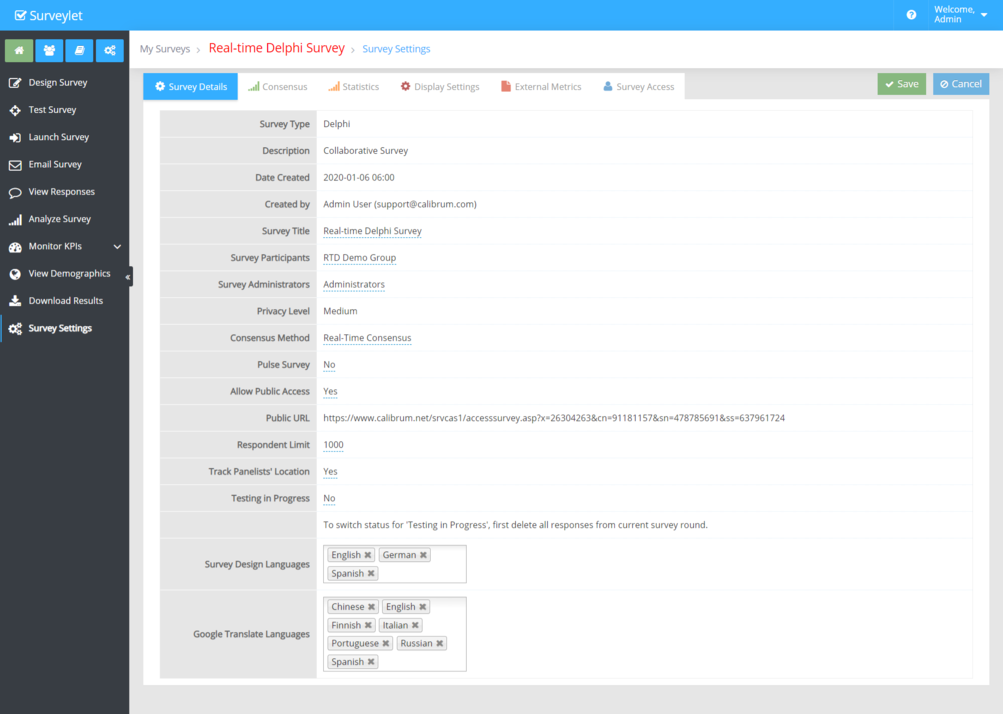
The first tab in the Survey Settings page is the survey settings which displays a few more options that were not visible on the add survey page when you first created the survey.
Survey Type
Type of survey. It is Collaborative Survey by default. Readonly field.
Description
Static field. Displays "Collaborative Survey" Readonly field.
Date Created
Date and time survey was created displayed in the timezone you set on your User Profile page. Readonly field.
Created By
Name and Email of the Surveylet administrator who created the survey. Readonly field.
Survey Participants
Survey Participants Group, which is the Surveylet group the survey is assigned to. The members of this group are the survey panelists who can access and fill out the survey. A survey in Surveylet is assigned to a Group which consists of one or more Surveylet Users. You can create multiple groups. A Group can be assigned to multiple surveys, but a survey can only be assigned to a single Group. The group assigned to a survey is called Survey Participants group. WARNING: When you change the survey participants group, members of the old group that are not members of the new group will lose all their responses which you cannot recover. So if you want to keep existing responses after the group change, make sure that the panelists are members of the new group as well before you change the group. If you lost responses due to an accidental group change, please contact our support team for data recovery services. For more information regarding groups, please visit our Groups page to read more.
Survey Administrators
Survey Administrators Group. Members of this group can manage survey. Only groups marked as administrator group are listed as selectable group for this setting. Visit Groups to read more.
Privacy level
Survey Privacy. An important part of Delphi projects. Depending on who can identify whom in a survey, there are 3 different privacy level available in Surveylet: Low, Medium and High. In a survey with Low Privacy, both survey administrators and survey panelists can identify everyone (name, email). In Medium privacy, only survey administrators can identify survey panelists, but survey panelists cannot identify other survey panelists. High Privacy, nor the survey administrators, nor the survey panelists can identify anyone in the survey. Be careful, if it is set to Low, every panelist can see the ID of other respondents. Once the privacy settings is set and there is at least one responses received in the survey, the privacy setting cannot be changed; to change it, survey administrator will need to delete all responses first.
Consensus Method
Method of Consensus. Can be Real-time or Multi-round. This settings determines which Delphi method you are using in your survey: either Real-time, or Multi-round. You may switch it back and forth at any time. This settings controls if panelists will see the most current up to date analytics for questions (Real-time); or the results of previous round (Multi-round). Survey admins will always see the most current analytics.
Pulse Survey
If you want to send out only a single page in your large survey, this option can come handy. When you send out the survey invitation email from the Email Survey page to your panelists, they receive the survey invitation link in an email which will take them to the survey but instead of letting them step through all pages of the survey, it will pick only a single page. You can set the order of the pages that are presented to your user each time you send out a new survey invitation email: Continuous Page Order which will start from page 1 and continues to last page; or Randomized Page Order which will pick a page randomly. For more information, see Email Survey help page.
Allow Public Access
To allow panelists to register themselves and enter your survey (instead of you adding them yourself from the Users page), you will need to enable Public Access. When it is enabled, you can still send out survey invitations to existing panelists (those who are already in your Users database), however you can also send out the public survey URL's to panelists manually using your own personal/corporate email editor. There are several different options to invite panelists to access your survey: 1) you may send the survey URL from Email Survey page to your existing panelists in which case each panelists will receive their own private encrypted survey link they can use to access the survey at any time and as many times as they want; OR 2) you can send Public URL's to your panelists (either individual survey URL - one URL per panelist, or a single Survey URL to a group of panelists - one URL for the entire group). Visit Survey Access Tab for more information.
Response Limit
You can control how many responses your survey can receive. If the limit you specify here is reached, new panelists will be denied access to the survey with quota reached message. The Response Limit includes all responses even though deleted by the survey administrator. This settings allows survey admins to allocate a maximum number of responses for each survey under the account making sure that their allowed response quota is not exceeded. Once the response limit is reached, new panelists will be denied access with an error message. Existing panelists will be able to continue to access their questionnaire even across multiple survey rounds.
Track Panelists' Location
By default, Surveylet tracks panelists IP address, which allows you to lookup location specific information. You can disable this feature by settings this option to No. If it's set to No, the IP address information will not be recorded.
Testing In Progress
When set to Yes, you will be able to test your survey live with up to 7 test participants. Responses submitted while the survey is in test mode will not count toward your response limit quota. No limitation on any functionalities are in place during testing. Once the 7 responses limit has been reached, new respondents will be denied access while existing respondents who have already submitted their response to current survey round can still continue to access the survey. You can only change the settings for the option if there are no responses in current survey round. This means you cannot start or close testing if you have any responses in current round. This testing functionality is there for you to test out your survey live with live respondents, but these responses will need to be deleted before you can start your live survey. The test respondents will need to be members of the survey participants group.
It is possible to use the ‘testing in progress’ in all survey rounds; it is not limited to the 1st survey round. You will just need to clean up (delete all responses from) the current round to be able to switch the "Testing In Progress" on or off. If you have one or more responses in current round, you won't be able to switch it on or off. Test responses (i.e. responses submitted from the Test Survey page are also considered responses and they also need to be deleted before you can change the status of "Testing in Progress").
Survey Design Languages
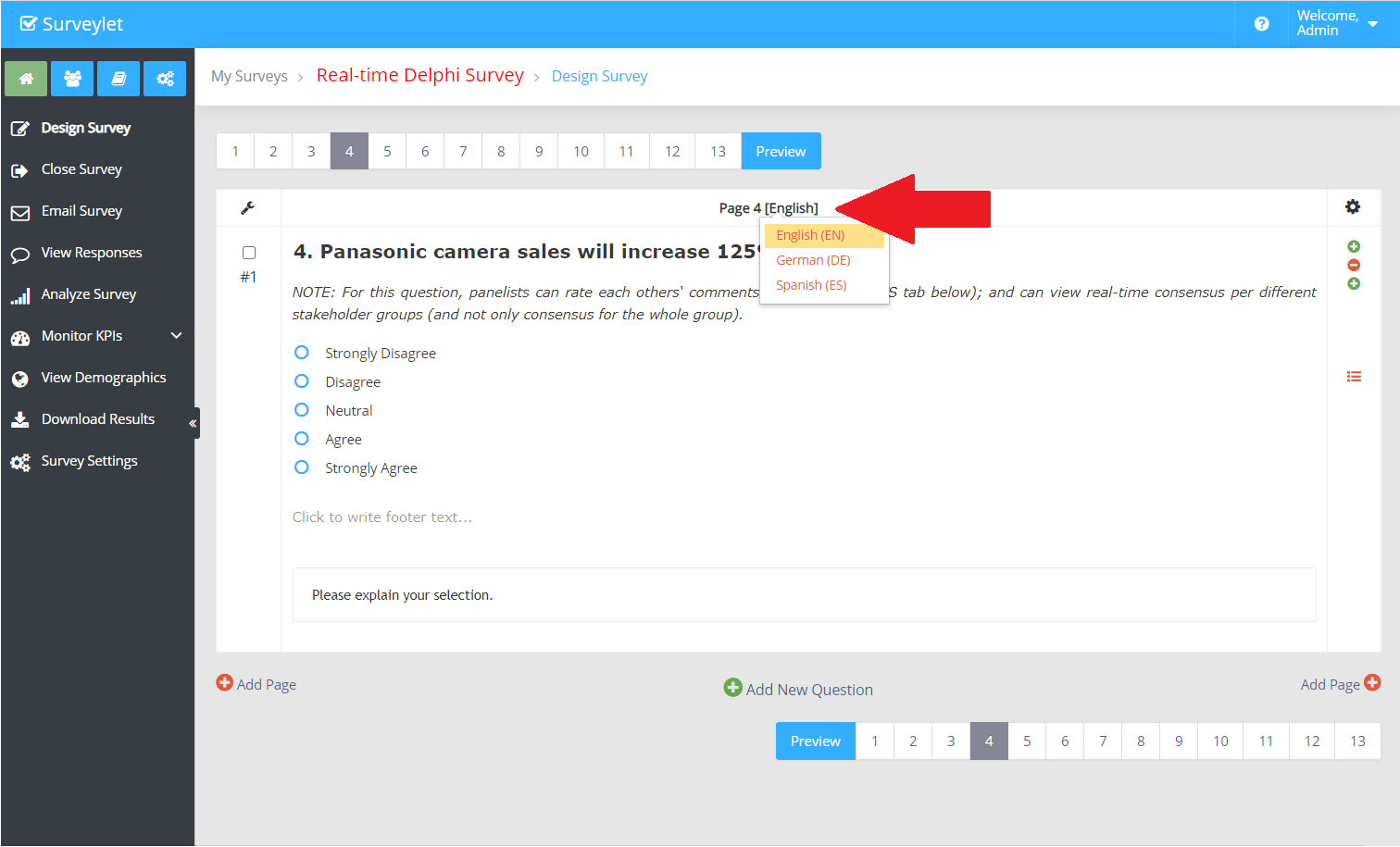
This is the list of languages you want to design the survey in. The default is your organization's default language the is configured from the Account page using the Default Language option. If you are planning to design multilingual surveys, you have the option to use Google Translate to automatically translate your questions and participants' answers; or you can define the translations yourself. For more information see the Languagehelp page. You can add a language at any time. When you delete an existing language, the language translation for all questions will also be removed and cannot be restored later by re-adding the language. The Survey Design Languages listed here do not need to be added to Google Translate Languages list, meaning that you can design a language in English only and display it in Italian and Chinese. In the Survey designer, the languages listed in the "Survey Design Languages" will be available for selection from the language dropdown as shown below:
Google Translate Languages
List the languages that will be displayed to your panelists on top of the survey pages if their Google translate option is switched on. Use this when you do not want to manually add translated content for these languages. If, in your survey designer, you added any content in the language selected by the panelist from the Google Translate language selector, then those will not be translated into the same language.
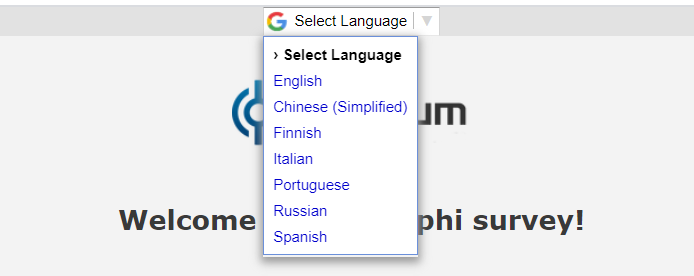
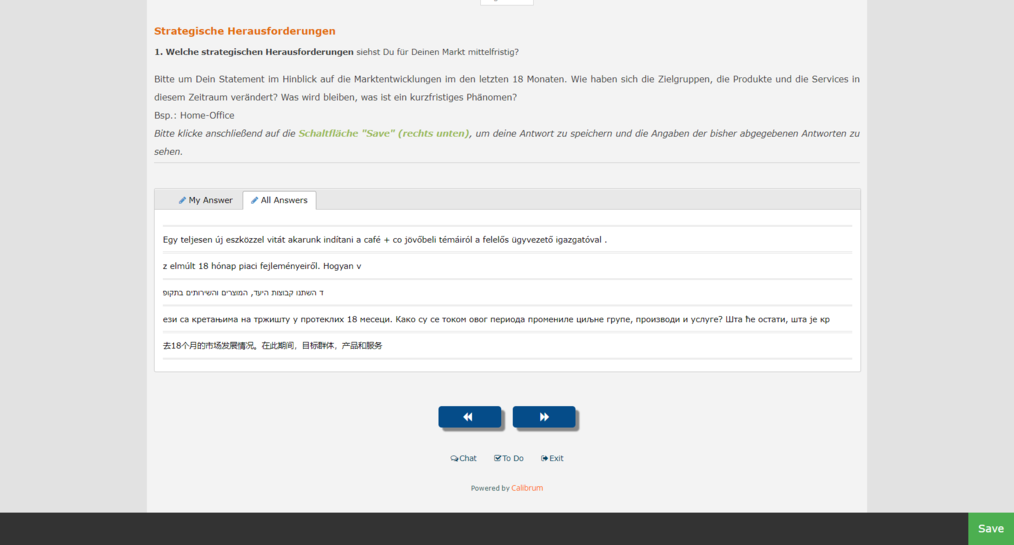
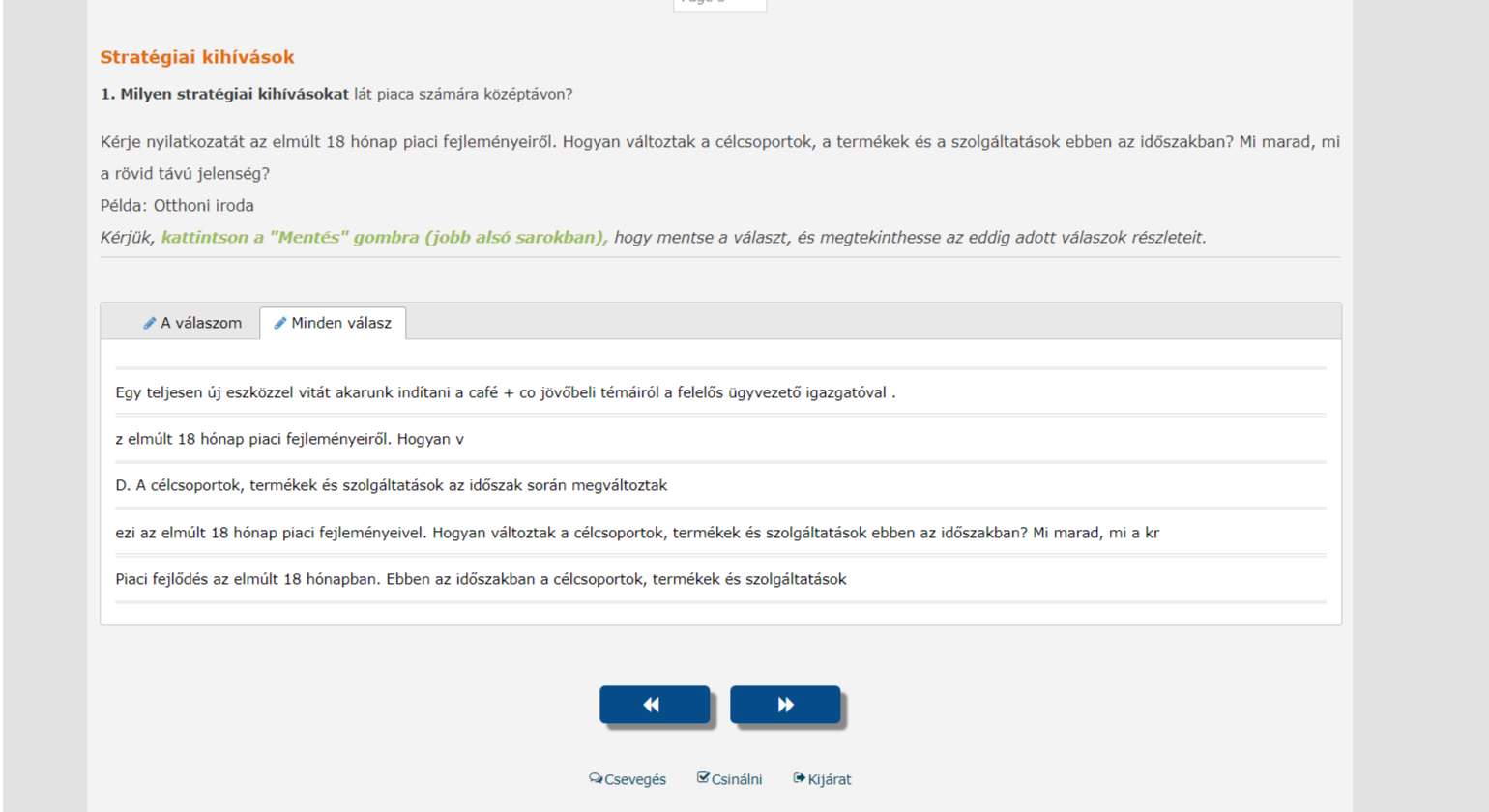
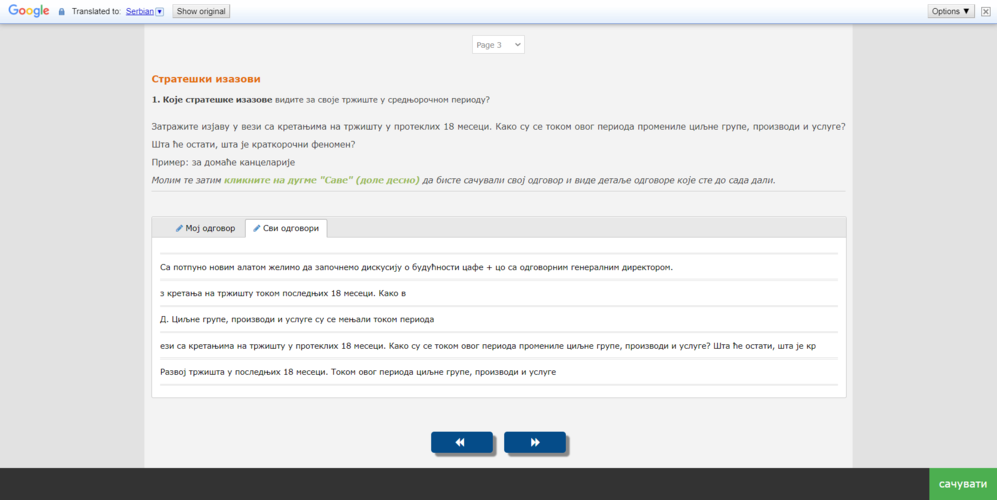
When Google translation is used, all questions, choice labels, matrix text, along with all the text response panelists provided in any other languages open text responses including My Comments will be translated from all languages into the panelist's language. So, if panelists provided open text response in 7 different languages, and you as a panelist select the Italian translation from Google language dropdown, all open text response will be translated into Italian.
Mixed Languages (German, Hungarian, Arabic, Serbian, Chinese):
Panelist viewing All Comments with the Hungarian language selected:
Panelist viewing All Comments with the Serbian language selected:
Panelist viewing All Comments with the Chinese language selected:
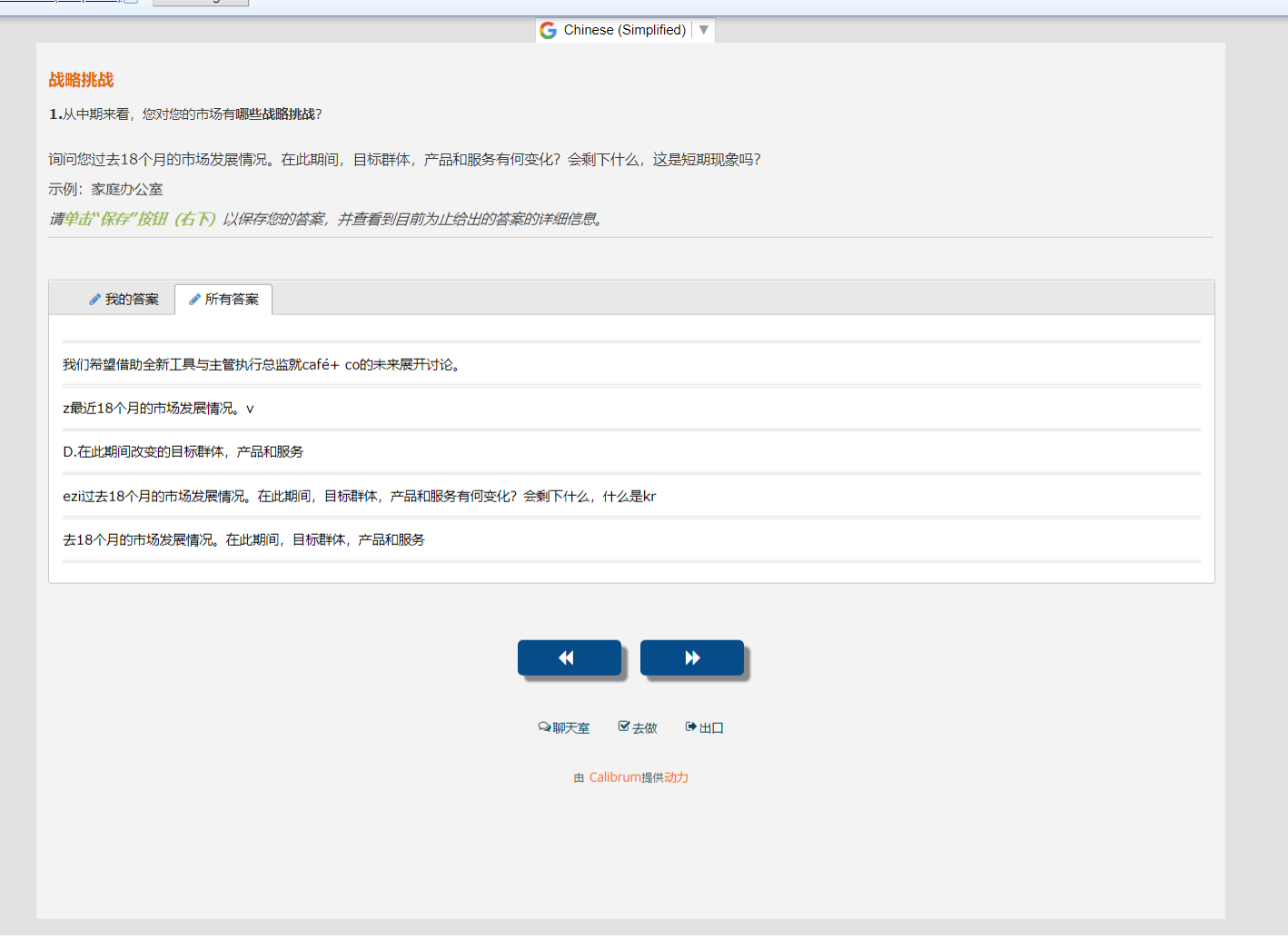
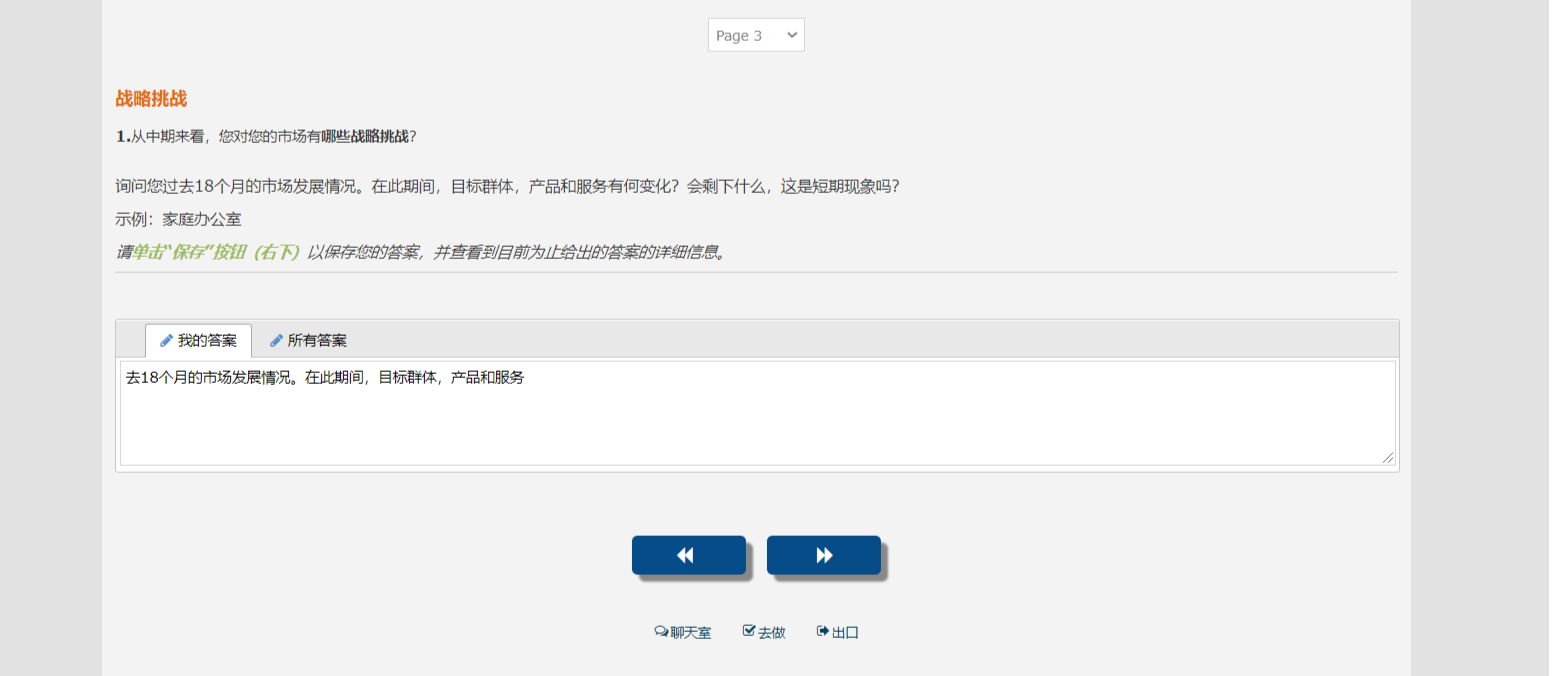
Panelist enters text into My Comments in Chinese:
Detailed instructions: Survey Settings
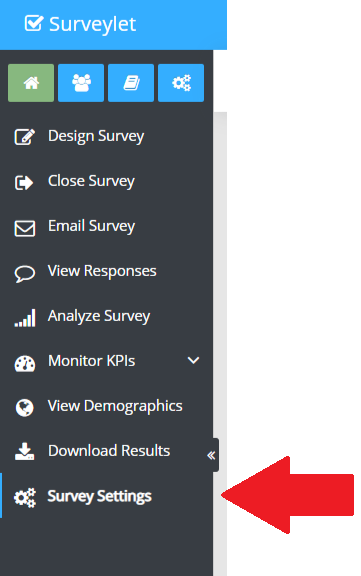
Enter the survey and click on the Survey Settings menu to access Survey Settings page:
On the Survey Settings page, the following 6 tabs will be displayed with a list of options available on each:
