
Run the study · Administrator
Launch, close, or reopen a survey
Control participant access and understand the cleanup actions that occur when a survey is opened.
Screenshots illustrate the controls below. Layouts and labels may vary with your survey configuration. Select an image or “View full size” to open it in a new tab.
Before opening
- Check the participant group, privacy, consent workflow, scales, and consensus settings.
- Verify test records, required statistics, response allowances, and the intended testing-mode setting.
- Test the exact link and invitation template.
- Review questionnaire trash for items that should be restored before opening.
- Keep a record of the final questionnaire and configuration.
Launch the survey
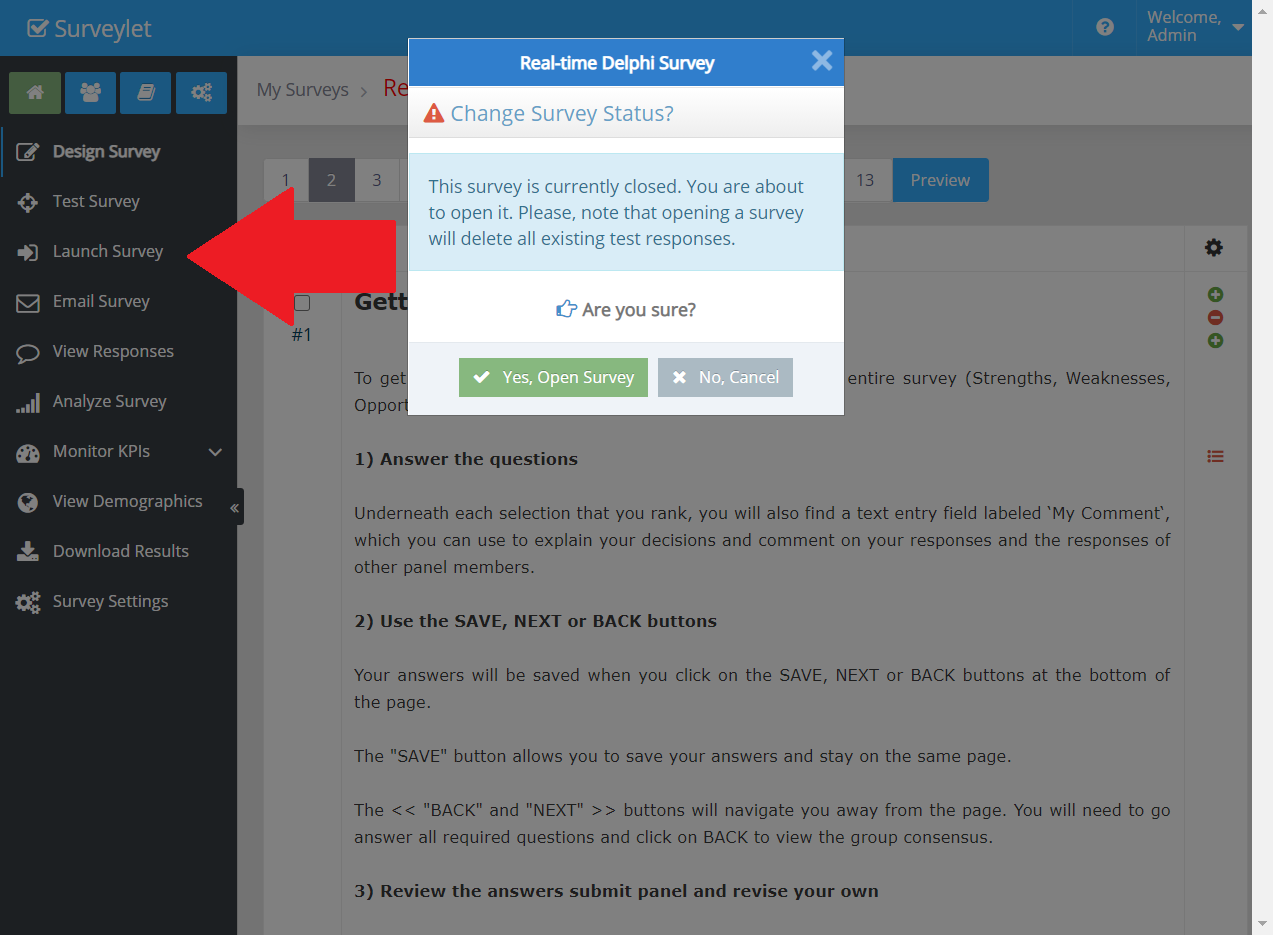
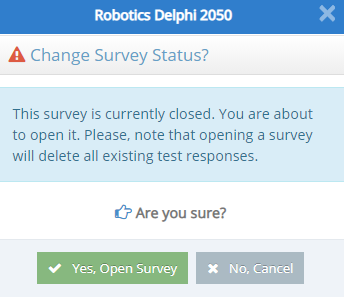
Choose Launch Survey and confirm Yes, Open Survey. The status changes to Open and permitted participants can enter using the appropriate links.
Opening a survey clears flagged test responses and soft-deleted questions from the trash. This cleanup also occurs when reopening. Restore anything you need and export relevant data first.
Launch controls access. Use Email Survey or your approved external process to send invitations separately.
More screenshots and examples (1)
Close and reopen
Close the survey when participation should stop or when you need to pause access. A participant who clicks their link while it is closed cannot continue until access is restored.
Reopening does not create a new round. Use Survey Rounds when you need the next round or a snapshot. Before reopening, check testing and trash cleanup again and tell participants what they should do on return.
Detailed instructions: Launch Survey