Screenshots illustrate the controls below. Layouts and labels may vary with your survey configuration. Select an image or “View full size” to open it in a new tab.
Detailed instructions: Page Branching Logic
Page Branching Logic (Skip Logic) allows you to change the way a respondent progresses through your online survey, depending on their answer to particular questions. Based on the answers to a question, you could use Skip Logic to route respondents through the survey.
Adding a Consent is a typical use for Page Branching as you may not want to allow users to participate in the survey without agreeing to the terms of use.
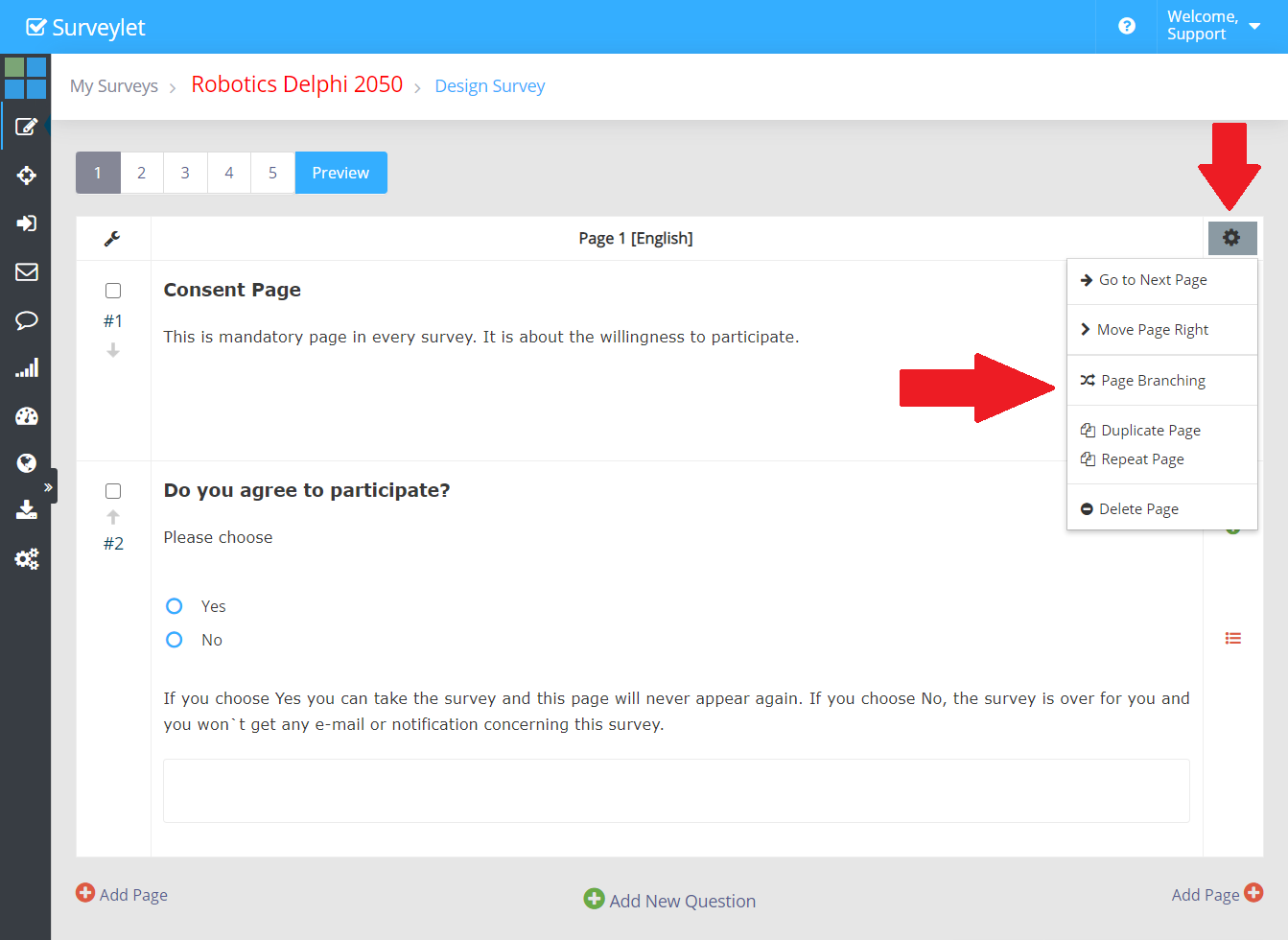
Click on the page settings cog icon in the upper right corner which will display a dropdown menu. Click on the Page Branching submenu to go to the Page Branching page:
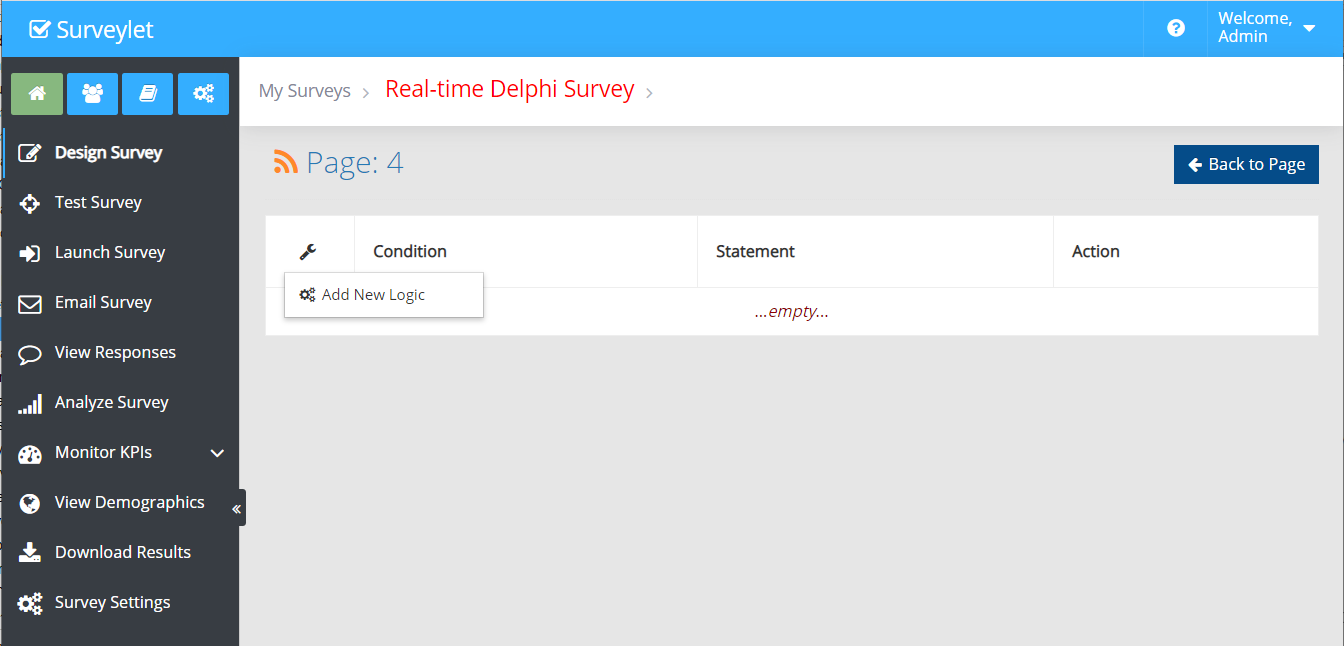
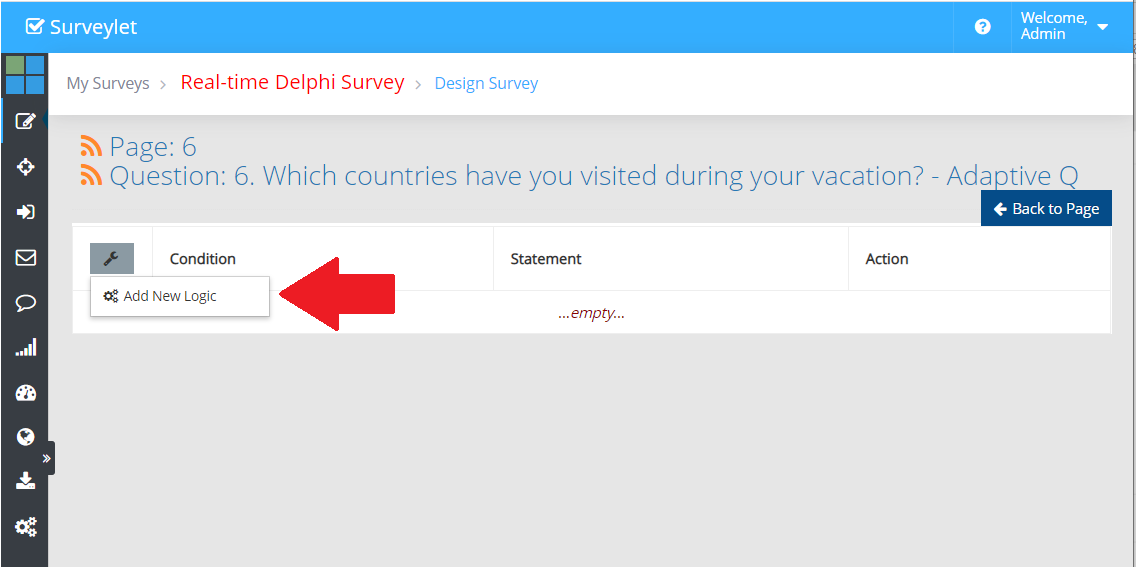
Click on the wrench icon in the upper left corner to add new logic:
You arrived at the logic designer page where you can setup one or more conditions for your branching logic.
1. Conditional Rule
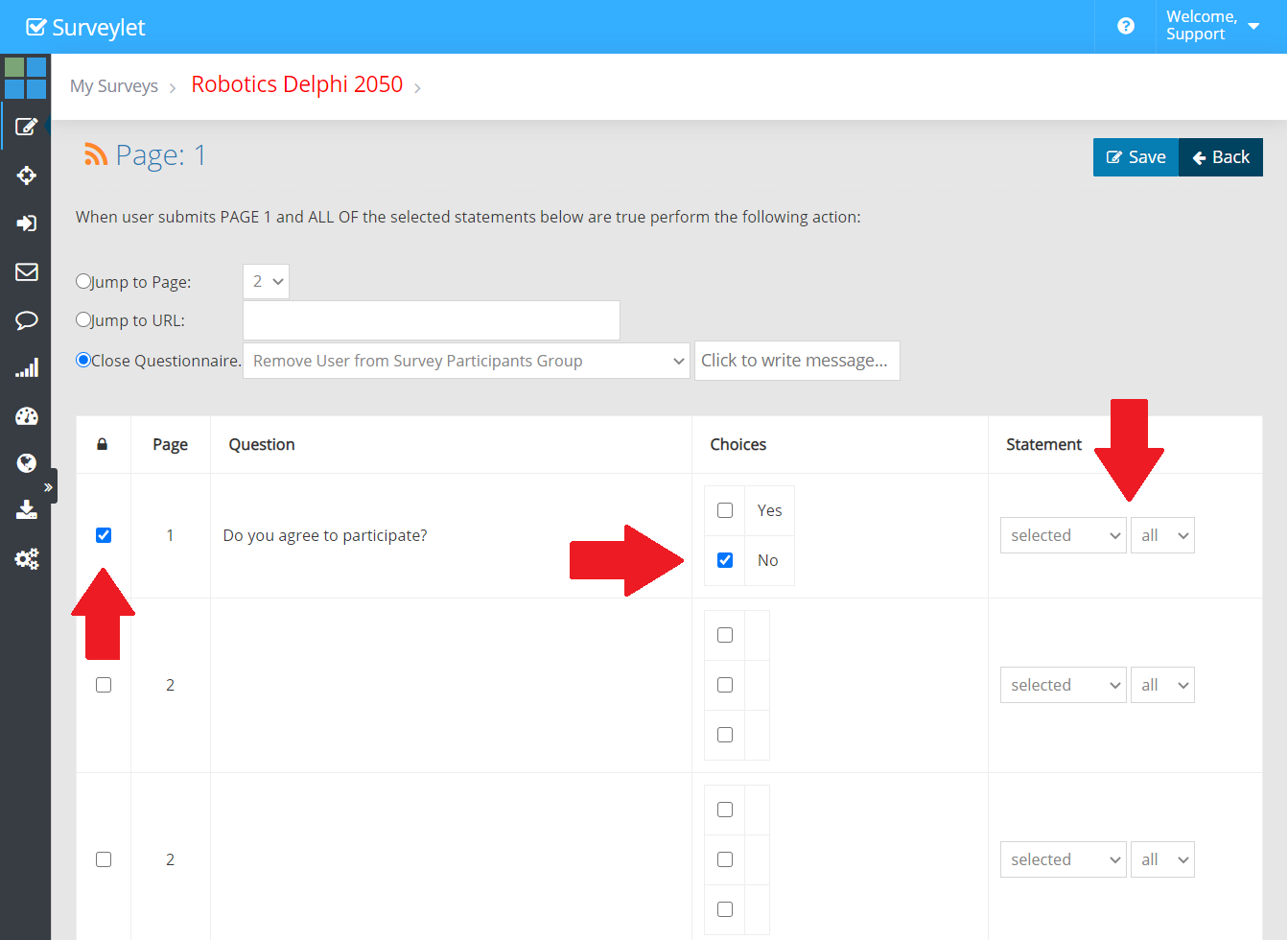
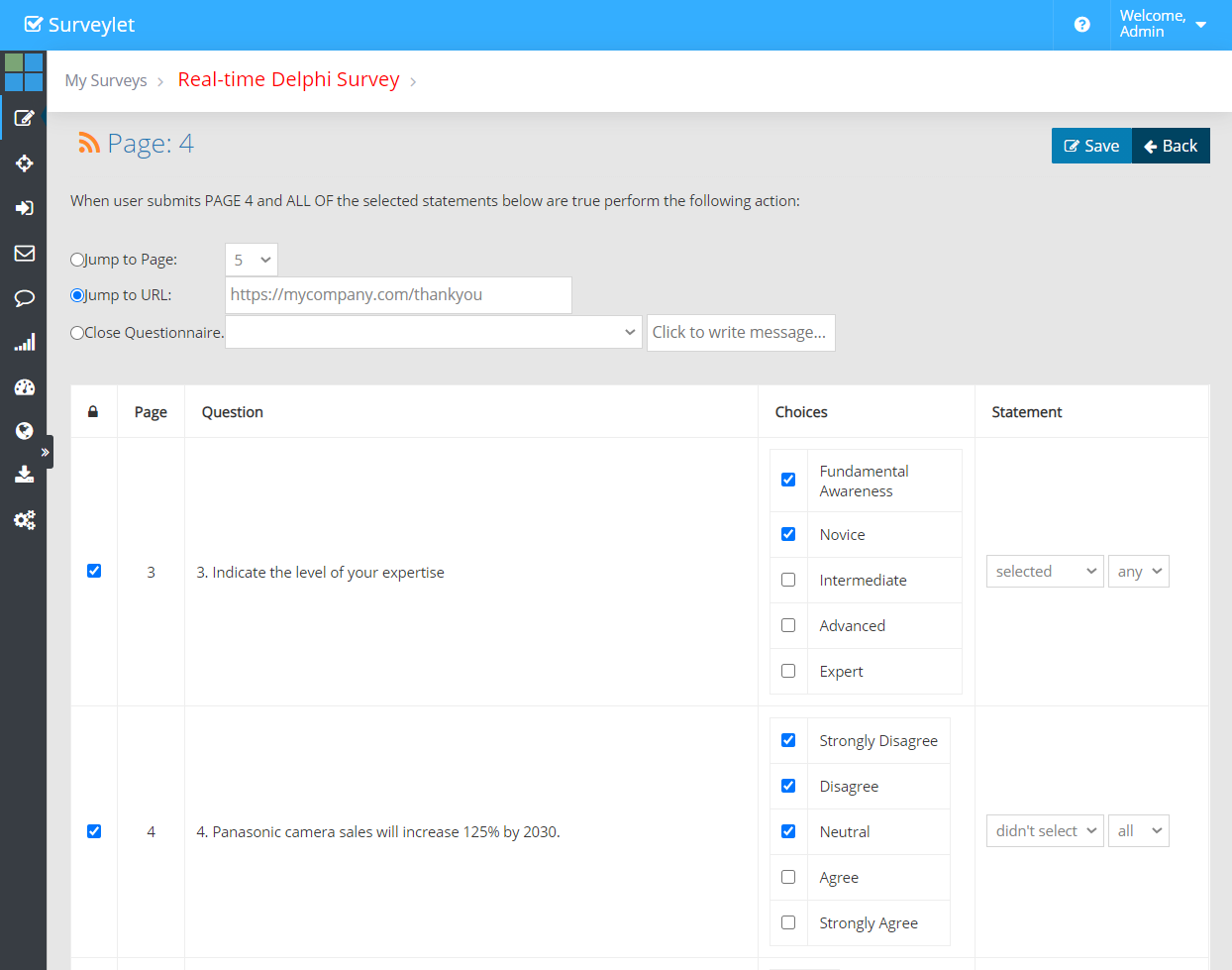
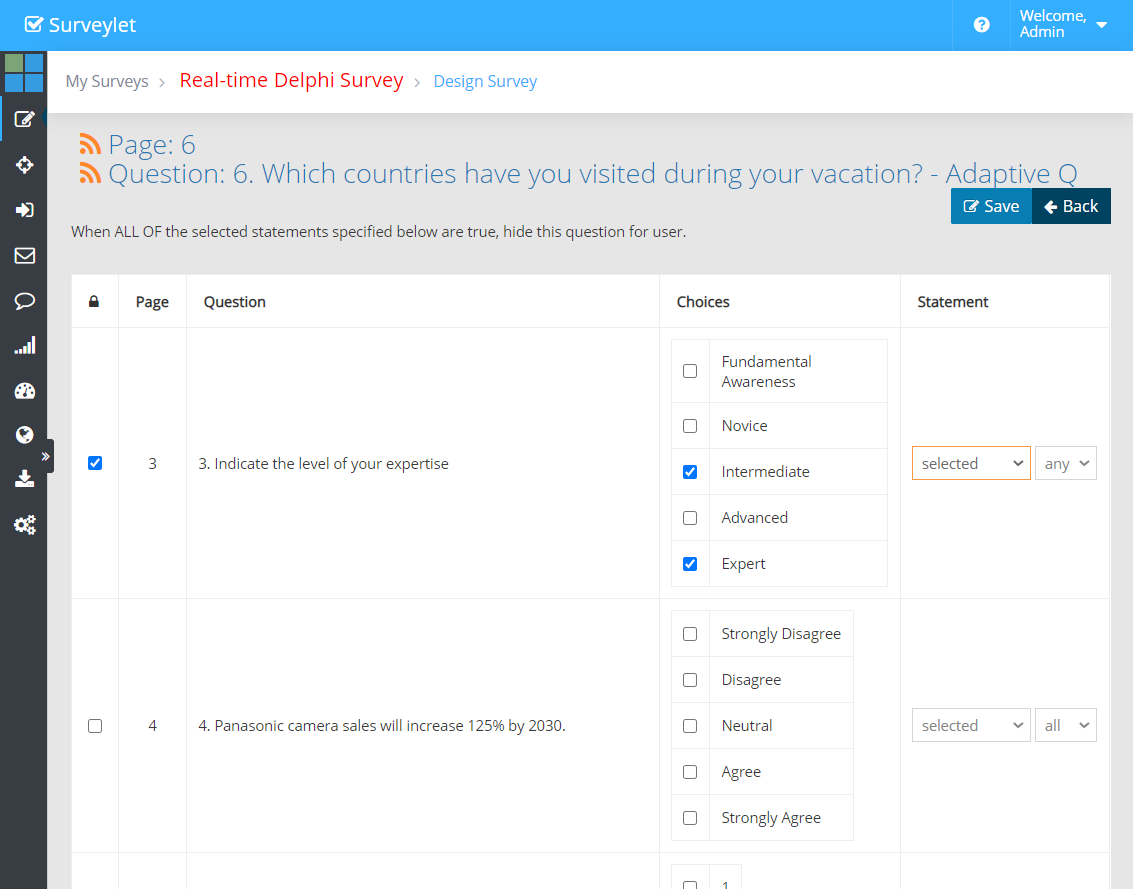
First build the condition by checking the checkbox in the first column for the question, then selecting one or more choices for the questions by clicking on the checkboxes associated with them and then select required condition logic from under the "Statement" column: [selected/not selected] + [all/any].
You can have the following 4 different options for Statement condition to build your conditional rule:
- selected any: if user selected any of the choices, then perform branching task (e.g. jump to page 9).
- selected all: if user selected all of the choices, then perform branching task (e.g. jump to page 9)
- didn't select any: if user didn't select any of the choices, then perform branching task (e.g. jump to page 9)
- didn't select all: if user didn't select any of the choices, then perform branching task (e.g. jump to page 9)
If you selected only one choice as part of your conditional rule, then both "any" or "all" bitwise conditional operator will evaluate true. So you may chose either of them.
You must select the checkbox for the question in the first column otherwise your condition criteria will not be saved.
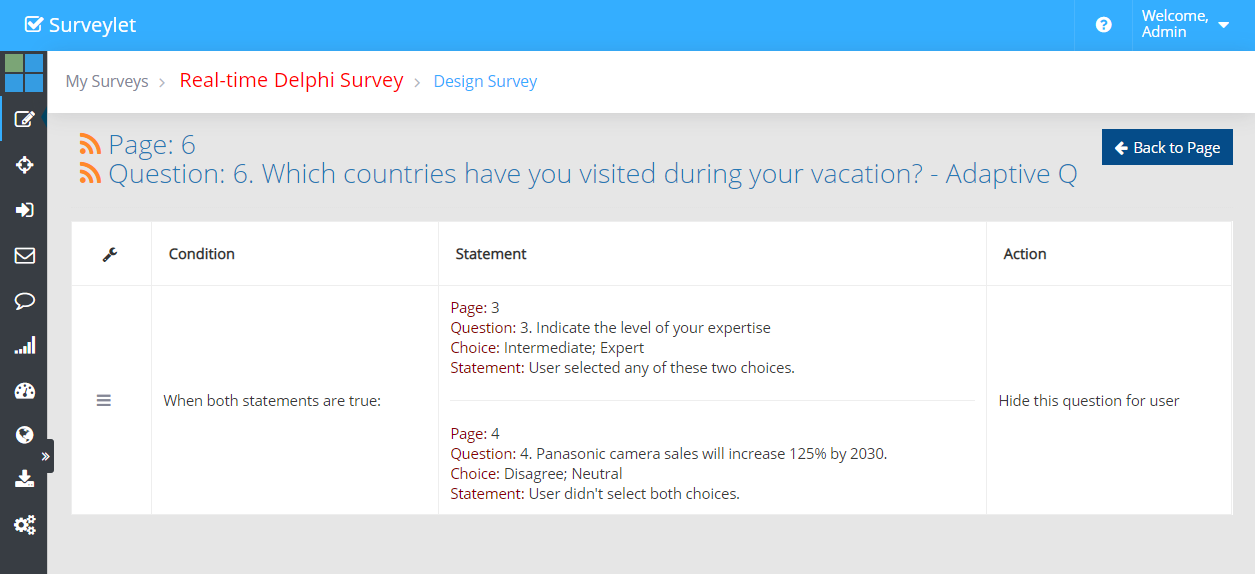
You may set up multiple conditions, and all conditions are evaluated with AND logic:
2. Unconditional Rule
If you did not select any conditional rule (no question, no choices), then the branching task will be executed when the user submits the page regardless what s/he answered on the page. This is called unconditional rule.
You must associate an event with your page branching. You have three options to chose as Branching Event associated with your un/conditional rule you set up above:
1. Jump to Page:
If selected condition is true, panelist is taken to specific survey page. You can jump forward or backward in your survey. If a new page is added after the page branching condition is created, the condition is automatically adjusted. E.g. in your 10 page survey you deleted page 5, then your page branching that took panelists from page 6 to page 8, now will take them from page 5 to page 7.
2. Jump to URL:
If selected condition is true, panelist is taken to (redirected) a specific URL. You need to add the http:// or https:// in front of the URL, otherwise redirection will not work. The redirection will be in the same browser tab and not in a new browser.
You may use this option to take panelist to another survey as the URL can be any of the survey URL's found under the target survey's "Survey Settings > Survey Access" tab. The rules for the behaviour of the selected survey link used will be as explained under the "Survey Access" (regarding display of registration screen, direct access to survey, sending email notification).
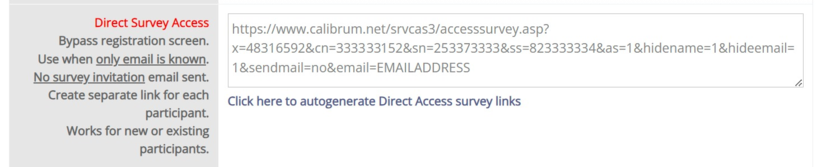
If you want to transfer the panelist directly to the new survey without having to register first, you will need to use one of the individual survey URL's and add the "&email=EMAILADDRESS" parameter to the URL.
For example:
https://www.calibrum.net/srvcas3/accesssurvey.asp?x=453592&cn=623452&sn=552602&ss=5267844&as=1&hidename=1&hideemail=1&sendmail=no&email=EMAILADDRESS
The "EMAILADDRESS" word (shown in red in the above URL sample) will be replaced with the logged on panelist's email address before the panelist is redirected to the target survey. You may also add the "&language=USERLANGUAGE" parameter to the above URL to set the panelist's default language in the new survey:
https://www.calibrum.net/srvcas3/accesssurvey.asp?x=453592&cn=623452&sn=552602&ss=5267844&as=1&hidename=1&hideemail=1&sendmail=no&language=USERLANGUAGE&email=EMAILADDRESS
When panelist is redirected and enters the target survey, a survey response will be used, unless the target survey is set to Testing Mode or the panelist has already answered that survey. Make sure the target survey is enabled for "Allow Public Access" (see Survey Settings), and is open and you have enough survey responses to accommodate the new response.
JUMP TO LAST PAGE VISITED:
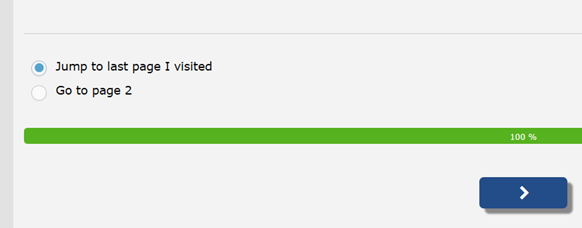
When panelists return to the survey in a new session, or they go back to the first page of your survey, you can provide them with the option to jump to the last page they visited by adding a radio button question with two options, for example:
As next step, you will need to add a page branching condition to this question to take panelists to the last page they visited.
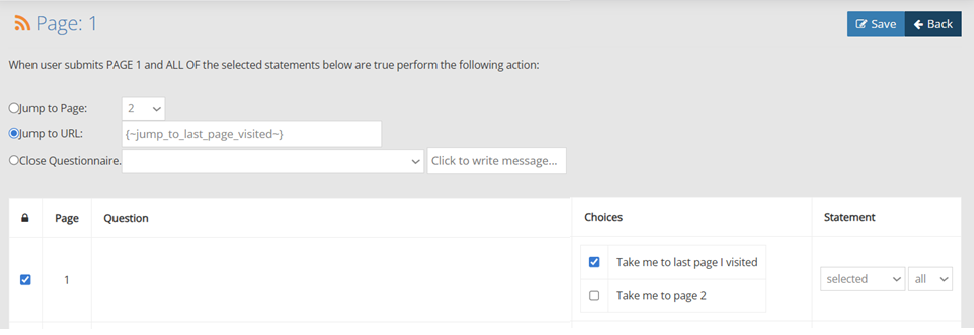
For Page Branching logic on Page 1, you will need to select the required condition and enter the following variable for the "Jump to URL" textbox as shown below: {~jump_to_last_page_visited~}
The {~jump_to_last_page_visited~} tag will be replaced during run time with the encrypted URL to take panelists to the last page they visited previously.
If they select the required radio button option assigned to the page branching logic, they will be taken to the last page they visited.
If they just entered the survey in a new session, they will be taken to the last page they visited in the previous session.
If they navigated back to Page 1 in the same session (for instance by using the Page Selector dropdown to jump from page 45 to page 1), they will be taken back to the last page they visited prior to visiting page 1 (which is - per our example - page 45).
If it's the first time they entered the survey, they will be taken to page 2 as there is no prior page they visited before in this or previous sessions.
3. Close Questionnaire:
Use this option to terminate the survey taking for respondents who do not meet certain filtering criteria, e.g. do not consent to survey or privacy rules, or those who do not meet certain demographics criteria (e.g. have less than 2 years of industry experience and are under 25 years old, and do not have PhD degree).
If selected condition is true, the user is taken to the sign off page, and Surveylet will
- keep panelist in same Survey Participants group: panelist may navigate back to the last survey page using the browser's BACK button and continue where s/he was left off. The Responses Used counter will not be lowered if panelist logs off; and no additional survey response will be used if panelist decides to go back and continue with the survey.
- remove user from Survey Participants group: user is removed from the survey participant group and his or her answers to all question collected so far in current survey round is deleted and cannot be restored (no answers will be deleted in any previous survey rounds). User can navigate back to last survey page with the browser's BACK button and continue with the survey. The Responses Used counter will not be lowered if panelist is logged off; and no additional survey response will be used if panelist decides to go back and continue with the survey.
- remove user from Account. If user navigates back to last survey page with the browser's BACK button, s/he will not be able to continue with the survey where s/he was left off; an Access Denied error message will be displayed. The Responses Used counter will not be lowered if panelist is logged off and removed from the account. Panelist and all his/her data will be removed from all surveys and cannot be restored. No email can be sent from Surveylet to users removed from your account.
You may write a custom sign off message to panelists in the "Click to write message" textbox. You may user HTML to format your message. Make sure you URL Encode your message. The maximum length of the custom message is 1,900 characters encoded. You may find free online URL encoders
here.
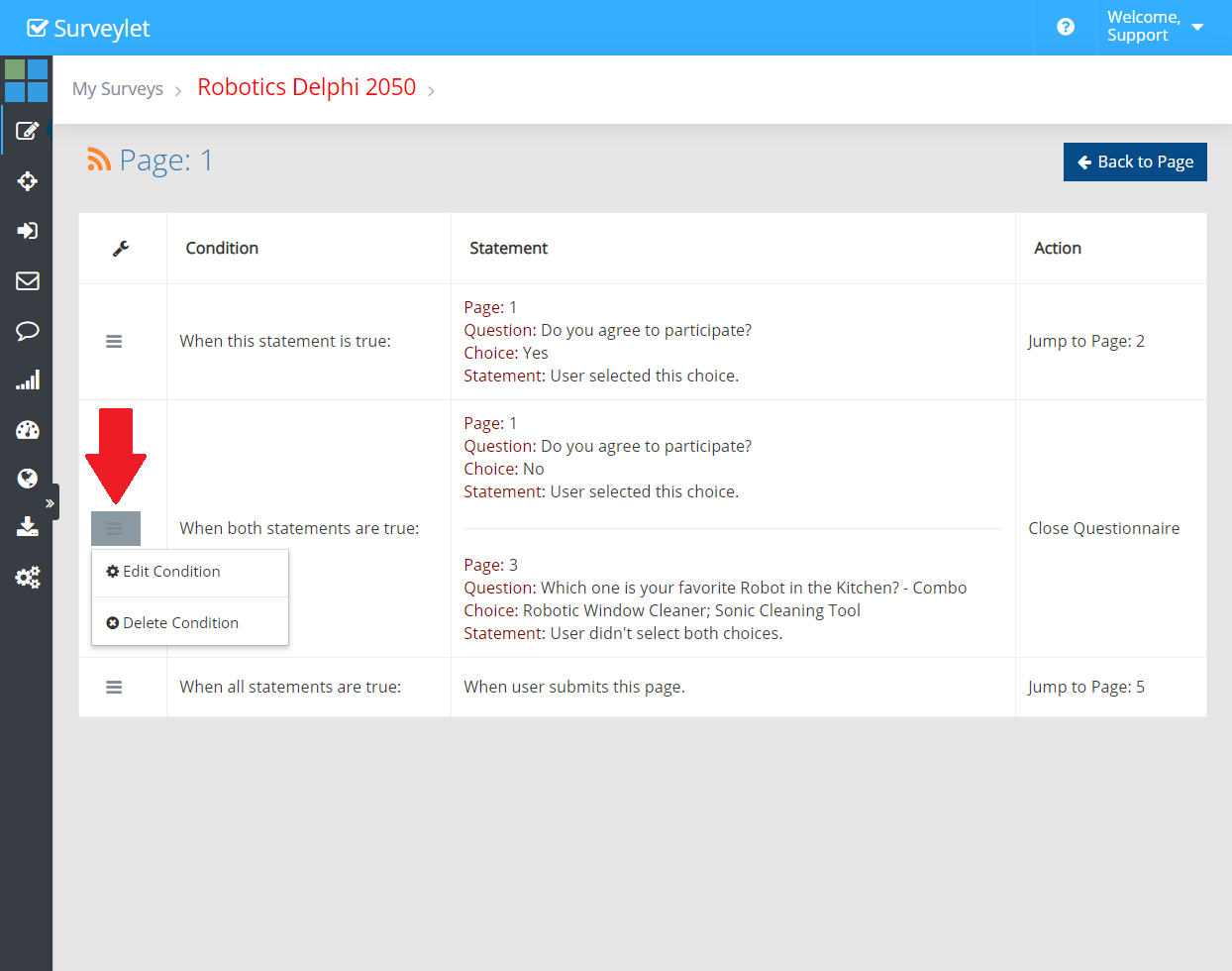
After you saved your Branching logic, you are taken to the Page Branching Logic summary page listing out all branching logic.
You may define one or more branching logic and they are evaluated starting from the first one one-by-one. If a branching logic is found that evaluates to true, then the branching action is performed (e.g. jump to page 9) and no further evaluation is done afterwards. Only one branching logic is executed.
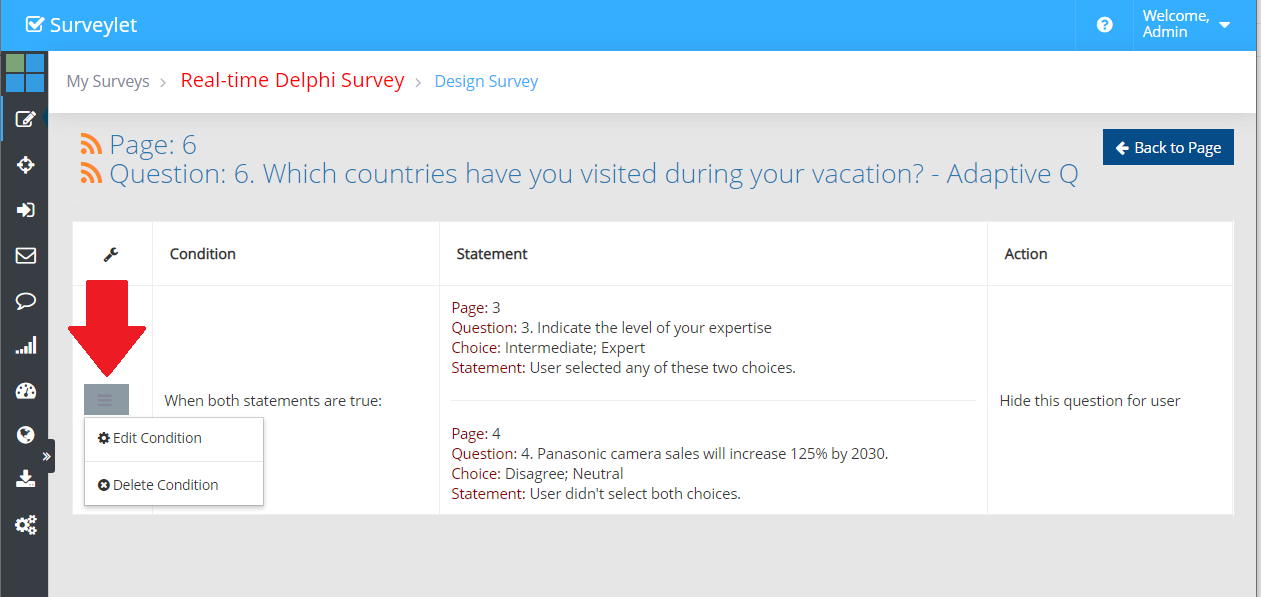
You can edit or delete existing conditions.
In the example below, there are 3 separate branching logic:
1) The first one is with a single choice condition,
2) the second one has two statements with multiple conditions,
3) the third one is with an unconditional rule which happens when the user submits page.
You may add new conditions and new conditions are added at the end of the Branching Queue.
Since currently you cannot re-position existing branching logic entries, you may need to delete and re-add them if you want to for instance one branching logic to be evaluated before another one.