
For participants · Participant
Save answers, navigate, and check progress
Know which buttons save your page and how to resume without losing unsaved changes.
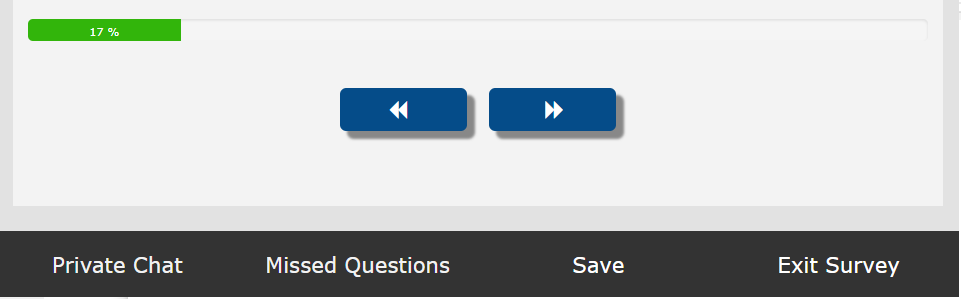
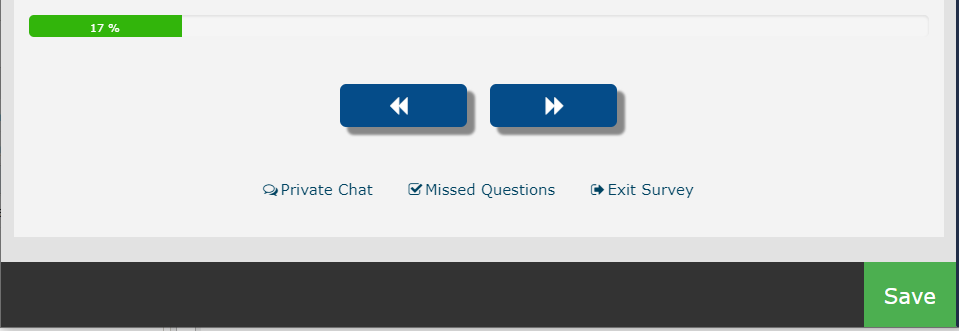
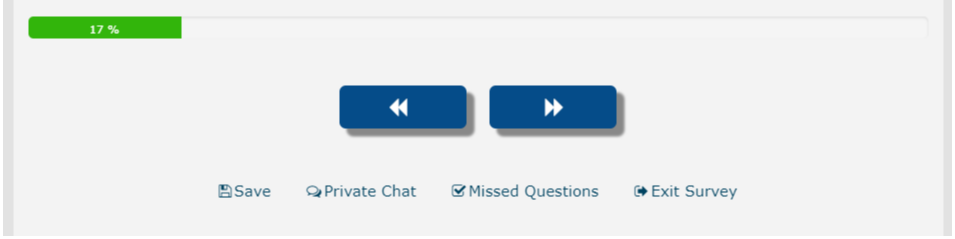
Screenshots illustrate the controls below. Layouts and labels may vary with your survey configuration. Select an image or “View full size” to open it in a new tab.
Save your answers in each new round
A later round may display your answers from the previous round to help you review them. Seeing an answer already selected does not necessarily mean it has been submitted for the new round.
Review each page, revise your answers or comments if needed, and click Save or Next / >>. Save the page even if you keep every answer unchanged. In a round that starts with no answers, progress increases as you save the relevant pages. Simply viewing a page or exiting the survey does not record those answers for the new round.
What the buttons do
| Button or control | Behavior |
|---|---|
| Save | Records answers on the current page and keeps you there. |
| Next / >> | Records the current page and moves forward. |
| Back / << | Moves to the previously visited survey page; save changes first. |
| Page selector | Jumps to a page where enabled; save changes first. |
| Exit | Leaves the session; save changes before exiting. |
| To Do | Lists unanswered items where enabled. |
| Chat | Opens communication with the study administrator where enabled. |
The study team can change button labels and hide some controls, so your survey may look different from these examples. Use the survey’s navigation rather than relying on the browser Back button.
More screenshots and examples (2)
Required questions and comments
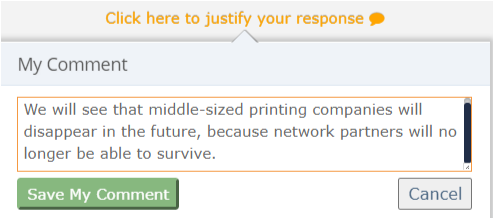
If Next or Save displays a validation message, read the message and check for a required answer, required comment, invalid number, or missing matrix cell. Some choices require a written reason even when other choices do not.
Use the virtual “I don’t know” option if it is available and you genuinely cannot rate the item. It is not the same as a neutral rating. Follow the study’s instructions.

More screenshots and examples (1)
Why progress may be below 100%
The progress bar is based on the inputs the study includes in progress. Optional questions, skipped paths, hidden items, or newly added adaptive choices can affect it. To Do may list a matrix by its overall title rather than naming each incomplete cell.
Check the required items and closing instructions. If you believe you have finished but the indicator remains lower than expected, ask the study team. Clicking Exit does not mark the questionnaire 100% complete.
Resume on another device
Save the current page before leaving. Open the same personal invitation link on the other device and check your saved answers. Avoid editing the same questionnaire in two windows or devices at once, since one session may overwrite changes from another.
Common questions
I went back and my latest edits disappeared. What happened?
Back and page jumping do not save unsaved page edits. Use Save or Next before navigating away.
Can I change an answer after saving?
Normally you can return and revise answers while the current round is open, unless the study locks the item or restricts navigation. Save the revision.
Should I select every checkbox to show I have read the options?
No. Checkboxes record your selected answers. Select only the options that match your response and the study’s instructions.