Administrator sign-in
- Open Surveylet administrator login.
- Enter your Account ID, username, and password as supplied for your account.
- If email authentication is enabled, enter the one-time verification code sent to your administrator email address. Check junk mail if it has not arrived.
- Use your organization’s account details. Participants normally use a personal invitation link rather than this administrator page.
Some existing accounts use an older database and a different login URL. If Calibrum supplied a specific URL for your account, use that link; a generic login page may not locate the account.
Check account settings
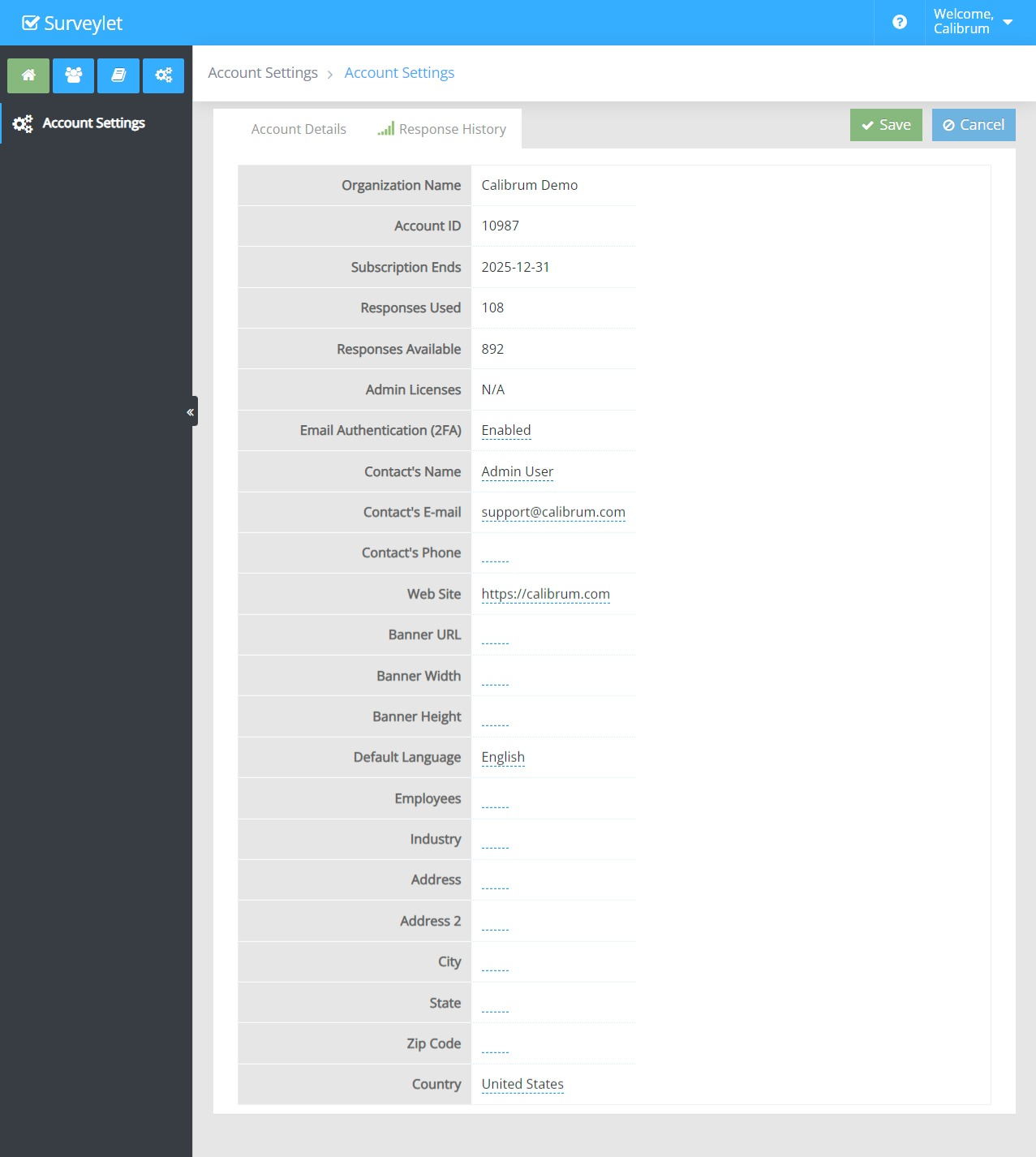
Open Account Settings to review the subscription end date, administrator licenses, responses used, and responses available. Review the primary account contact and default language. The default language applies to new users unless overridden.
Email Authentication (2FA) controls email verification for administrator sign-in. Keep your administrator email current so you can receive the code. Account branding, where enabled, is separate from the banner shown inside an individual survey.
Detailed instructions: Account Settings
Organization Name
Name of your organization this account is registered for. Read-only.
Account ID
The ID of your organization this account is registered for. Read-only.
Subscription Ends
Date your Surveylet subscription ends. Read-only.
Responses Used
Number of responses you have used. Read-only.
Responses Available
Number of responses that are still available for use. Read-only.
Admin Licenses
Number of admin user licenses you purchased. Read-only.
Email Authentication (2FA)
Two-factor authentication (2FA). When enabled, administrator users will be required to do email authentication to be able to log on to their Surveylet account. Default is Enabled.
Contact's Name
Your organization's contact name. This person is your organization's dedicated Point of Contact that can submit requests to our Support team. Only a single contact person is allowed per organization. No multiple contacts. Account and purchase requests are only accepted from this primary contact.
Contact's E-mail
Your organization's contact's email address. If you have a support service purchased, only request coming from this emails are accepted for review, others will be ignored.
Contact's Phone
Your organization's contact's phone number. In ermegencies, we will contact you via this phone number.
Web site
Your organization's website address.
Banner URL
The banner to be displayed on the login page for your organization where your account administrators will log on using their username and password and account id. You need to specify the banner URL (an http path) that points to your banner image. A banner must in in image format such as *.png, *.jpg or *.jpeg. No PDF format is acceptable. Only a single banner can be used. For multiple banners, merge the banners into one. If you do not have a URL for your survey banner, let us know and we will upload it for you and will send you the link. To specify a banner for individual surveys that your survey panelists see, go to Survey Settings > Display Settings > Banner URL.
Banner Width
The width of your banner displayed on top of your organization's login page. This option is disabled if your license does not allow you to use your own banner (requires Survey Branding services). It accepts values in numeric format which can be affixed with a "px" or "%" sign such as 50px, or 50%. The "px" determines the banner's static size in pixels. The "%" sets the banner's dynamic size as the percentage of displayed viewing port (page). Both width and height can be set at the same time, but we recommend that you only set one of them otherwise your image may be skewed.
Banner Height
The width of your banner displayed on top of your organization's login page. It is disabled if your license does not allow you to use your own banner (requires Survey Branding services). It accepts values in numeric format which can be affixed with a "px" or "%" sign such as 50px, or 50%. The "px" determines the banner's static size in pixels. The "%" sets the banner's dynamic size as the percentage of displayed viewing port (page). Both width and height can be set at the same time, but we recommend that you only set one of them otherwise your image may be skewed.
Default Language
Default language for all newly added users under your Surveylet account. If you set it to e.g. Spanish, all users that are added to your account via a survey URL or from Import from Text pages without a specific language will be added with this default language.
Employees
Number of employees in your organization. Optional field.
Industry
Industry of your organization. Optional field.
Address
Address of your organization. Optional field.
Address 2
Address 2 of your organization. Optional field.
City
City of your organization. Optional field.
Zip Code
Zip Code of your organization. Optional field.
State
State of your organization. Optional field.
Country
Country of your organization. Optional field.