Speed up programming with text imports and carefully targeted changes across questions or matrix columns.
Updated October 12, 2026
Screenshots illustrate the controls below. Layouts and labels may vary with your survey configuration. Select an image or “View full size” to open it in a new tab.
Import questions from text
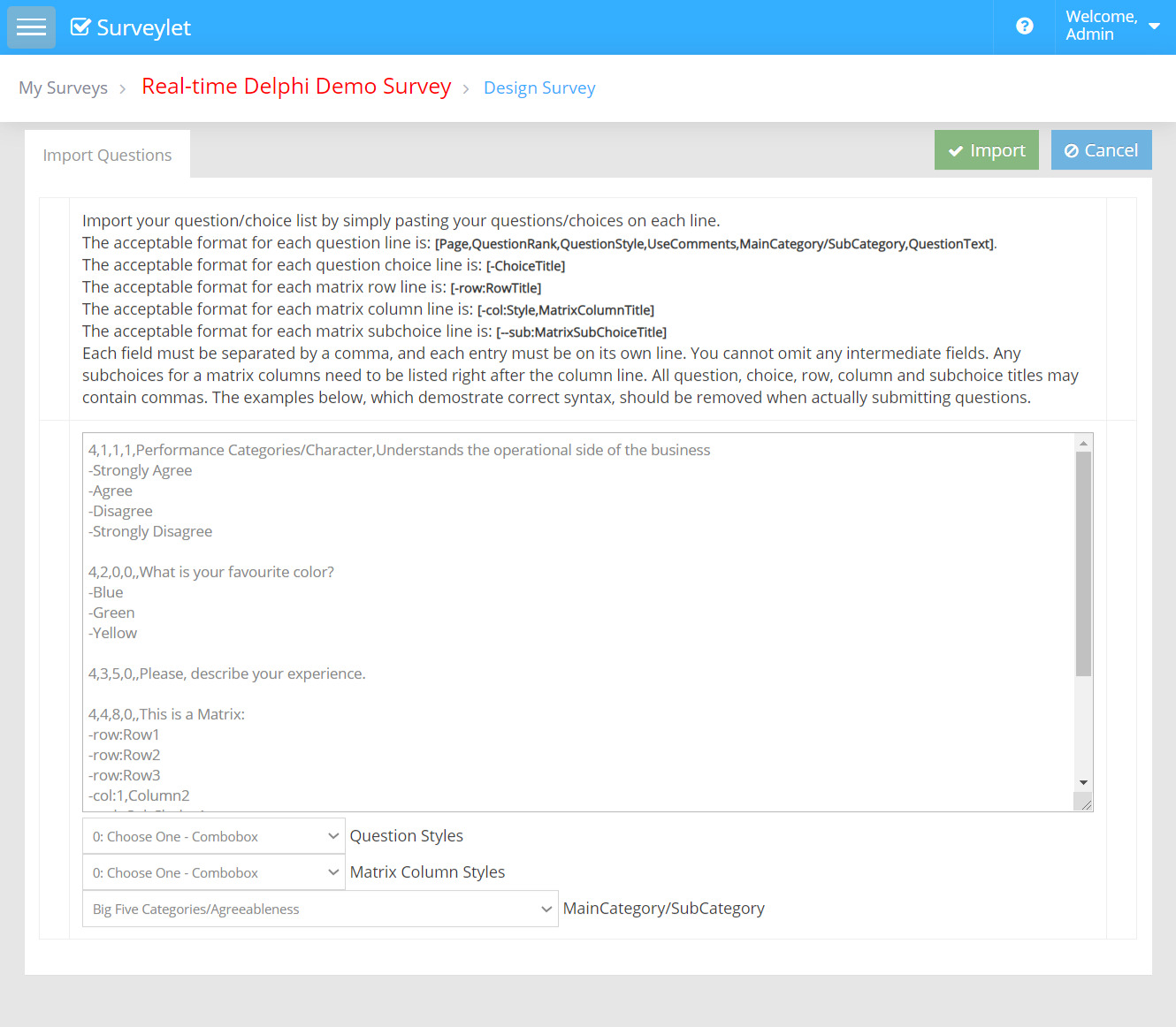
In the survey designer, choose Import Questions from Text. The header describes the page, position, question style, comment flag, KPI, and title. Choices appear on separate lines prefixed by a hyphen.
5,1,1,1,,Rate the importance of this item
-Not important
-Somewhat important
-Very important
This documented example adds a radio-button question on page 5, position 1, with comments enabled. Use the current Question Styles list to confirm style identifiers before a large import. Invalid formats are skipped. Referenced KPIs must already exist.
Matrix imports use -row:, -col:, and subchoice lines. Check the application’s import example and test a small matrix before importing the full questionnaire.
Select questions in the designer before applying actions such as Move Up, Move Down, Duplicate, or Move to Another Page. Duplicating questions does not copy their conditional logic, so review visibility and branching separately.
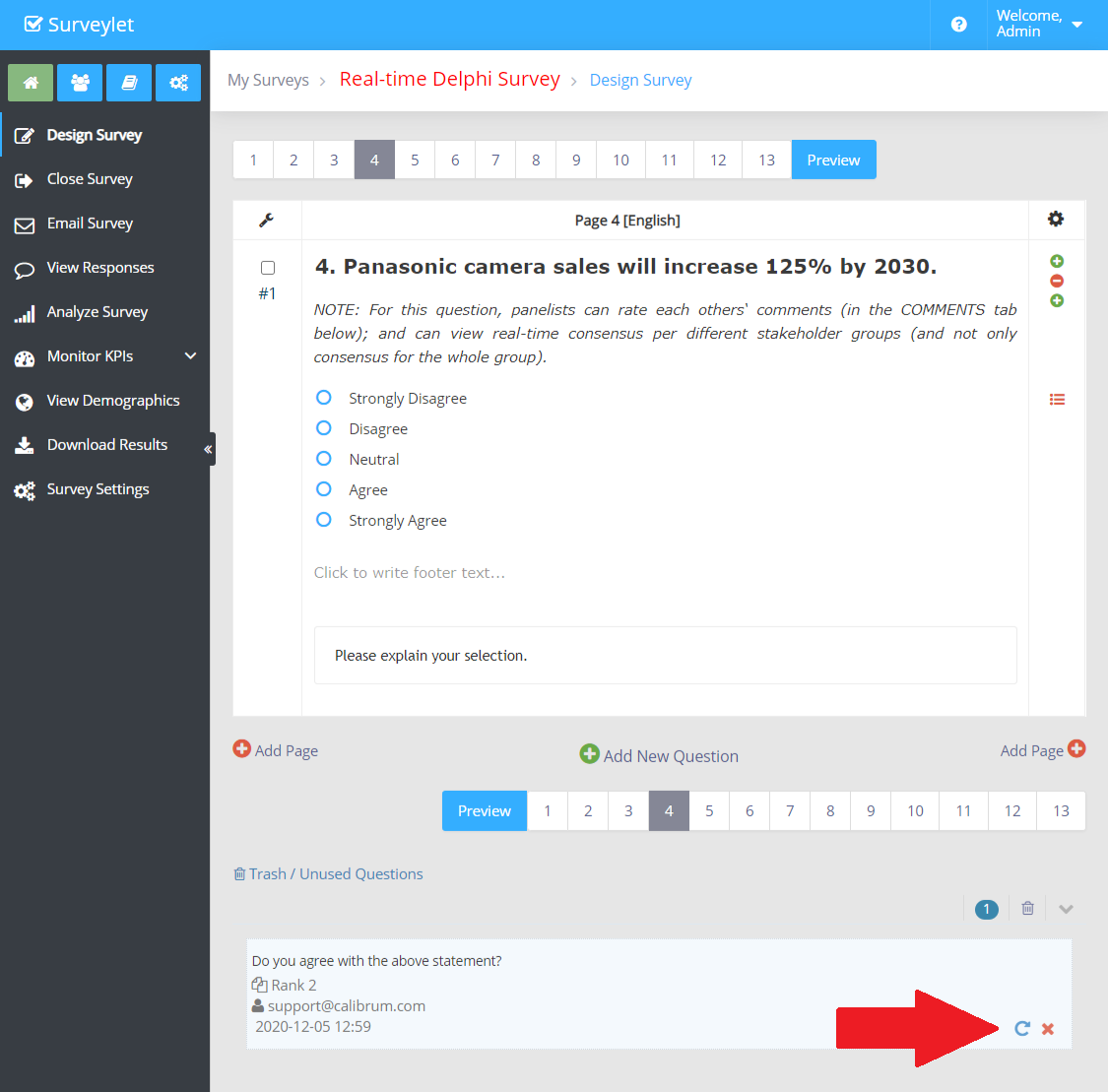
Deleted questions are initially placed in the page’s trash. Launching or reopening clears that trash and removes the associated data. Recover an accidentally deleted item before launching. Do not rely on data recovery to undo destructive changes.
More often than not, you will run into situations where you would need to adjust the same settings at once for several questions spread out across multiple pages in your surveys and it would take time to do them one by one. The Bulk-Edit Question page was designed with this in mind saving you hours and hours of survey programming along the way. Here you can select the options you want to change and the questions you want to apply it to and then apply your changes with a click of a button.
Settings you did not change will not be updated in the target questions and their values will be kept.
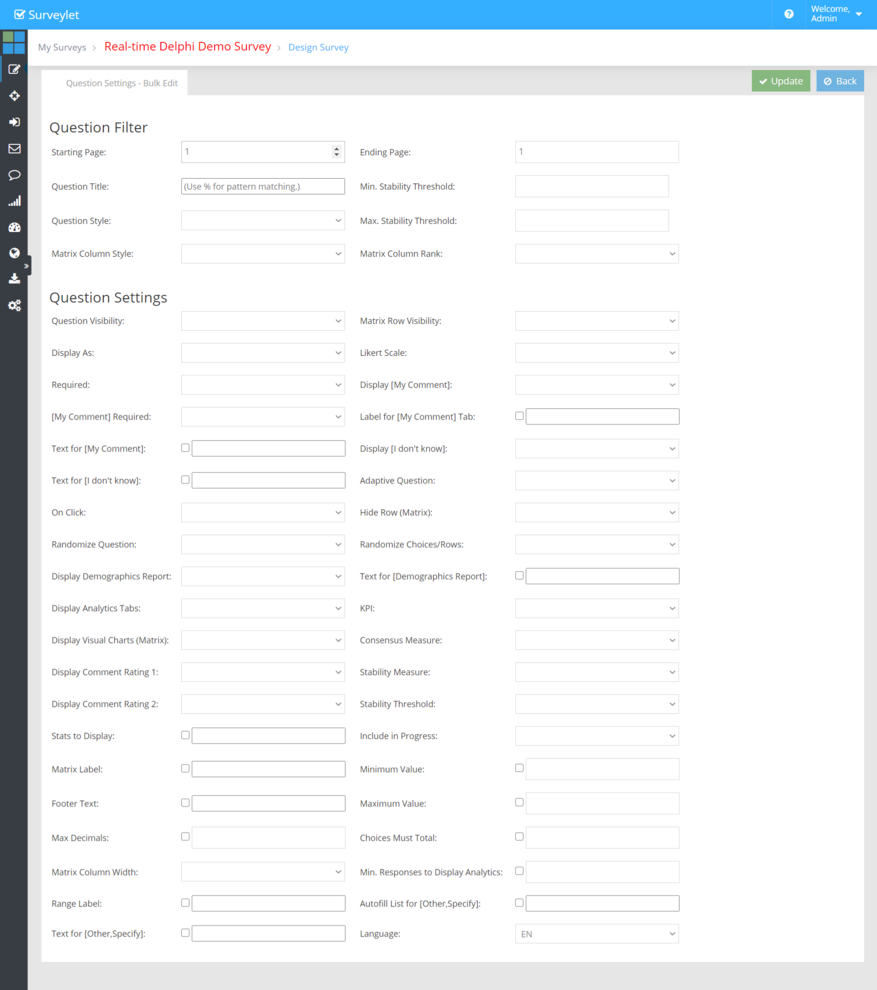
This block filters the list of questions to which your changes will be applied to. To apply the question setting changes you make under the Question Settings block, you use the Question Filter block to filter the questions or Matrix columns/row we want to apply our changes to.
1. Starting Page:
This indicates the page where your filtering of questions will start. If no value is provided, the first page will be used as starting page. Questions on pages before the Starting Page will not be affected by your settings changes.
2. Ending Page:
This indicates the page where your filtering of questions will end. If no value is provided, the last page will be used as starting page. Questions on pages after the Ending Page will not be affected by your settings changes. If no values are specified for both Starting Page and Ending Page settings, then all questions on all pages will be affected.
3. Question Title:
If you want your changes to be applied to only certain questions whose title contains a specific text, use the Question Title textbox to enter your search criteria. You may use the Percent Character ("%"), also known as the Wldcard Character which matches any string of zero or more characters. This wildcard character can be used as either a prefix or a suffix.
4. Min. Stability Threshold:
To apply the new settings to questions whose Group Stability in current survey round is equal or greater than a certain value.
5. Max. Stability Threshold:
To apply the new settings to questions whose Group Stability in current survey round is less or equal than a certain value.
6. Question Style:
To filter the questions by their question type so new questions are only applied to them, select the specific question style here from this dropdown. Question settings for no other question types other than the one selected here will be updated.
7. Matrix Column Style:
This option only applies to Matrix columns. Since each matrix have one ore more columns and each column can have its own unique question type, you may want to only update a specific column with your new settings. Here you can do that.
8. Matrix Column Rank:
Only matrix columns on a specific rank will be updated with the new settings.
Under this section are listed all possible question and matrix row and column settings. Matrix-specific settings will only be applied to matrix questions; question specific settings that matrix questions also contain will be applied to both non-Matrix and matrix questions. You can have multiple changes applied at the same time.
Changing Text Fields and Labels
There are settings that update text data such as labels, text. For these settings it is necessary to flag that a change needs to be applied even if the textbox is empty, otherwise we won't be able to apply blank text to them. For this, a checkbox prefix is introduced before the textbox which needs to be checked if we want the changes to be applied. For instance the "Text for [My Comment]" as shown below:
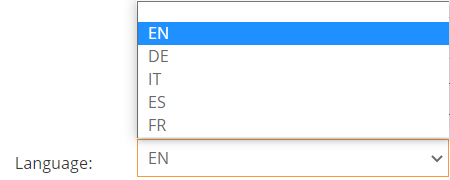
The Language option at the bottom right corner of the table is used when you have a multi-lingual survey (a survey that is designed and run in multiple languages). You will need to set which of the languages you want to apply your text changes to.
Read more about the different Question Settings options on the Question Settings help page.
Detailed instructions: Edit Multiple Questions
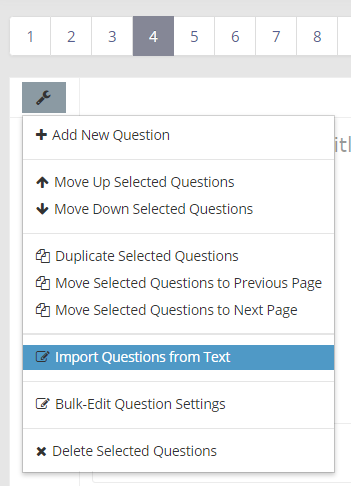
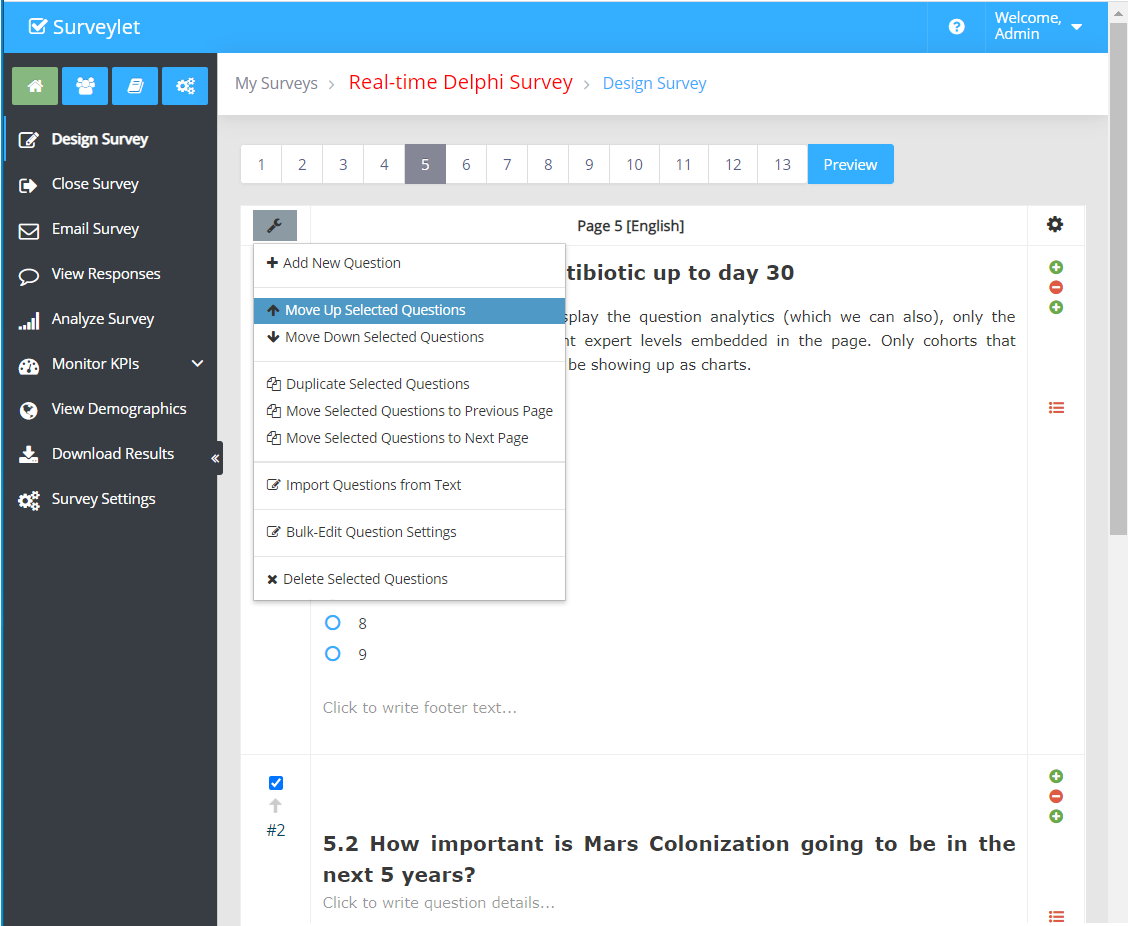
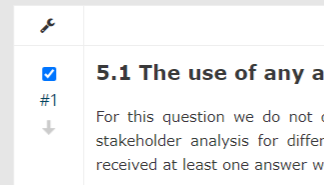
Occasionally you may want to run some operations on more than one questions at the same time, such as moving them up or deleting them. By clicking on the wrench icon, you will see a dropdown menu list with several options.
The selected menu item will be run against all selected questions. To select a question, click on checkbox in the first table column left to the question title.
1. Add New Question
This option adds a new question on top of the page as rank #1. It adds an empty radio button question with 3 empty choices, by default which you can change later.
2. Move Up Selected Questions
Moves up, i.e. decreases the position ranking of all selected questions on page.
3. Move Down Selected Questions
Moves down, i.e. increases the position ranking of all selected questions on page.
4. Duplicate Selected Questions
Copy/pastes selected questions. It does not copy over any conditional logic (e.g. page hiding logic).
5. Move Selected Questions To Previous Page
It moves selected questions to previous page at the bottom of the page.
6. Move Selected Questions To Next Page
It moves selected questions to next page at the bottom of the page.
7. Import Questions from Text
To quick import a set of survey questions on one or multiple pages, use this option. read more
8. Bulk-Edit Question Settings
To change the settings for several questions once at the same time
Deletes selected questions. This is a soft-delete operation, meaning that your deleted questions will be placed in the page's trash folder and can be recovered at any time. Soft-deleting a question does not yet remove any user responses associated with that question, it only hides the question from your survey and survey analysis pages.
You can hard-delete or recover a question from the trash as shown below by the red arrow. The trashbin is visible under the question list at the bottom of the page in the survey designer. If you do not have any soft-deleted questions, the trashbin is not visible.
Trash is automatically cleared when the survey is launched, or each time its status is set to Open, so your questions you soft-deleted will be gone and their responses they received will be wiped out. To recover lost questions or response, contact our sales team and purchase our "Data Recovery" service.
Detailed instructions: Import Questions
To speed up survey programming, the Import Questions page may come very handy. It allows you to add multiple questions at once. The import question feature is available from your question designer table's widget icon in the upper left corner as shown below:
This page can cut down the survey programming time significantly as it allows for a very quick import of all questions in your survey across all pages. You can also specify a few settings for each question, but it may be advised to use the Bulk-Edit Question Settings page to adjust the question and choice settings after import.
You may add one or more questions to one or more pages. The question title and each question choice must be on its own separate line. The import format is explained in the screenshot above:
To Specify Question:
Page Number: this is the page you want to place
Question Rank: the position of the question on page
Question Style: to select one, click on the Question Styles dropdown for available options. (Read more about question types.)
Use Comments: enter 1 if you want to switch on My Comment box.
MainCategory/Subcategory: add KPI category/KPI name. (Read more on KPI Library)
Question Text: this is the text for question
To Specify Choice:
"-ChoiceTitle": the label for the choice
To Specify Matrix Row:
"-row:Title" the label for the matrix row
To Specify Matrix Column:
"-col:Title" the label for the matrix column
To Specify Matrix Column Choice:
"-sub:Title" the label for the matrix column choice
Each choice and matrix row must be prefixed with the "-" character.
Empty lines will be discarded during import.
Questions with invalid import format will be ignored.
The KPI the question is assigned to must exist already before the import; otherwise it will be ignored.
With this option you may enter all your survey questions for all pages at once with a single import. Since not all question settings can be set during import, it may be necessary to change question settings for individual questions after the import. See Bulk-Edit Question Settings to see how you can edit settings for multiple questions at once.
Radio Button Question:
5,1,1,1,Performance Categories/Character,Understands the operational side of the business
-Strongly Agree
-Agree
-Disagree
-Strongly Disagree
Combobox Question
5,2,0,0,,What is your favorite color?
-Blue
-Green
-Yellow
Open Text Question
5,3,5,0,,Please, describe your experience.
Matrix Question(with 3 rows and 2 radio button columns)