Prepare a personalized invitation, test the email, and select the participants who should receive it.
Updated October 12, 2026
Screenshots illustrate the controls below. Layouts and labels may vary with your survey configuration. Select an image or “View full size” to open it in a new tab.
Prepare the invitation
Open Email Survey for the correct survey.
Confirm the To group. Recipients must also belong to the survey’s participant group to gain access.
Choose or load an email template, then add the study purpose, deadline, contact details, and saving instructions.
Insert the personalized survey link with {~user_loginurl~}. Do not paste a real participant’s private link into the shared message.
Select the message language and check any recipient language filter.
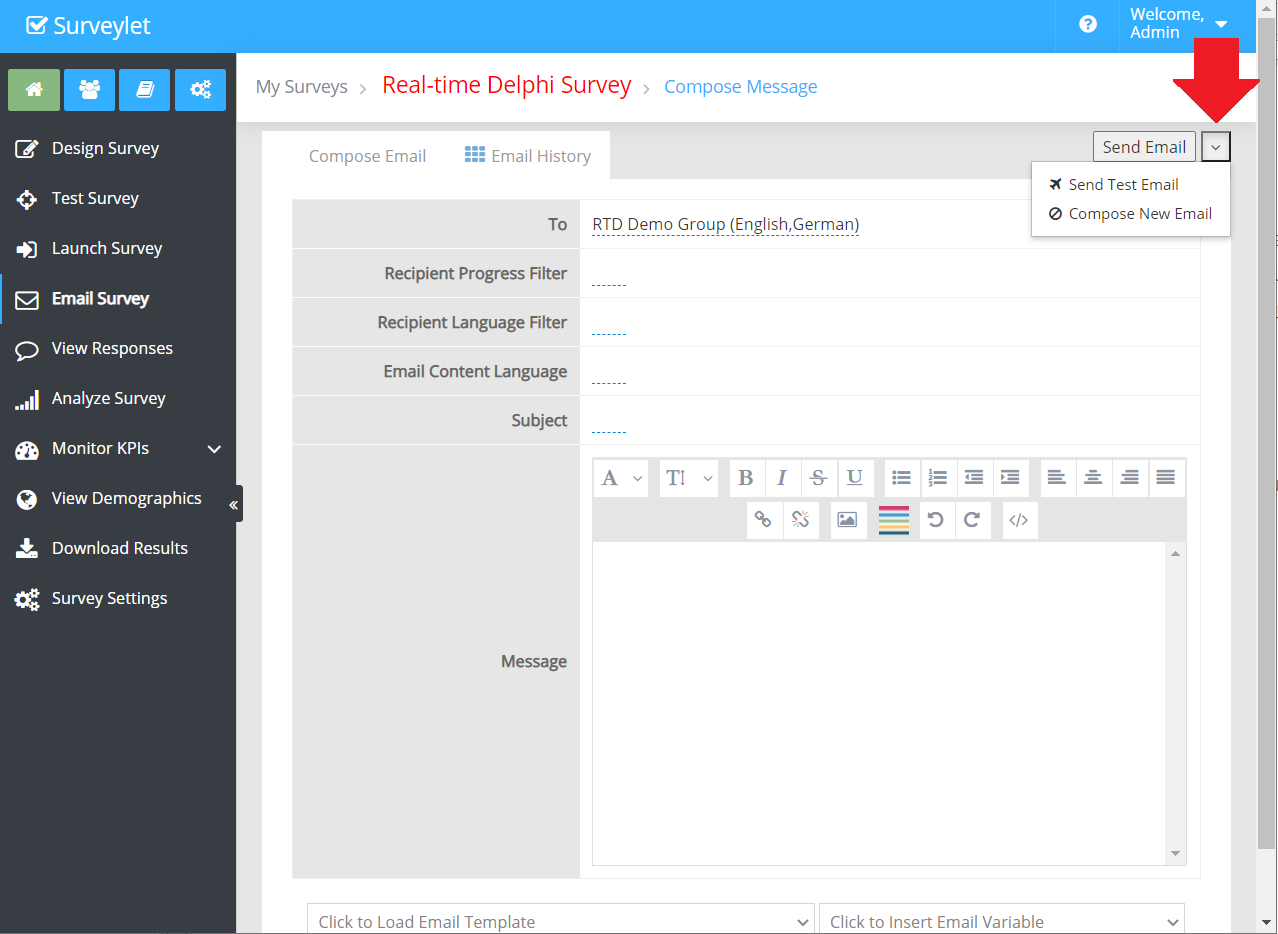
Use Send Test Email to check the subject, layout, special characters, and link before sending to the panel.
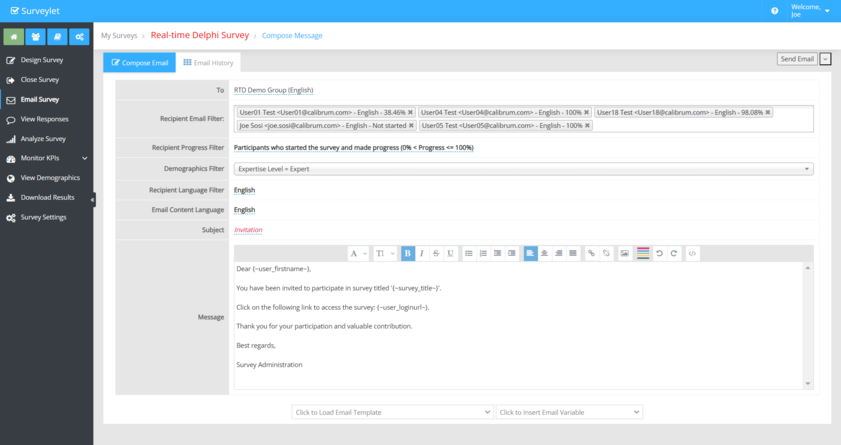
The Email Survey form brings together message content, recipients, and sending options. View full size (opens in a new tab)More screenshots and examples (1)
Use the recipient filters to narrow the mailing by progress, email address, language, or configured demographic answer. A mailing subgroup can contain only some of your panel, provided those people still belong to the survey’s participant group.
State whether the reminder asks people to answer missing questions, revisit feedback, or join a new round. A saved questionnaire with copied answers may show progress without a new visit, so review visits and activity as well as the progress percentage.
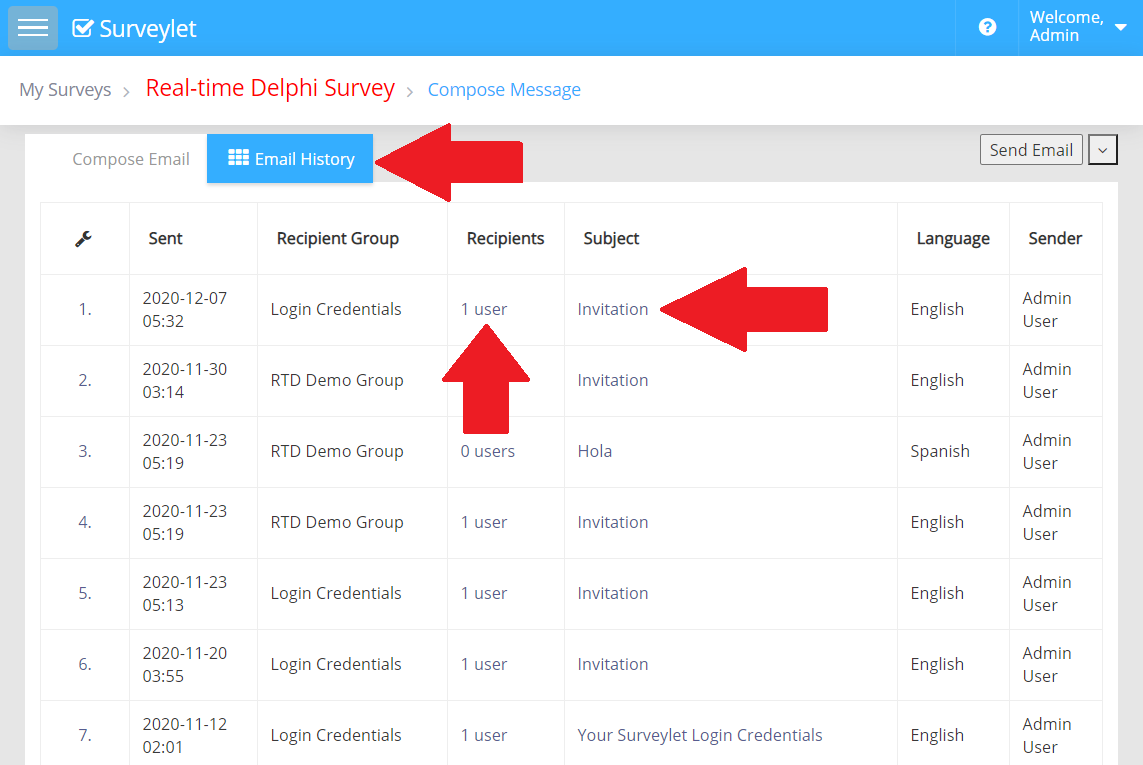
Use Email History to inspect previously sent messages. A send record does not prove that the recipient saw the message. Check junk filtering, incorrect addresses, and opt-out status if invitations are missing.
Respect opt-outs. Do not remove a person from the participant group merely to stop emails, since that can affect their data. For a one-to-one question, use the private Chat action where available.
Surveylet records all outgoing emails which data includes the actual email content, the name and email of recipients and data and time it was sent out and in what languages and the email sender.
To access email history, click on the Email History tab:
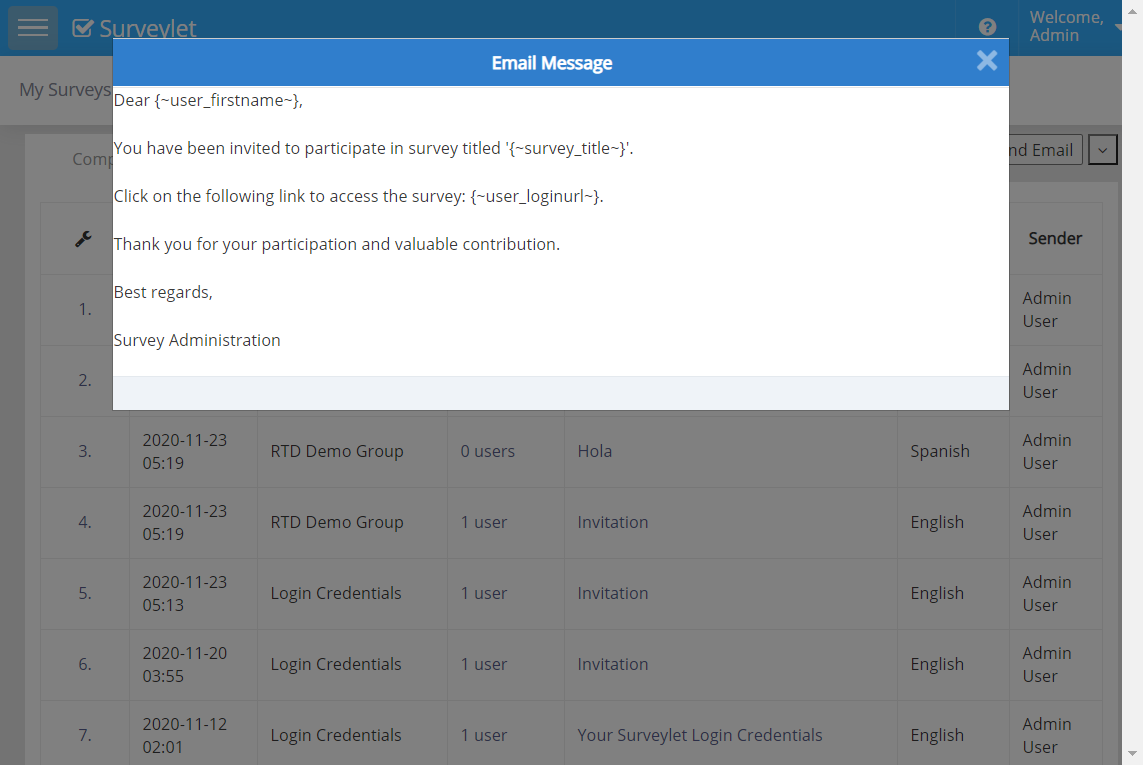
To view the actual email message, click on the subject line under the "Subject" column:
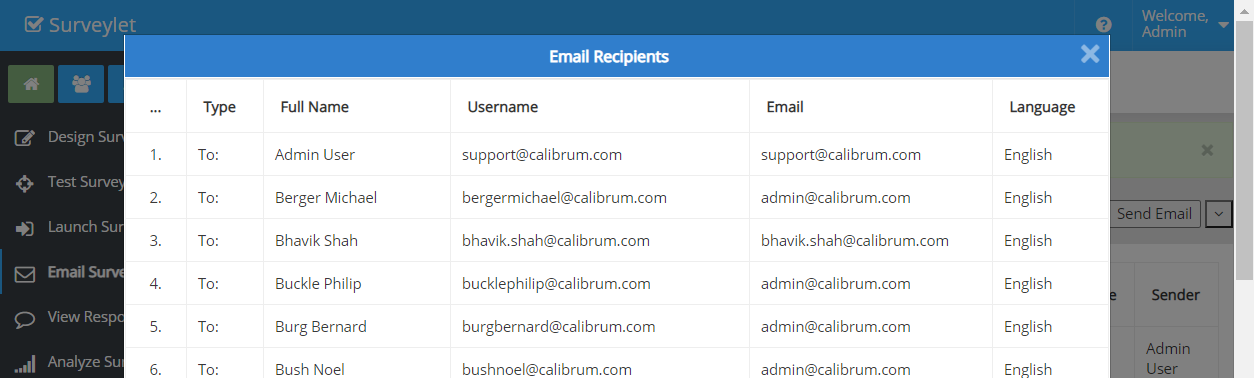
You can see the list of recipients by clicking on the cell under the Recipients column.
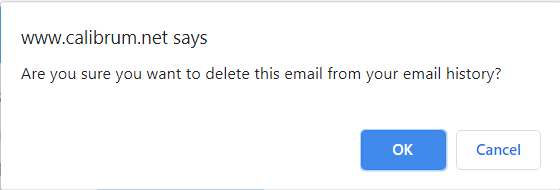
To delete sent emails, click on the number under the first column ("...") and select Delete.
Detailed instructions: Email Survey
Your survey is now open and you are ready to send out invitations and collect responses from your panelists. You may send out Survey URL's from the Survey Settings > Survey Access tab, or email the survey link directly from the Email Survey page:
To:
By default the "To:" recipients list is set to your survey's Survey Participants group. You may change the group to any other group you like, you just need to make sure that if you are sending out the survey links in your email, the panelists in the new group are also members of the survey participant's group, otherwise their access to the survey will be denied. It's not uncommon that you may want to just create a group for 15 of the 100 panelists who have access to your survey and send them a message. You simply create a new group, add those 15 people and here on the Email Survey page, you assign the To: field to that group and send them the email. Since they also belong to the survey participant's group, they will be able to access the survey when they click on the survey link.
After the survey participants group name (in our case "RTD Demo Group") you will see the list of languages that users that belong to that group may speak. The languages are comma-separated. In our case, in our group panelists speak the German and/or English languages. So I need to make sure that I send them both an English and a German translated email. English email to the English speaking people, and German email to the German speaking audience.
You can filter the languages using the "Recipient Language Filter" option.
Recipient Email Filter:
You can filter the list of recipients by email address. The dropdown will display the list of all panelists with a valid email address. Only panelists that are members of the current survey round will be displayed in the dropdown list. The panelist language and survey progress are also displayed with their name and email address. For high privacy surveys, only internal ID for panelists will be displayed; their email and language will be hidden. To select multiple panelists at the same time, you can continuously push down the CTRL key, and with your mouse click on individual panelists in the list.
Recipient Progress Filter:
You can filter the list of recipients by their progress. If panelists belong to the progress level you select from the dropdown menu, they will receive the email, otherwise they won't.
Demographics Filter:
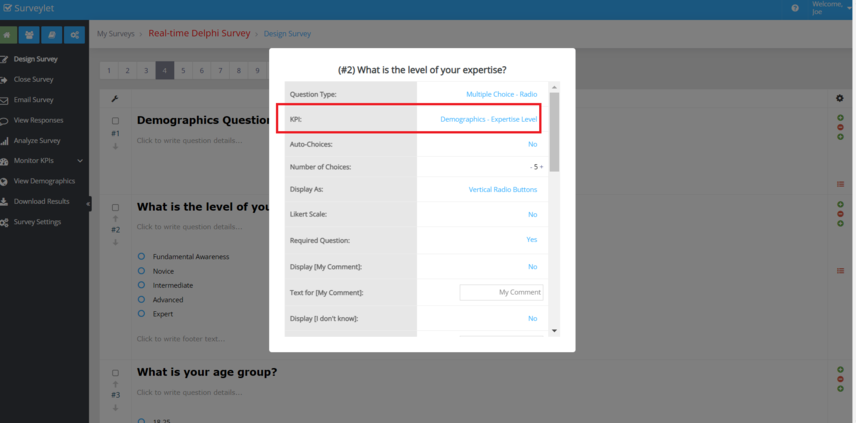
You can filter the list of recipients by their demographics characteristics. If panelists selected the same choice as you selected from the demographics dropdown menu, they will receive the email, otherwise they won't.Only questions whose KPI property (in the Question Properties window) is set to a Demographics category (as shown below) will be listed in the demographics dropdown:
Recipient Language Filter:
Only recipients whose "Language" (in Users > User > Language) is set to the language you selected will receive your email, others will not.
Email Content Language:
If you selected a language (other than English), you will need to set the encoding so Surveylet can send out the correct language characters. If you send out Spanish email written in Spanish, make sure you select the "Spanish" for Email Content Language. If you leave it out, special characters may be displayed unreadable to your panelists in your email.
Subject:
The subject line for your email. You may use Email Variables here.
Message:
This is the actual message body. HTML formatted. You can use the HTML editor to create your content, or switch to HTML source by clicking on the "</>" icon to edit the HTML directly; but make sure you switch back to normal view from HTML source by clicking on the "</>" icon again, otherwise your edits will be lost and cannot be recovered.
Click to load Email Template:
List of Email Templates that you can import and continue to edit. Feel free to edit the imported email template, it won't affect the original template. Email templates are designed from the Library > Email Templates page.
Click to insert Email Variable:
List of Email Variables. Email variables are tokens that are replaced when the email is sent. Their values will be determined for each email. Each Surveylet email is a personalized email, so each email is sent out individually and not in a group, even though you are sending it to a whole group. No individual emails can be sent to panelists. To communicate with your panelists on one-on-one, use the View Responses > Chat functionality.
Send Email:
Before you send out your emails to your panelist, you may want to test it and see how it looks.
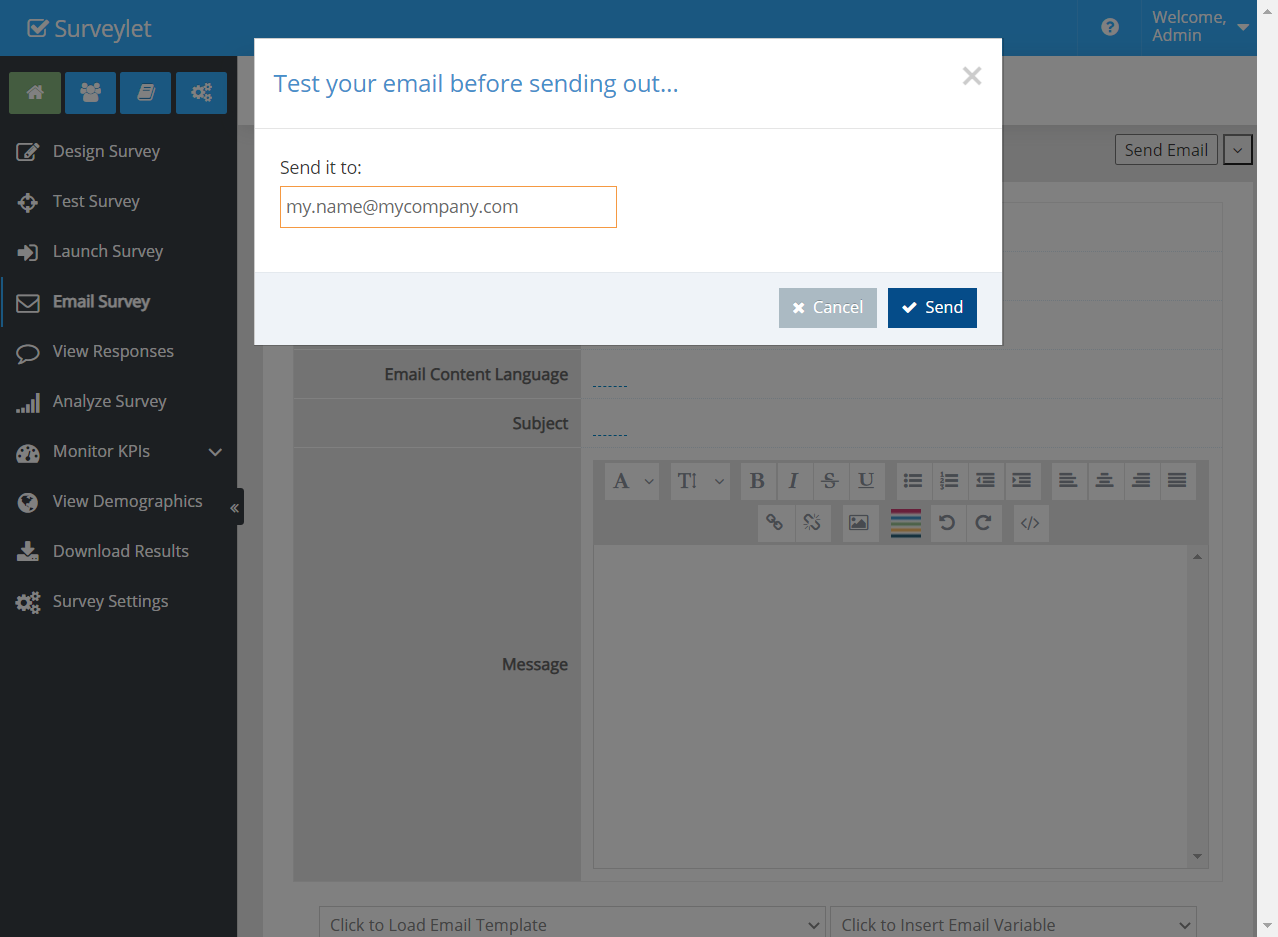
Click on the Send Test Email menu button:
Enter the test email you want the email to be sent to:
Common questions
Does launching automatically email the panel?
Launching opens access to the survey. Send invitations separately through Email Survey or distribute the appropriate access links using your approved recruitment process.