Distinguish manually authored translations, participant language preferences, and optional automatic translation.
Updated October 12, 2026
Screenshots illustrate the controls below. Layouts and labels may vary with your survey configuration. Select an image or “View full size” to open it in a new tab.
Design languages and participant languages
Survey Design Languages determines the languages available in the question editor. Select the intended language before editing question text and labels. A user’s language preference and the language of an invitation are related settings, but do not themselves create translated questionnaire content.
Add the intended design languages in Survey Settings.
Enter and review the questionnaire text in each supported design language.
Set participant language preferences and prepare the corresponding invitation templates.
Check button labels, scale anchors, help text, consent, and closing instructions.
Test the full journey, including characters in email subjects and exports.
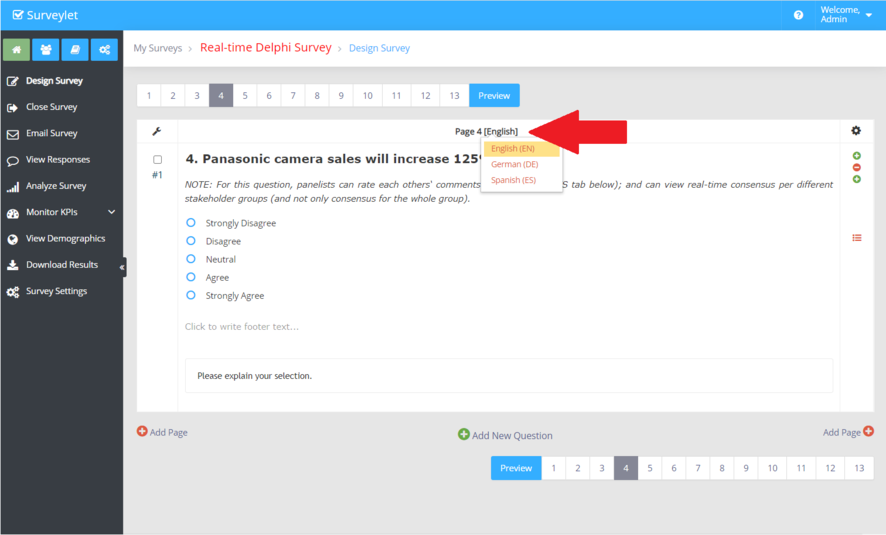
Use the language selector to choose the version you are editing in the designer. View full size (opens in a new tab)More screenshots and examples (1)
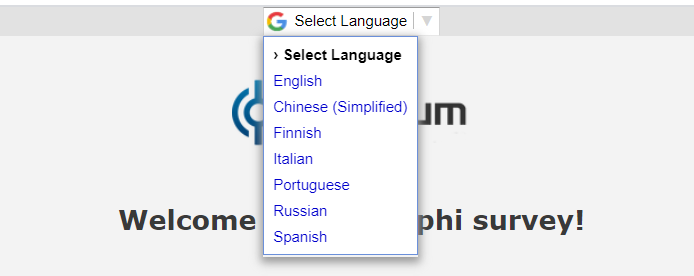
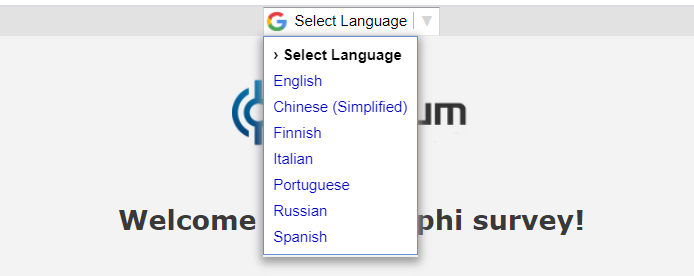
Where enabled for your account, Google Translate can display survey content and comments in additional languages. It is different from a translation reviewed and entered by your study team. Confirm that using the service is permitted for your project and that the resulting wording is suitable.
If your organization requires third-party translation to be disabled, contact Calibrum to confirm the account configuration before launch. Manually entered translations can be used without relying on automatic translation.
Removing a design language deletes the stored questionnaire translation for that language. Adding the language back does not restore the deleted text. Export or keep a copy before removing a language.
For a language or character set you have not used before, confirm support with Calibrum and test the editor, runtime controls, charts, email, and exports. Do not assume every translation language works as a manually authored design language.
Detailed instructions: Survey Languages
This section below provides information on internationalization for surveys that utilizing non-English language or languages.
Survey Settings > Survey Details > Survey Design Languages
This is the list of languages you want to design the survey in. Surveylet does not allow you to design the survey in all languages. The default is your organization's default language the is configured from the Account page using the Default Language option. If you are planning to design multilingual surveys, you have the option to use Google Translate to automatically translate your questions and participants' answers; or you can define the translations yourself. You can add a language at any time. When you delete an existing language, the language translation for all questions will also be removed and cannot be restored later by re-adding the language. The Survey Design Languages listed here do not need to be added to Google Translate Languages list, meaning that you can design a language in English only and display it in Italian and Chinese. In the Survey designer, the languages listed in the "Survey Design Languages" will be available for selection from the language dropdown as shown below:
Available Survey Design Languages (in Alphabetical order):
Afrikaans
Albanian
Basque
Bosnian
Catalan
Cebuano
Corsican
Croatian
Czech
Danish
Dutch
English
Esperanto
Estonian
Filipino
Finnish
French
Frisian
Galician
German
Haitian Creole
Hausa
Hawaiian
Hungarian
Icelandic
Igbo
Indonesian
Irish
Italian
Javanese
Latin
Latvian
Lithuanian
Luxembourgish
Malay
Maltese
Maori
Norwegian
Polish
Portuguese
Romanian
Scots Gaelic
Serbian (Latin)
Sesotho
Shona
Slovak
Slovenian
Somali
Spanish
Sundanese
Swahili
Swedish
Turkish
Uzbek (Latin)
Vietnamese
Welsh
Xhosa
Yoruba
Zulu
Available Survey Design Languages (per Continent and Country):
🌍 Africa
Benin — French
Botswana — English
Burkina Faso — French
Burundi — French
Cameroon — English, French
Côte d’Ivoire — French
Eswatini — English, Swazi
Gabon — French
Gambia — English
Ghana — English
Kenya — English, Swahili
Lesotho — English, Sesotho
Liberia — English
Malawi — English
Mauritius — English
Namibia — English
Nigeria — English
Rwanda — English, French
Senegal — French
Seychelles — English, French
Sierra Leone — English
South Africa — Afrikaans, English, Zulu, Sesotho
Tanzania — Swahili, English
Uganda — English
Zambia — English
Zimbabwe — English
🌎 Americas
Argentina — Spanish
Bahamas — English
Barbados — English
Belize — English
Bolivia — Spanish
Brazil — Portuguese
Canada — English, French
Chile — Spanish
Colombia — Spanish
Costa Rica — Spanish
Cuba — Spanish
Dominican Republic — Spanish
Ecuador — Spanish
El Salvador — Spanish
Guatemala — Spanish
Haiti — Haitian Creole, French
Honduras — Spanish
Jamaica — English
Mexico — Spanish
Nicaragua — Spanish
Panama — Spanish
Paraguay — Spanish
Peru — Spanish
Suriname — Dutch
United States — English
Uruguay — Spanish
Venezuela — Spanish
🌏 Asia
Azerbaijan — Azerbaijani (Latin)
Indonesia — Indonesian
Malaysia — Malay
Philippines — Filipino
Singapore — English, Malay
Timor-Leste — Portuguese
Turkey — Turkish
Uzbekistan — Uzbek (Latin)
Vietnam — Vietnamese
🌍 Europe
Albania — Albanian
Austria — German
Belgium — Dutch, French
Bosnia and Herzegovina — Bosnian, Croatian
Croatia — Croatian
Czech Republic — Czech
Denmark — Danish
Estonia — Estonian
Finland — Finnish, Swedish
France — French
Germany — German
Hungary — Hungarian
Iceland — Icelandic
Ireland — Irish, English
Italy — Italian
Latvia — Latvian
Lithuania — Lithuanian
Luxembourg — Luxembourgish, French, German
Malta — Maltese, English
Netherlands — Dutch
Norway — Norwegian
Poland — Polish
Portugal — Portuguese
Romania — Romanian
Slovakia — Slovak
Slovenia — Slovenian
Spain — Spanish
Sweden — Swedish
Switzerland — German, French, Italian
United Kingdom — English
🌏 Oceania
Australia — English
Fiji — English
New Zealand — English
Survey Settings > Survey Details > Google Translate Languages
List the languages that will be displayed to your panelists on top of the survey pages if their Google translate option is switched on.
Surveylet can handle most non-exotic languages such as English, Spanish, German, Italian, French, Greek, Dutch, Portuguese, Estonian, Hungarian, Czech, Serbian, Polish, Romanian, Slovak, Slovenian.
You can also use the Russian language to design the survey as an admin, and allow your panelists to carry out the survey in Russian. The only caveat is that for the non-Matrix questions, the Distribution Analytics charts will display the ranking of the question choices instead of their names. Also, for survey admins, some of the admin functionalities such as Download Results grids, and the Email Survey Subject Line (Email Content is OK) will be not be able to display Russian characters. Other than these limitations, Russian language can also be used.
You cannot use exotic languages that require special characterization (such as Mandarin, Hebrew, Vietnamese, etc.) as your Survey Design Languages, however, you can still run your survey in these languages as well, all you need to do is assign one functional language (e.g. English) as Survey Design language, and the target languages as your "Google Translate Languages". The Survey Design Language does not need to be listed in the Google Translate Languages list.
Administrators can also view the results and administer their Surveylet account and surveys in any language of their choice, even exotic languages, they just need to set the "Google Translate" option to "Yes" in their User Profile page which will display the "Google Translate" language dropdown for them to select which language they want to use to view and administer Surveylet.
Make sure you test your language of choice first before you run your survey, or contact us and inquire about the availability of the language of your choice.