Results & exports · Administrator
Map participant roles to stakeholder groups
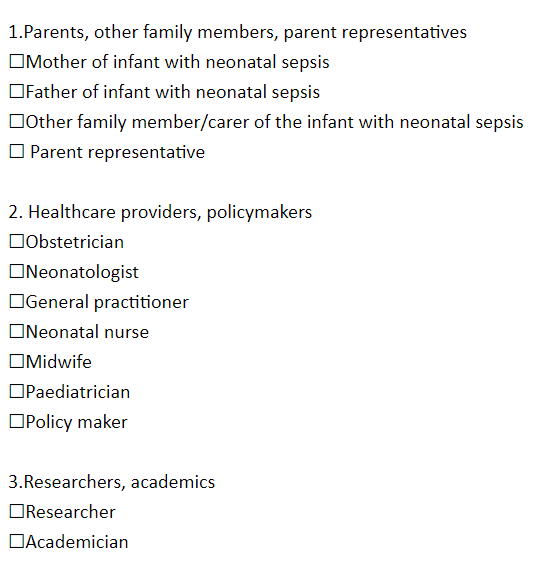
Automatically assign a hidden demographic group from the role selected by a participant.
Screenshots illustrate the controls below. Layouts and labels may vary with your survey configuration. Select an image or “View full size” to open it in a new tab.
Set up the role-to-group mapping
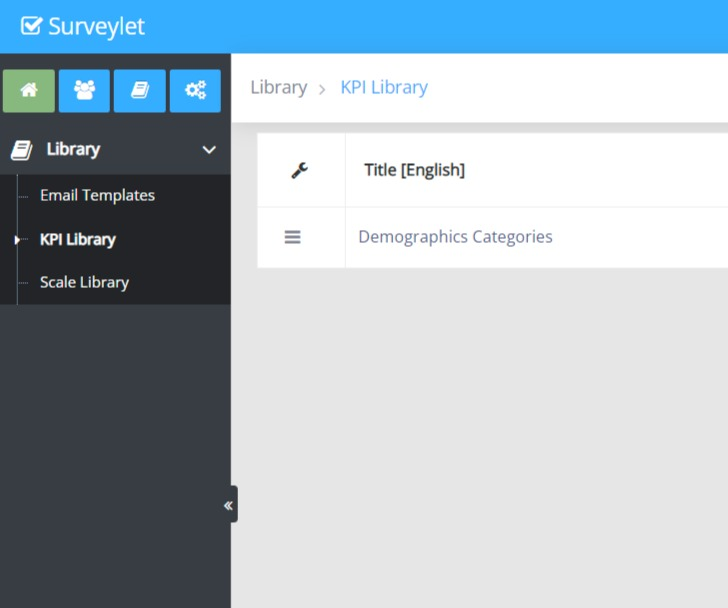
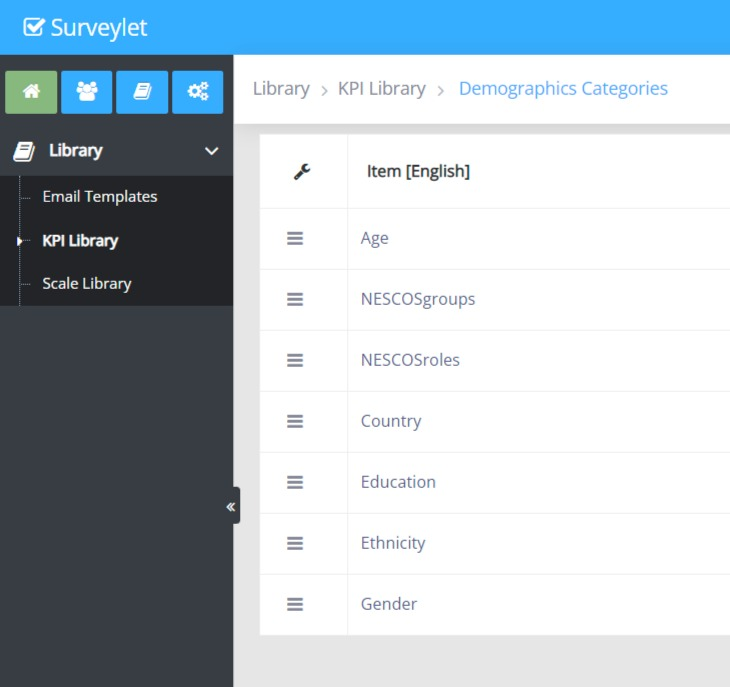
- Create a Demographics KPI for the target grouping under Library → KPI Library → Demographics Categories.
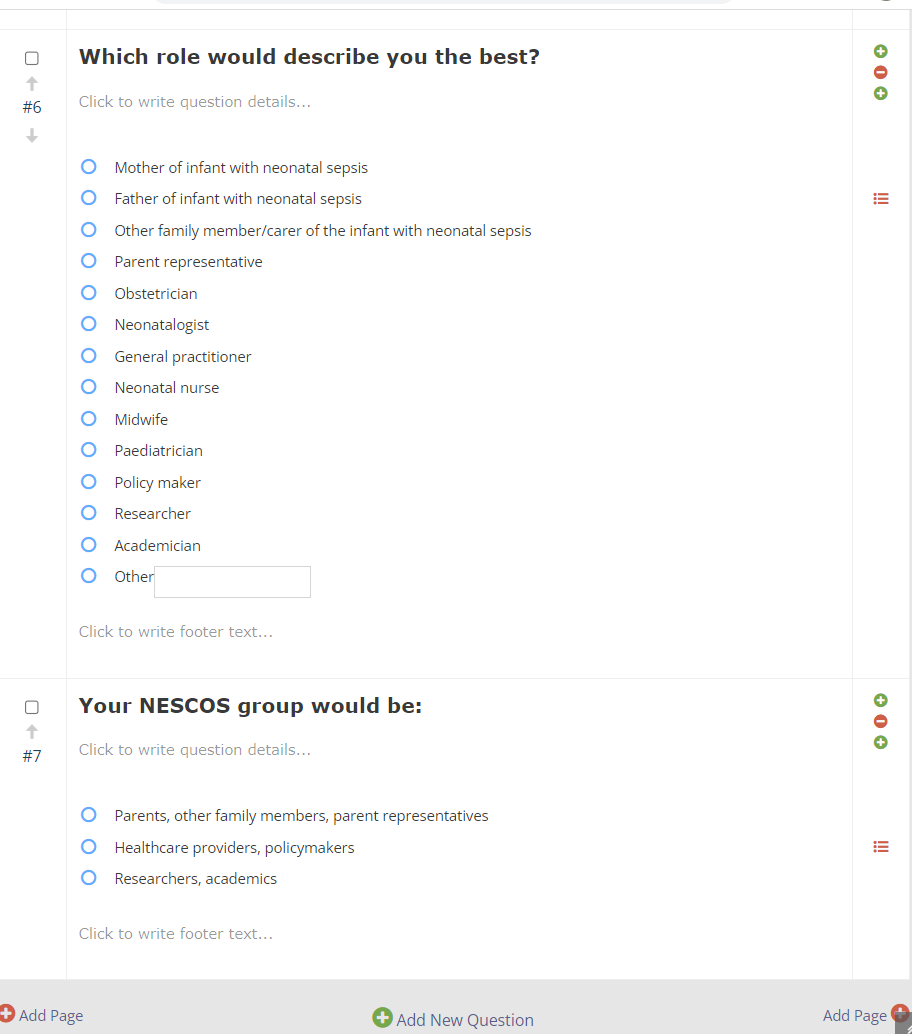
- Create a visible Role question and a separate Group question. Enter the target stakeholder groups as choices in the Group question.
- Make the Group question Hidden, then assign the target Demographics KPI to it in the question's KPI settings.
- For each role choice, configure its Jump to URL action with the target KPI name and the target group choice's ranking position.
- Map multiple roles to the same group by using the same target choice rank.
- Enable the demographic report for the questions or matrix columns where participants should see stakeholder analytics.
Enter the mapping command
type=stakeholdergroupselection|targetkpi=StakeholderGroups|targetkpichoicerank=1Replace StakeholderGroups with the exact name of your target Demographics KPI. Replace 1 with the target group choice's ranking position; the first choice is 1. For example, roles belonging to Healthcare Providers can share rank 1, while roles belonging to Patients can use rank 2.
The KPI name must match in every mapping. Use a single consistent name in both the hidden Group question and the command.
Test each role
In Test Mode, select every role in turn and check the saved Group value in View Demographics or an export. Check that subgroup feedback uses the intended KPI. Also test changing a role and saving again. A correct combined-panel result does not confirm that the subgroup mapping is correct.
Configuration example 1
Configuration example 2
Configuration example 3
Configuration example 4
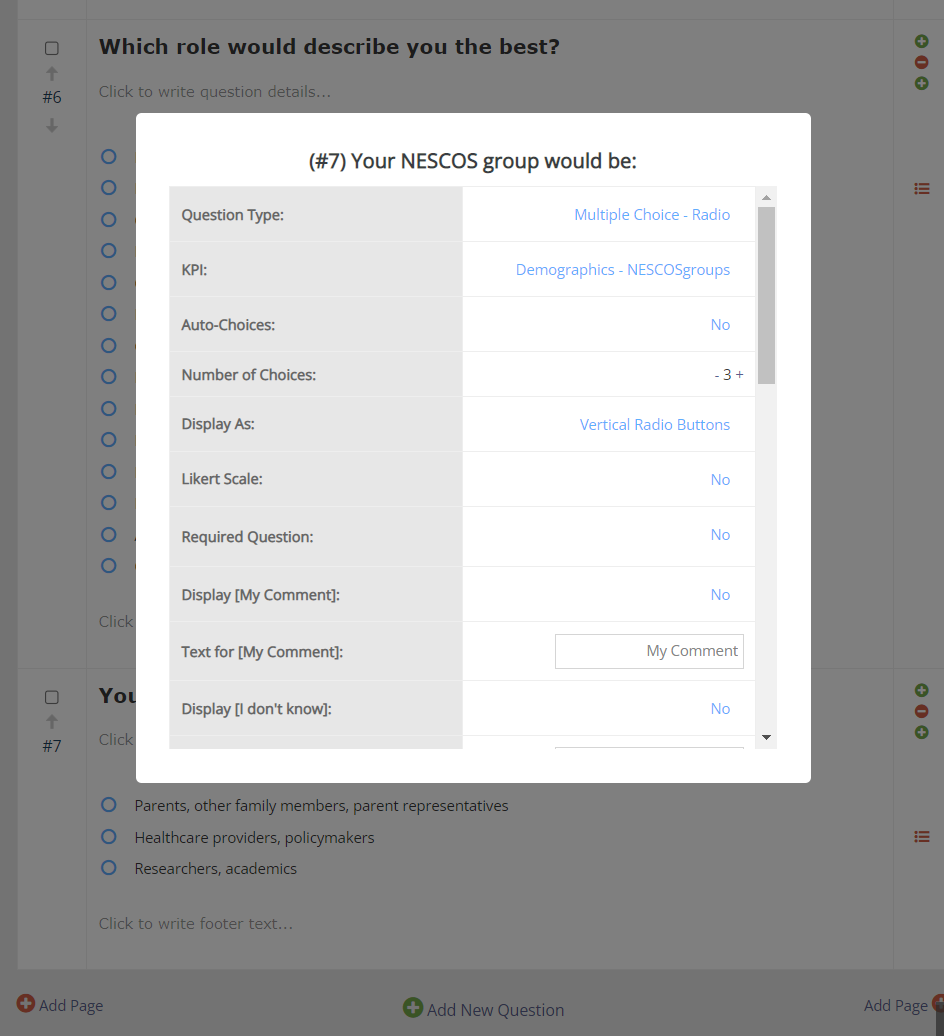
Configuration example 5