Organize related questions on readable pages and use preview to check the participant experience.
Updated October 12, 2026
Screenshots illustrate the controls below. Layouts and labels may vary with your survey configuration. Select an image or “View full size” to open it in a new tab.
Build the page structure
Open Design Survey. Group questions into manageable pages, starting with an introduction, eligibility or consent where required, then the study items and closing instructions. Keep navigation labels and scale explanations consistent.
Use the page settings menu to add, move, duplicate, or delete pages and to open page branching. Page titles in the participant page selector use the first question title on each page, so give the first question a useful label. The page selector is not shown on the first page.
Preview helps you inspect labels, layout, and runtime options such as the virtual “I don’t know” choice. Full testing also needs saved answers, feedback thresholds, access links, branching, and exports. Check small screens and keyboard navigation.
Questionnaire edits are applied to the live survey, including how previous rounds are presented. Rounds do not keep separate design versions. Export and document the original design before changing types, choices, rows, or columns after data collection starts.
Once you've created your survey, you are ready to start building and adding questions and pages. This section below outlines how to add, delete, copy, and edit multiple questions at once.
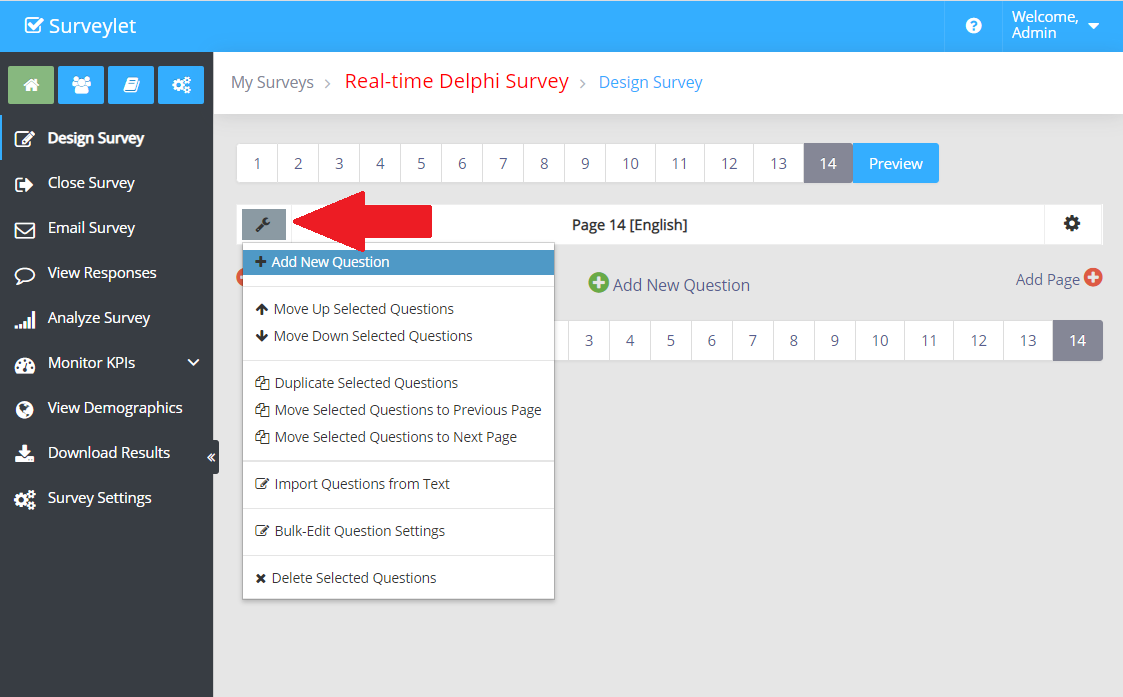
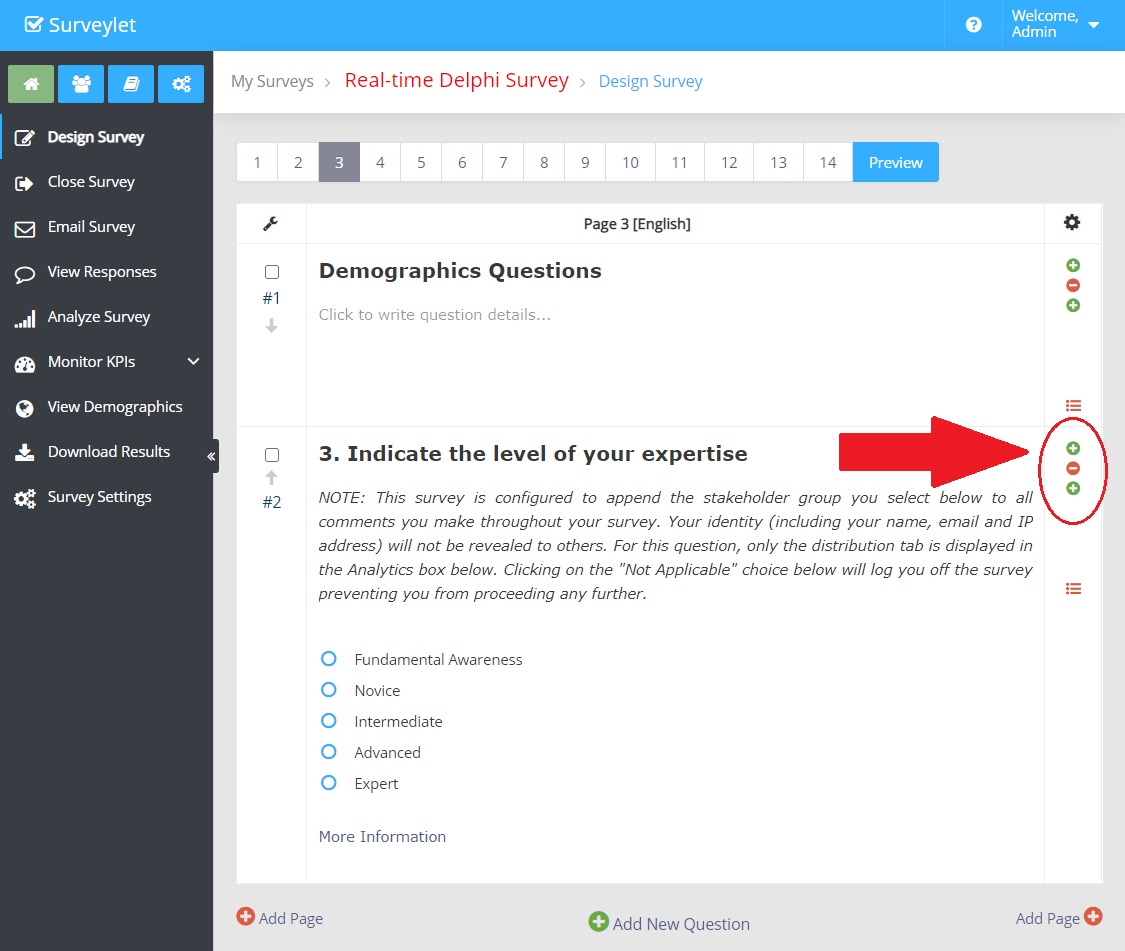
There are multiple ways of adding a new question depending on which position you want to add the question. The below screenshot explains each of these options:
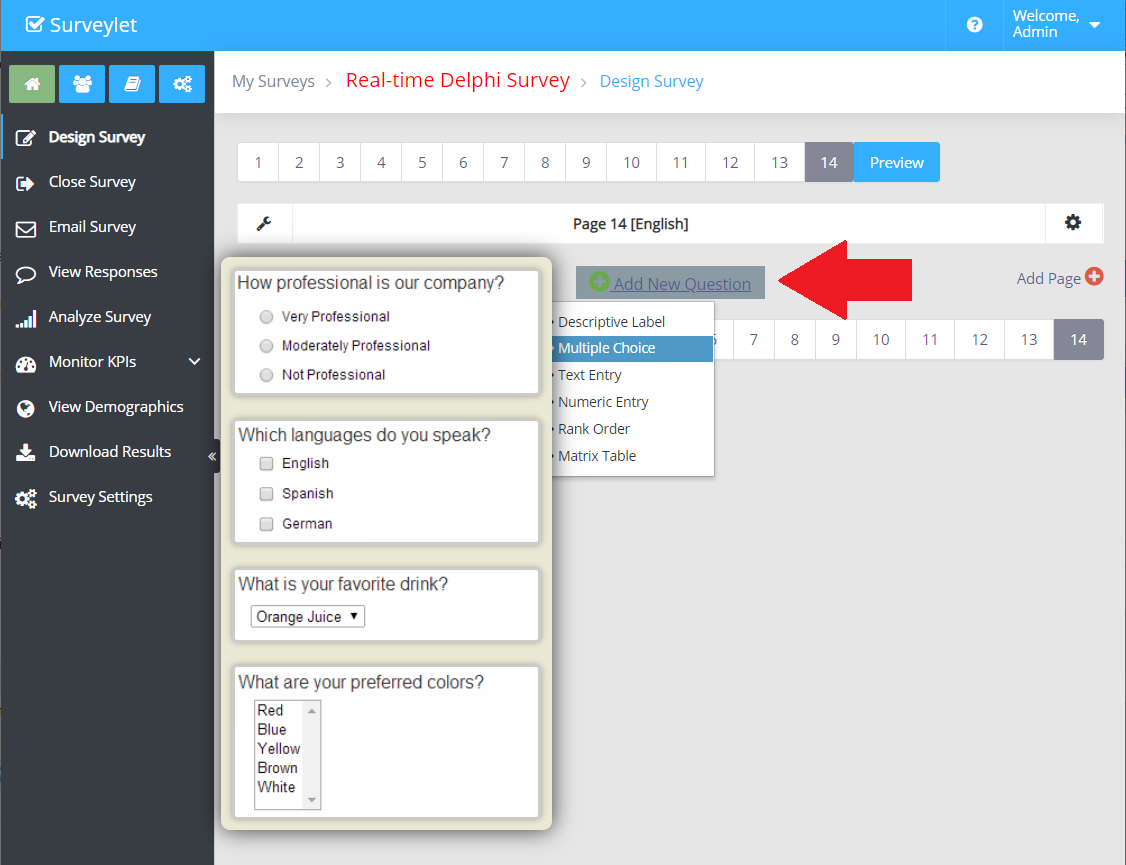
Add as Last Item
Add Question to the bottom of the page. You can add new question by clicking on the Add New Question link at the bottom of the Design Survey page. This will add your new question at the bottom of your question list. You can always move the position of the question up or down, it's just easier sometimes to add it where you actually need it without having to move it later. Out of the 3available options to add a new question, this one is the only one that allows you to pick the question type before the question is created. Though, you can change the question after the question is created.
Add at Specific Position
Add a new question to a specific position. To add a question to a specific location, above and below an already existing question, use the side bar + icon. If you click the upper plus icon, the new question will be created and placed automatically above the current question. New question is created as a radio button default and 3 available blank choices, which you can change after it is created. This option will create a new blank question of radio question type with 3 blank choices by default. Note that you can change the question type after it's created.
Add as First Item
Add a new question to the top of the page. You can add a new question by clicking on the wrench icon in the upper left corner of the question designer table and then click on the Add New Question link. This will add your new question at the very top of your question list as first question on your page. This option will create a new blank question of radio question type with 3 blank choices by default, which you can always change later to the question type you want.
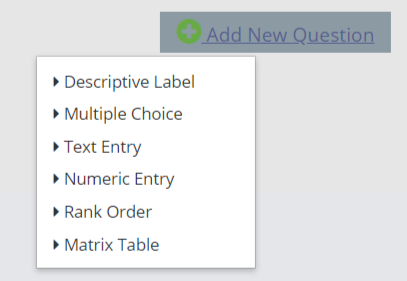
When you click on the Add New Question button at the bottom of your survey designer page, a little popup window will be displayed or you to first select the Question Category:
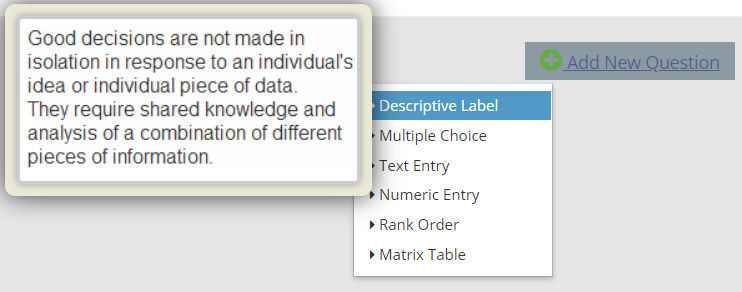
You need to hover over the list of Question Categories in order to see the related question types under each question category. You then need to click on the image illustrating the Question Type you need for your new question to be created and added to your survey.
1. Descriptive Label:
Text: Insert additional text to your survey design to provide extra context or description to your respondents. Allows you to enter text of any length for long paragraphs; upload images and add videos.
Image: Insert an image into your survey by uploading an image file or specifying the URL of an image on the web.
Video: Embed a video from Youtube, Vimeo, etc.
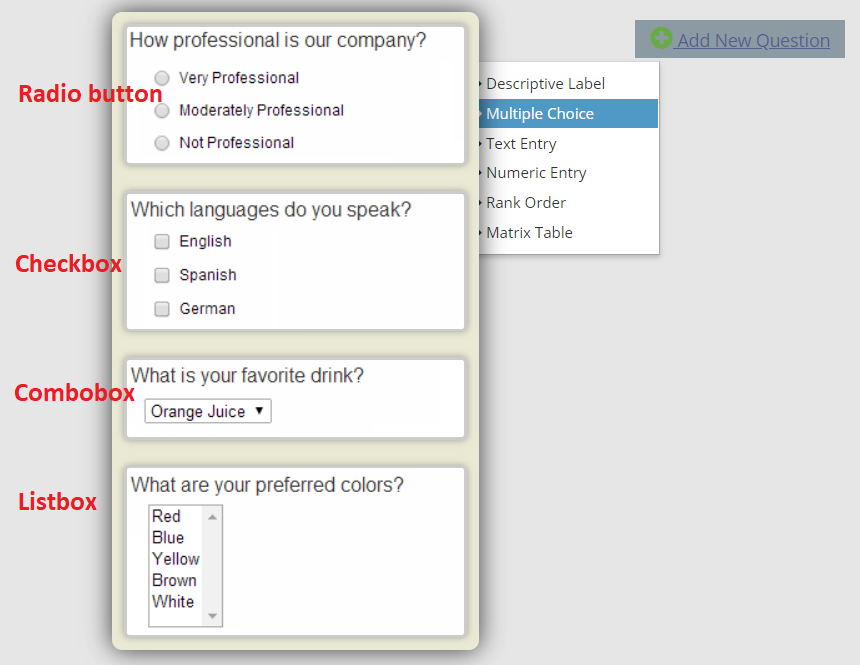
2. Multiple Choice:
Radio button: Ask people to choose one answer from your list of answer choices.
Checkboxes: Let people select multiple answers from your list of answer choices.
Dropdown: Provide a dropdown list of answer choices and ask people to choose one answer. This is a great way to save space if you have a long list of options, like country, state, or province.
Slider: Ask respondents to rate an item or statement on a numerical scale by dragging an interactive slider.
Image Choice: Ask people to choose one or more image answers from your list of image answer choices.
3. Text Entry:
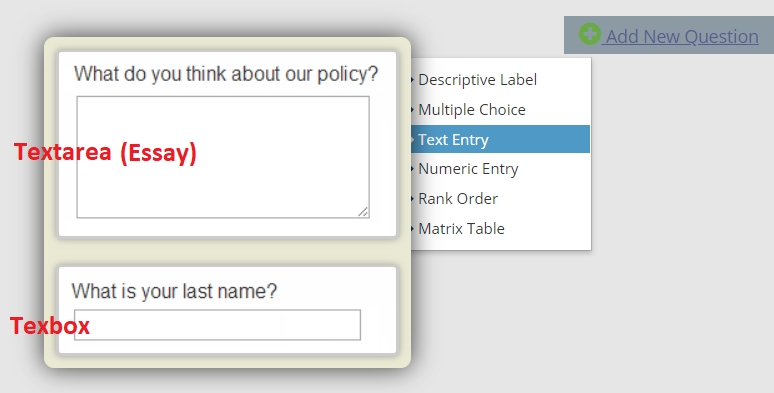
Single Textbox: Add a single textbox to your survey when you want respondents to write in a short text or numerical answer to your question. You can require and validate a number value, date format, or email address:
- Date: Ask respondents to enter a specific date.
- Time: Ask respondents to enter a specific time.
- Month: Ask respondents to enter a specific month.
- Week: Ask respondents to enter a specific week.
- Phone: Ask respondents to enter a specific phone number.
- Email: Ask respondents to enter a specific email address.
- Color: Ask respondents to pick or enter a specific a specific color.
Comment box: use the comment or essay box (textarea) to collect open-ended, written feedback of unlimited length from respondents.
3. Numeric Entry:
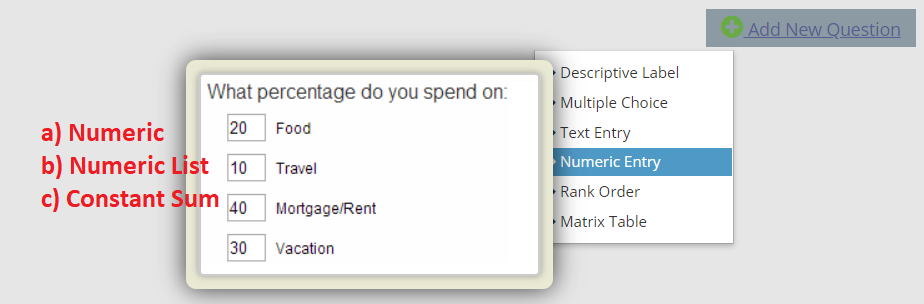
Collect multiple numerical answers with a single question. You can also specify value range, and require and validate a number value, or specify a total value all choices need to sum up to (constant sum).
4. Rank Order:
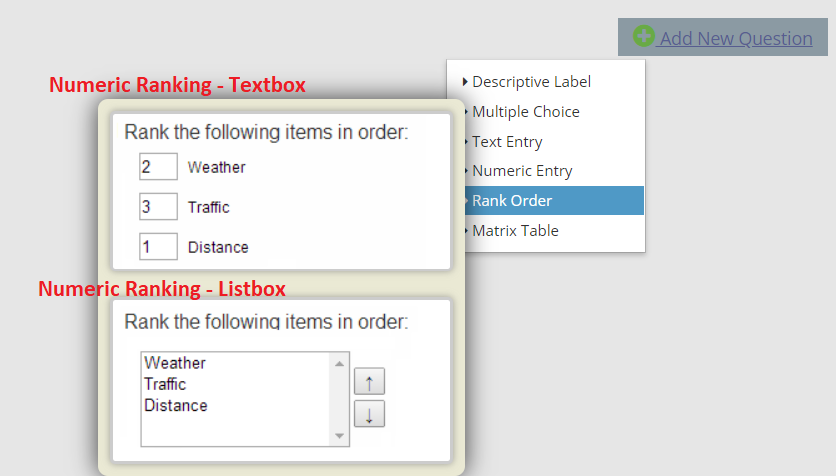
Ask respondents to rank a list of options in the order they prefer using numeric dropdown menus or drag-and-drop.
5. Matrix Table:
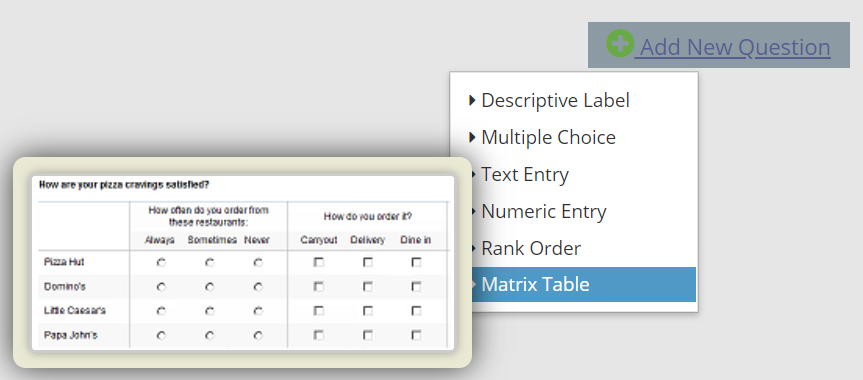
Matrix/Rating Scale: Use a Matrix question if you want respondents to evaluate one or more row items using the same set of column choices. You can set the matrix question to collect multiple answers or only one answer per row. You also have the option to turn the matrix question into a rating scale.
Matrix of Dropdown Menus: Ask respondents to evaluate several items using the same set of measurements. They can choose an answer from a preset list of answer choices presented in a dropdown menu.
Multiple Textboxes: Collect multiple short text or numerical answers with a single question. You can also specify answer length, and require and validate a number value, date format, or email address.
Contact Information: Use this question type to collect a respondent's relevant contact information, including name, address, email, and phone number.
This is survey designers' area, one of the important part of your surveying project. A very thorough and careful planning is required to draft out the proper design structure for your survey. This step covers formulating the proper questions with the proper question types and choices and survey workflow logic. A great user experience is a must-have in order to keep your audience engaged and collect the data you need. Good questions will result in good data and high quality responses and a successful survey. Give enough time for this step and do not cut corners.
In this section you will learn about the different question types and their applications including designing, styling, survey flow and so on.
Detailed instructions: Editing Questions
Detailed instructions: Page Settings
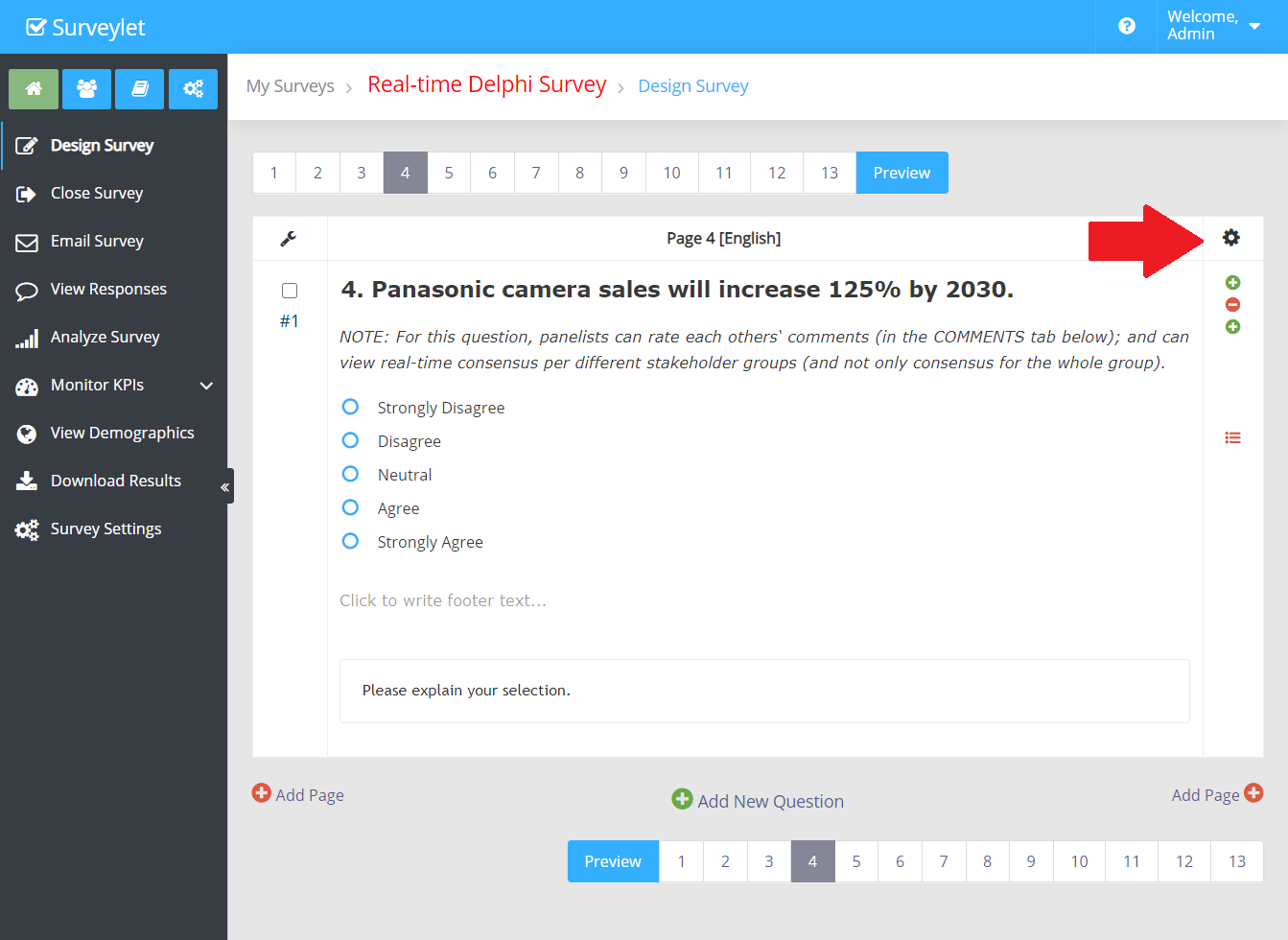
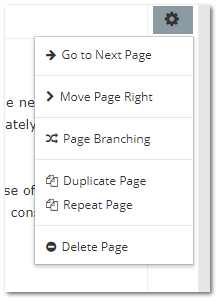
In this section you can learn about the different Page Settings options. To access page settings, click on the cog icon in the upper right corner:
The list of options available:
Go to Next Page
Jump to next page. E.g. from Page 4 to Page 5.
Move Page Right
Move page to a higher position. E.g. from Page 4 to Page 5.
Page Branching
Apply skip page logic based on a set of conditions.
Duplicate Page
Duplicate current page. It does not duplicate any question or page level logic. Duplicating page will readjust all logic that were applied to affected pages. So if you are duplicating page 5, then e.g. page branching logic that took you from page 12 to page 19 will be moved to page 13 and will take you to page 19. All question hiding conditions will also be recalculated for you automatically so if a condition was pointing to a question on page 7, then it will be pointing to the same question on page 8 now.
If your survey has any questionnaires submitted, all progress in all questionnaires will be automatically recalculated after adding duplicating current page.
Repeat Page
Repeats page a number of times. It duplicates all question or page level logic. If there were no questions on current page, then progress of questionnaires will not change.
Delete Page
Delete current page. All Hide Question and Page Branching logic and conditions are recalculated automatically to point to the correct pages. So, if you had a page branching condition to take users from page 5 to page 9, if you delete page 3, then users will be taken from page 4 to page 8.
Progress in all questionnaires are automatically recalculated for all participants.
Detailed instructions: Preview Page
The preview page allows you to visualize how the questions will appear to the panelists in their questionnaires. The preview page does not collect responses, nor does it execute page branching or hide question logic either. It is only there for you to see the page as is without any survey workflow functionalities. Keep it all in mind when testing the survey. To test the survey as your panelists would go through, use the Test Survey page, or enter the survey as one of your panelists using a survey URL link (visit the Information for Survey Participants section for more information).
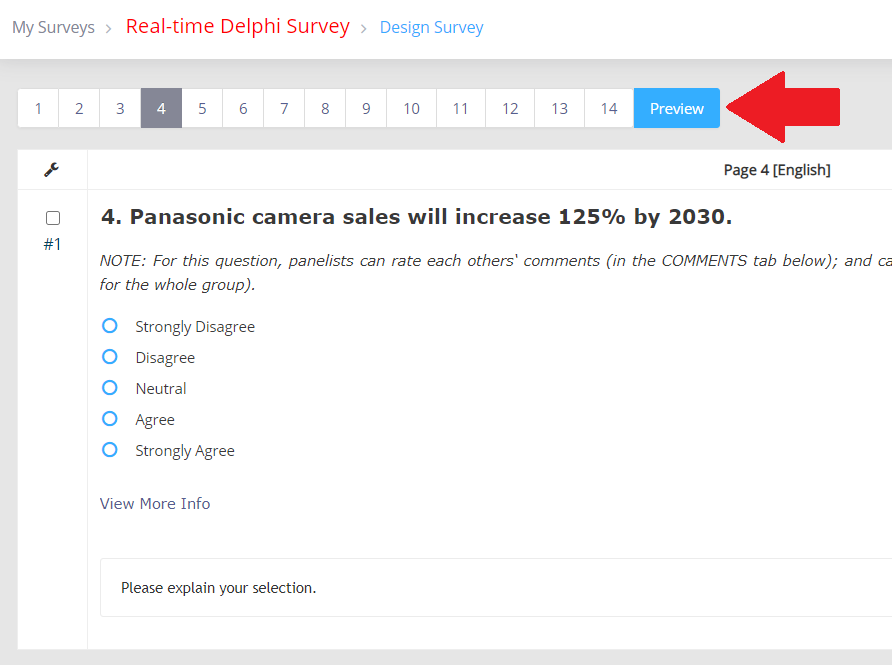
The preview page can be opened as a popup page by clicking on the blue "Preview" button right next to the page navigation bar as shown below:
The preview page is not intended to be used for survey testing purposes, other than visualizing how the survey pages will appear to panelists. For testing, use the Test Survey page (will not count toward your available response counts), or submit live responses (will count toward your available response counts).