Identify demographic questions, organize analysis categories, and create scales for rating comments.
Updated October 12, 2026
Screenshots illustrate the controls below. Layouts and labels may vary with your survey configuration. Select an image or “View full size” to open it in a new tab.
KPI Library
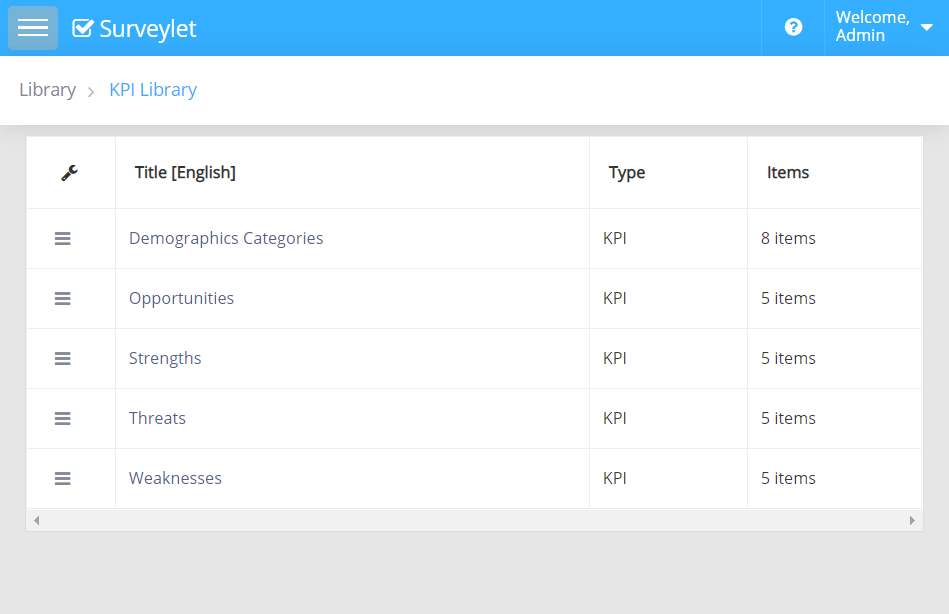
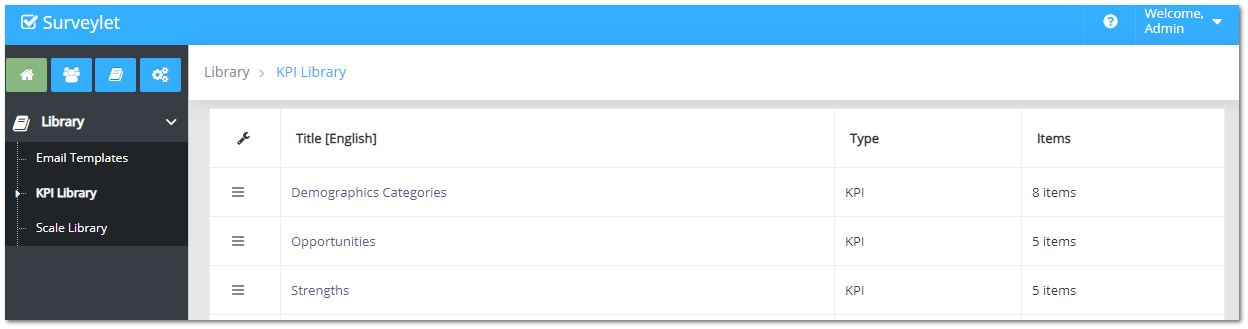
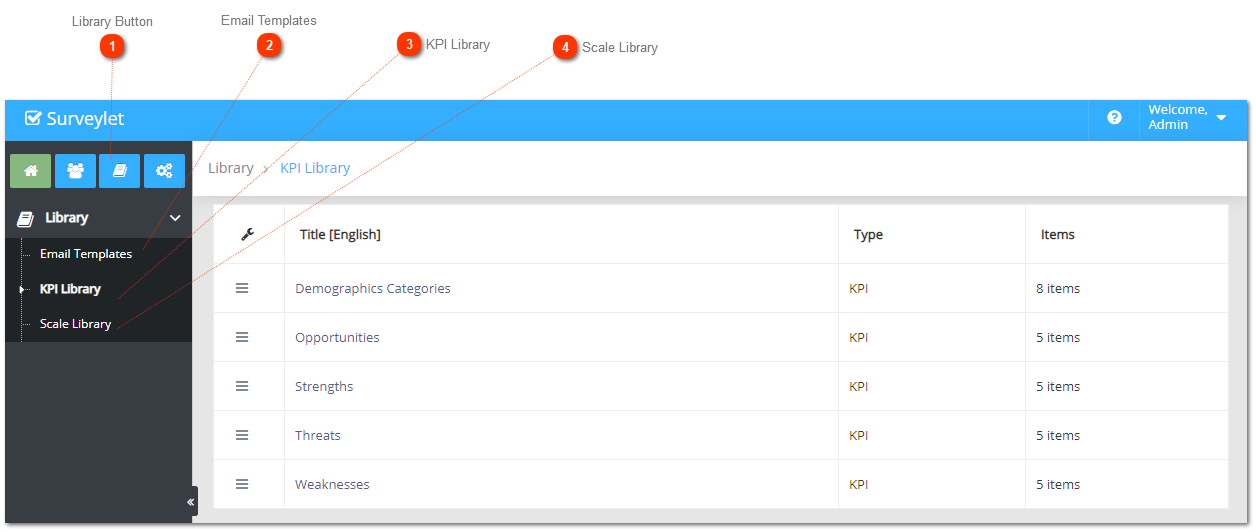
Open Library → KPI Library to manage categories and items. The default Demographics Categories identifies questions used for subgroup analysis. Other KPI categories can organize related measures for available analysis features.
Create the demographic KPI needed for a role, country, or other collected characteristic.
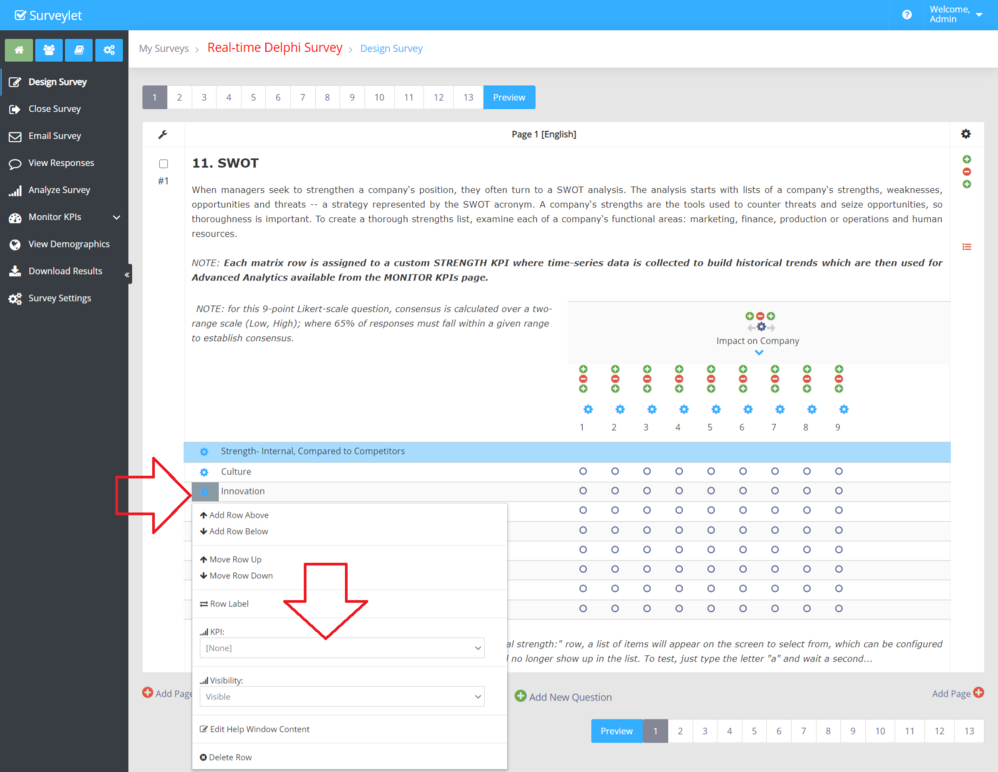
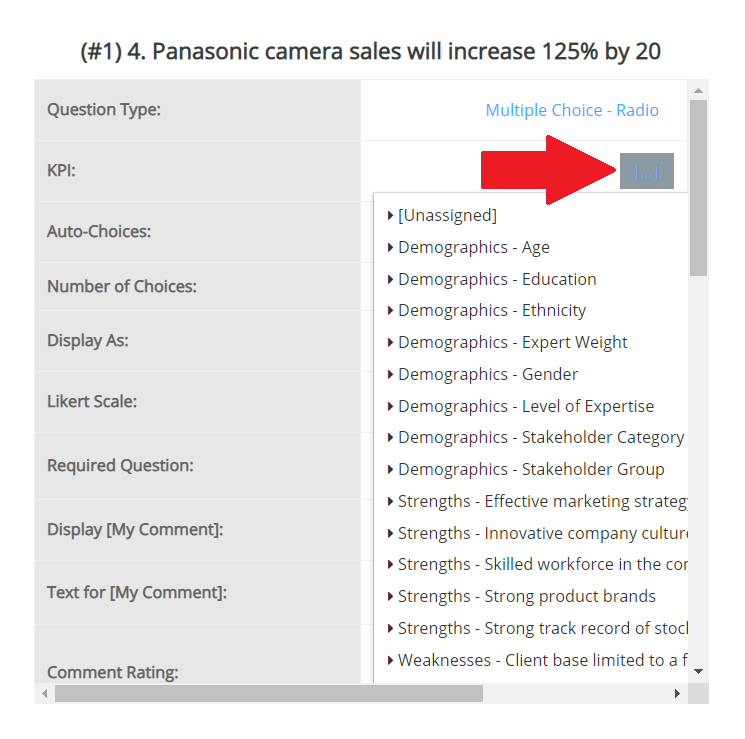
Assign it to the relevant question in Question Settings.
For matrix-based demographics, use the relevant row settings.
Check that the category is selectable in View Demographics.
Use one question per demographic KPI within the same survey to avoid ambiguous subgroup definitions.
The KPI Library defines reusable indicators and demographics categories. View full size (opens in a new tab)More screenshots and examples (2)
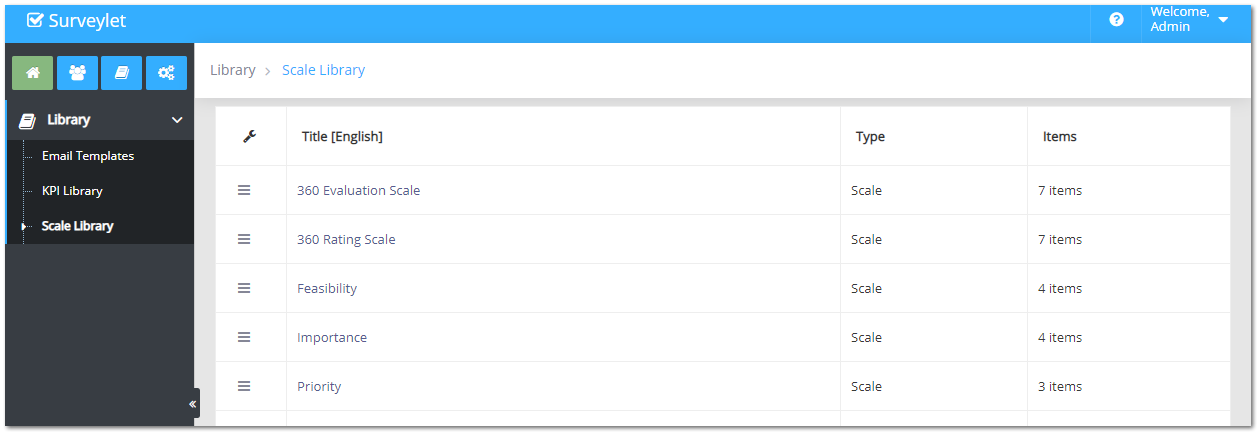
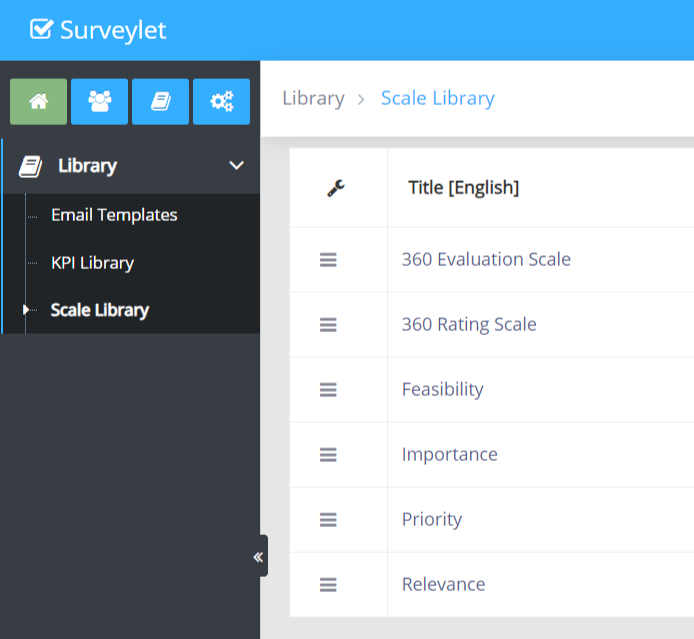
Open Library → Scale Library to create rating scales for comments, such as relevance or importance. Assign the intended scale in the question or matrix-column comment-rating settings. The guide documents up to two scales for one comment-rating configuration.
Comment rating is not a threaded panel discussion. The documented rating analysis is available to administrators; participants do not see one another’s comment ratings.
A KPI category organizes or identifies data. A comment-rating scale measures reactions to a comment. Neither one automatically sets the main question’s Likert choices or consensus rule. Check all three where the study uses them together.
Detailed instructions: Add new KPI
<TODO>: Insert description text here... And don't forget to add keyword for this topic
Sosy
Detailed instructions: Add New Scale
<TODO>: Insert description text here... And don't forget to add keyword for this topic
Detailed instructions: Edit KPI
<TODO>: Insert description text here... And don't forget to add keyword for this topic
Detailed instructions: KPI Library
KPI Library is a collection of KPI's you can use for your survey to identify Demographics questions, or for Advanced Analysis to monitor and track trends. The KPI Library first display the KPI Categories. By default, the "Demographics Categories" is created for you with a list of preconfigured KPI's.
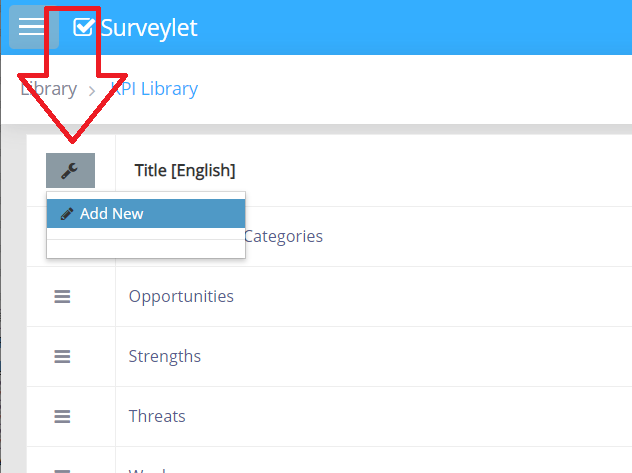
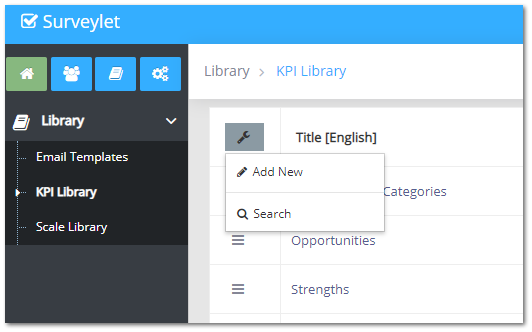
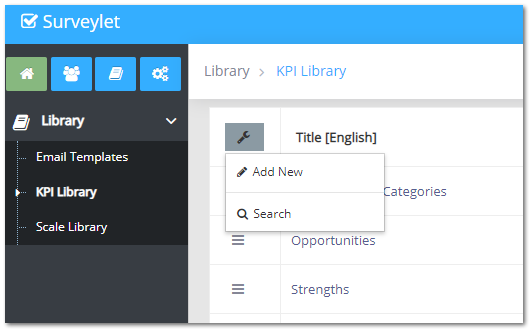
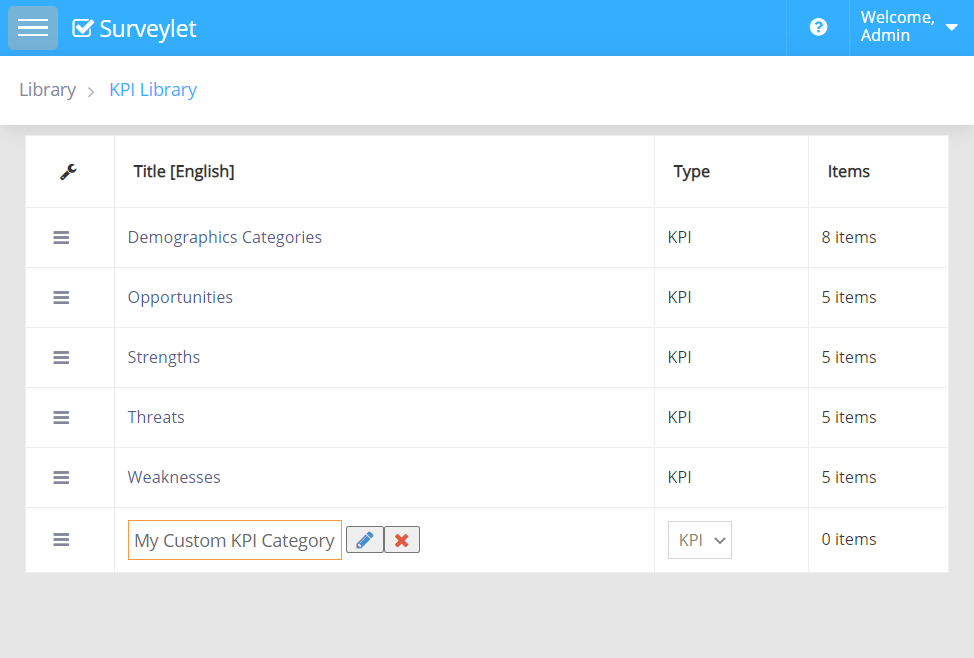
To add new KPI Category, click on the wrench icon and select "Add New".
Add your new Category:
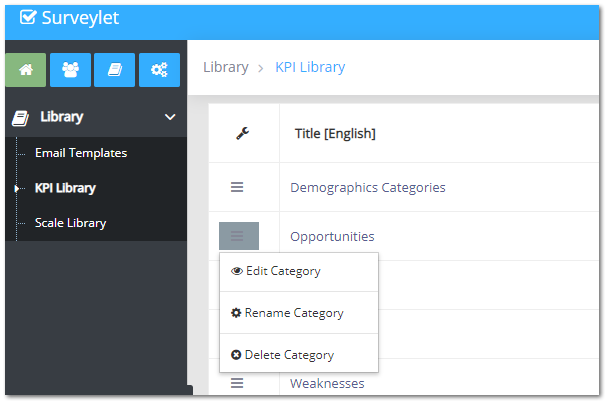
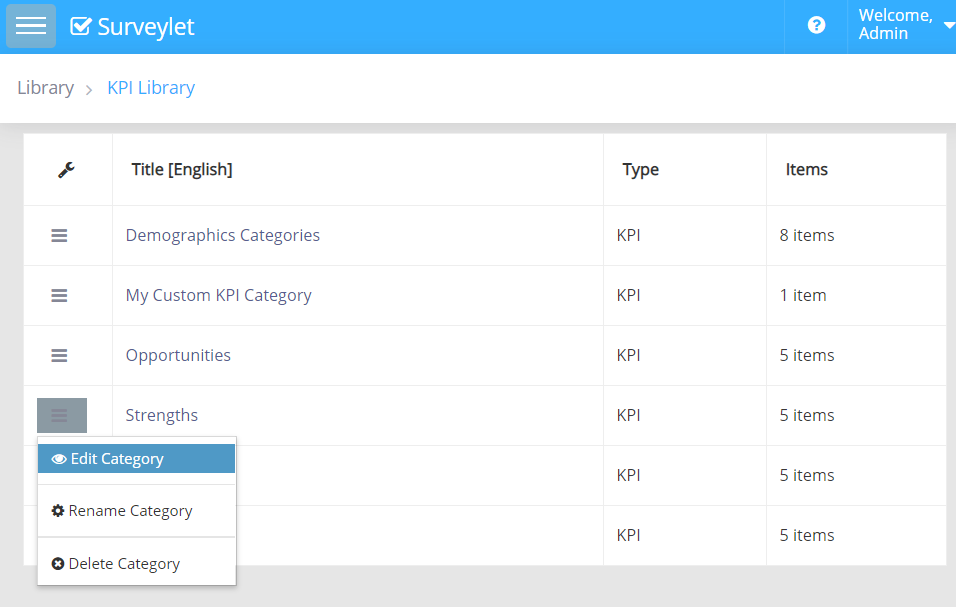
To edit/rename/delete existing KPI Category, click on the hamburger icon. (The default Demographics Categories cannot be deleted or renamed.)
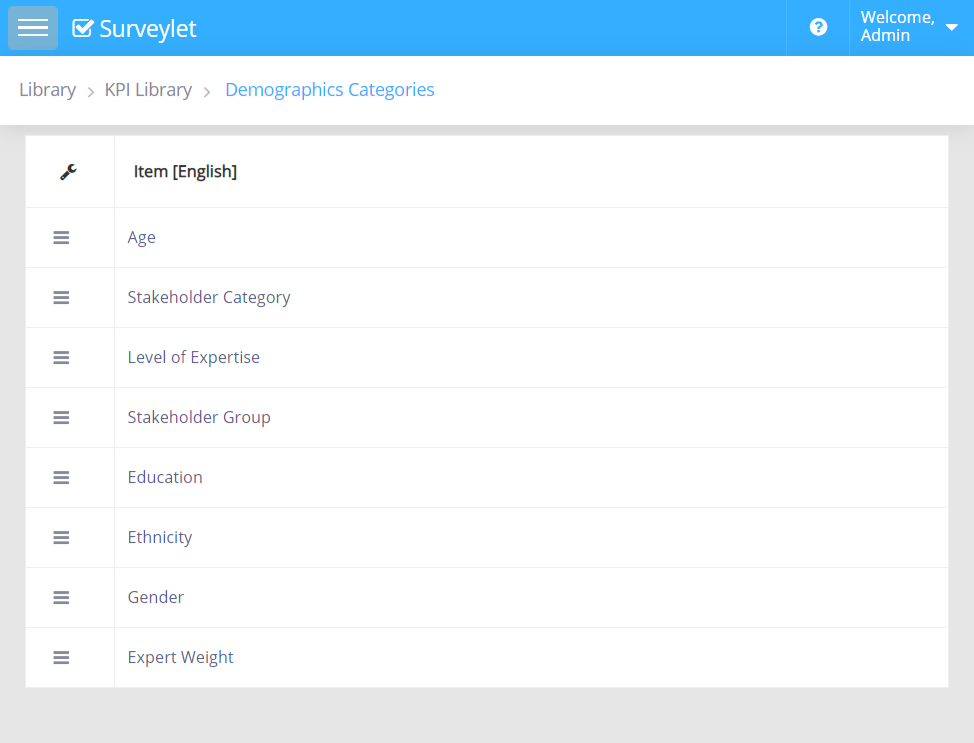
Click on the title of the KPI category to edit its KPI items. Below, we are looking at the Demogprahics Categories. You can add/edit/delete KPIs from this category as well.
The KPIs listed under the "Demographics Categories" category are listed on the survey's View Demographics page (on the demographics category dropdown selector on the right side of the page):
You assign KPIs to standard questions through the question's Question Properties window:
You assign KPIs to matrix questions, you assign them to individual matrix rows using Matrix Row Properties window:
Detailed instructions: Library Overview
Library Button
Advance features
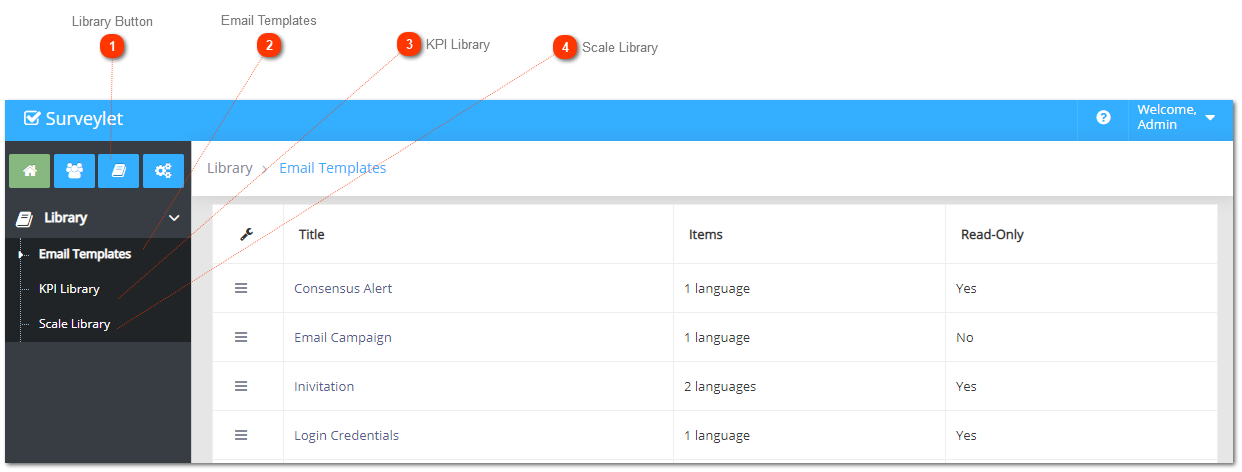
Email Templates
Add email templates.
KPI Library
Add KPIs used by demographics questions, and advanced analytical features.
Scale Library
Add scale categories here that are used for comment ratings.
Detailed instructions: Library
Libraries are a collection of reusable items. There are 3 major Library types: "Email Templates", "KPI Library" and "Scale Library". To access the Libraries, click on the library icon:
Library Button
Advance features
Email Templates
Add email templates.
KPI Library
Add KPIs used by demographics questions, and advanced analytical features.
Scale Library
Add scale categories here that are used for comment ratings.
Detailed instructions: Scale Library
Scale library allows you to configure rating scales for Comment Rating.
To allow participants to be able to rate other participants' comments, you will use this option. There are two available scales you can use for comment rating. Question rating scales first need to be set up in the Library > Scale Library. In the following example, there are 4 rating scales set up (Feasibility, Importance, Priority, Relevance). You may add any rating scale with any number of points. Comment rating is not a threaded discussion, panelists can simply rate other panelist's comments through one or two Likert scale s; no direct interaction is allowed between panelists. Comment rating analysis is displayed only to the administrator, panelists cannot see ratings from other panelists. You can assign up to 2 rating scales to each question (or matrix column).
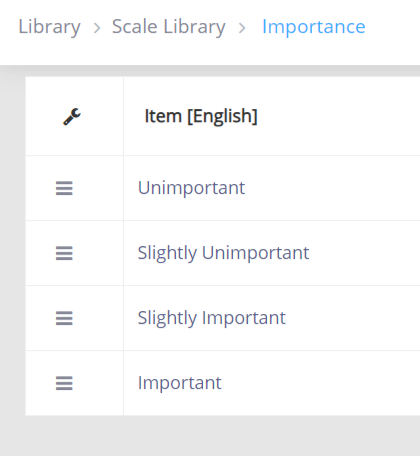
The Importance rating scale is set up with 4 points from negative to positive (which is the standard format in Delphi surveys). You may add as many Likert scale points as you please.
As next step, you assign these rating scales to your questions or matrix rows using their Comment Rating Scale settings. Visit Comment Rating page for more information.