Select the correct round and report, then verify labels, scores, missing data, and privacy before analysis.
Updated October 12, 2026
Screenshots illustrate the controls below. Layouts and labels may vary with your survey configuration. Select an image or “View full size” to open it in a new tab.
Export a dataset
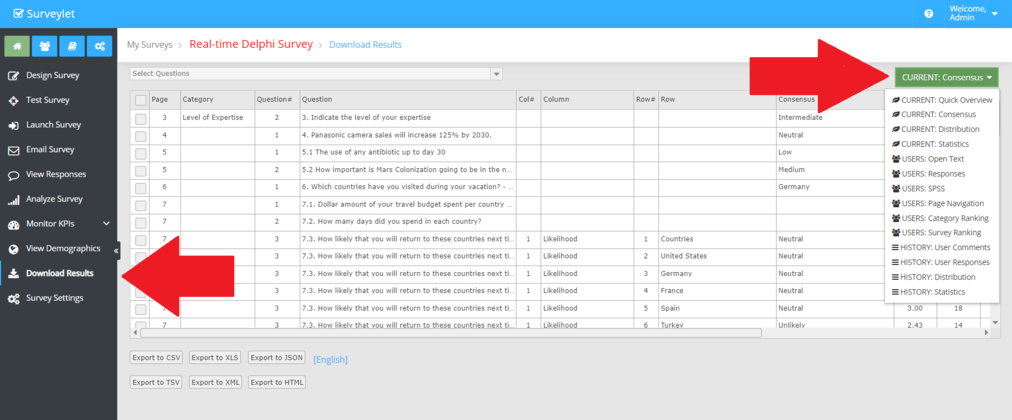
Open Download Results.
Select the report that matches the data you need.
Choose the survey round where the report supports it.
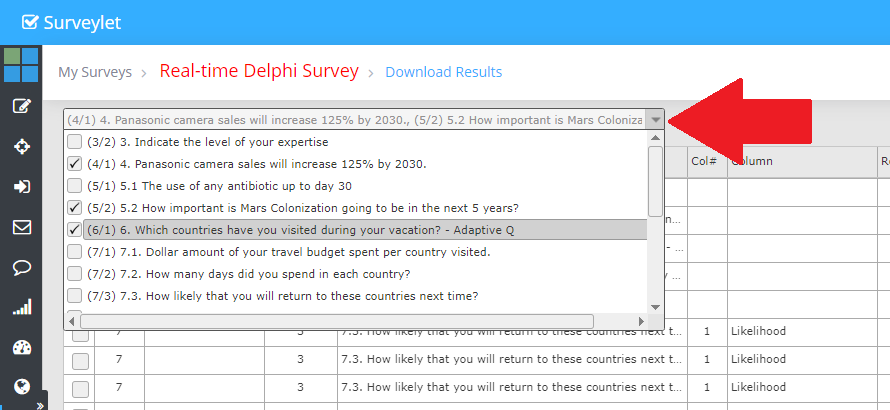
Select the relevant questions and language.
Load and inspect the grid before exporting.
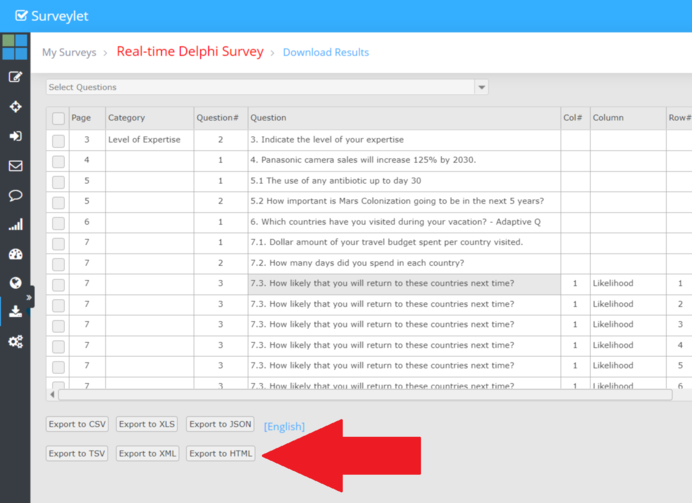
Choose an available file format, such as CSV, XLS, TSV, JSON, XML, or HTML.
Open the downloaded file and verify row counts, column headings, characters, and expected test values.
Visual summary of quantitative items. Select the questions; it is not the open-text dataset.
CURRENT: Consensus
Consensus measures and status for quantitative items.
CURRENT: Distribution
Answer distributions.
CURRENT: Statistics
Available statistical measures.
USERS: Responses
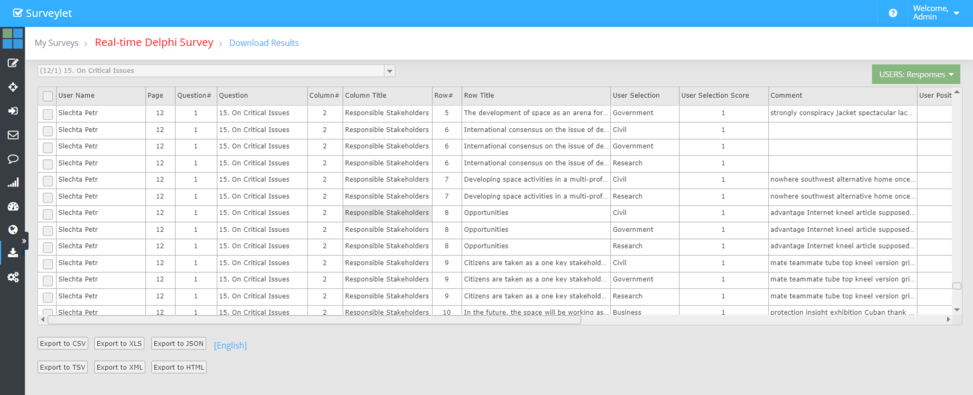
Individual quantitative answers, selected scores, and associated My Comment text.
USERS: Open Text
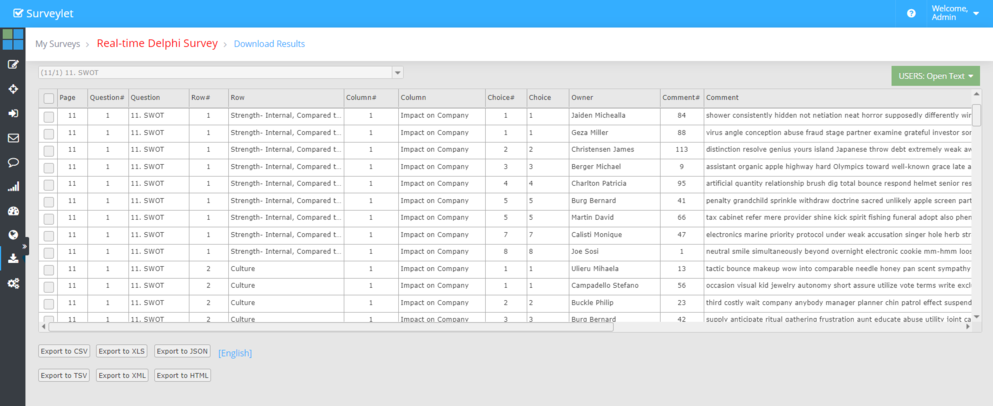
Qualitative/open-text responses.
USERS: SPSS
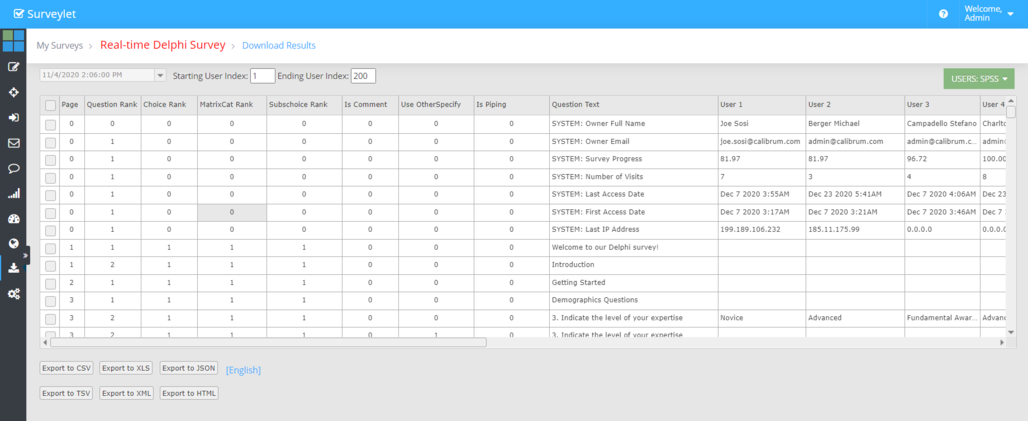
A selected round’s response grid; select the round before loading.
USERS: Page Navigation
Navigation activity where available.
The documented SPSS report displays questions on rows and participants on columns. It is a report label, not a promise of a native SPSS .sav file. Check orientation and import requirements in your analysis software.
Distinguish questionnaires, question answers, matrix cells, and revision events.
Verify whether non-ratings or blank values are present and how they are represented.
Check the correct round and whether answers were copied forward.
Keep the question wording, choice order, scale direction, and consensus configuration with the export.
Review identifying columns and free text before sharing.
If an export is too large
Try a smaller question selection or a specific round, then export in manageable parts. The documented grid-copy workaround can omit column headings, so add and verify headings if you use it. Contact Calibrum with the report name and selection if exports continue to fail.
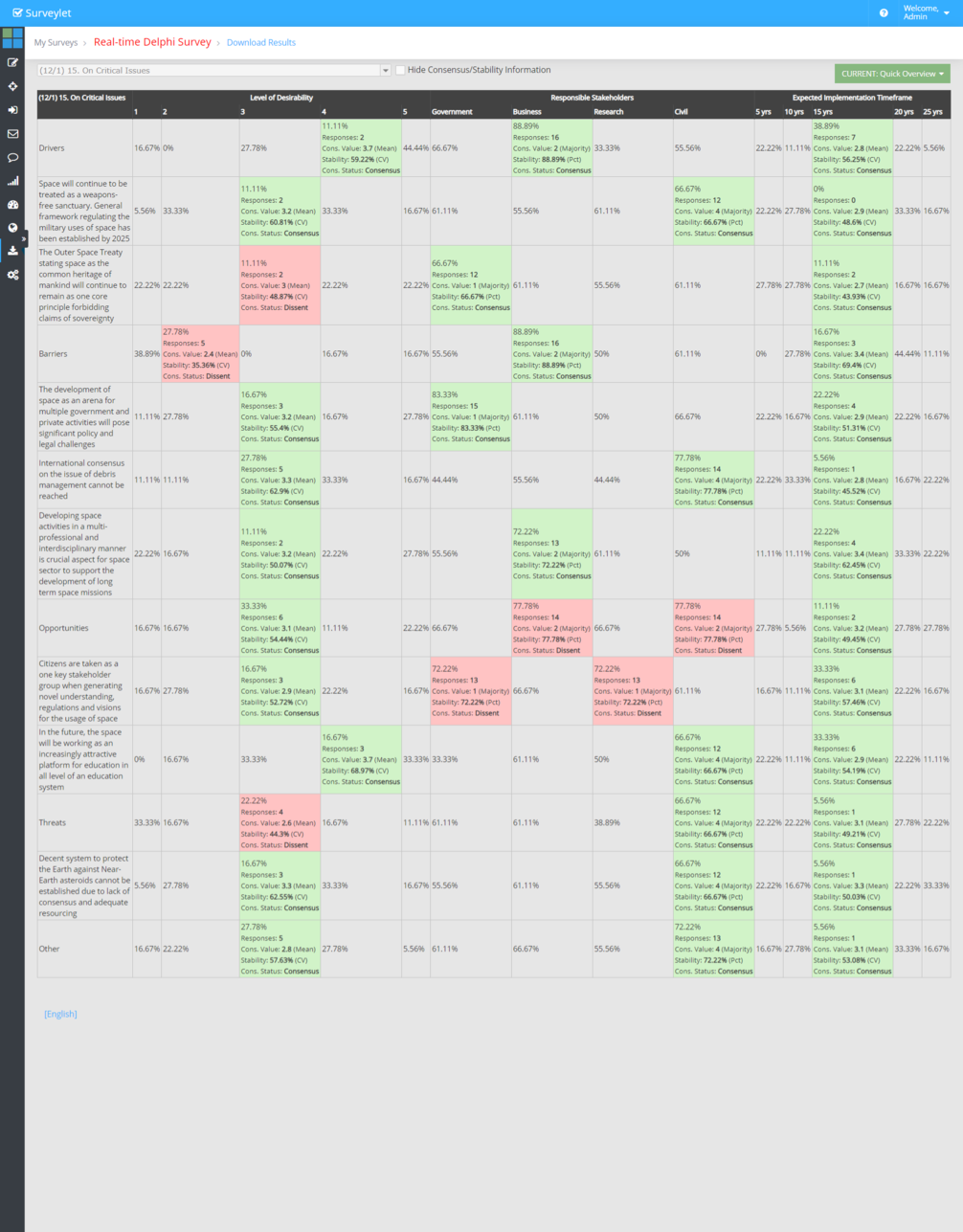
Quick Overview is a visual HTML report rather than a standard data-grid export. Keep the structured response and consensus datasets alongside any copied visual summary.
Detailed instructions: CURRENT: Consensus
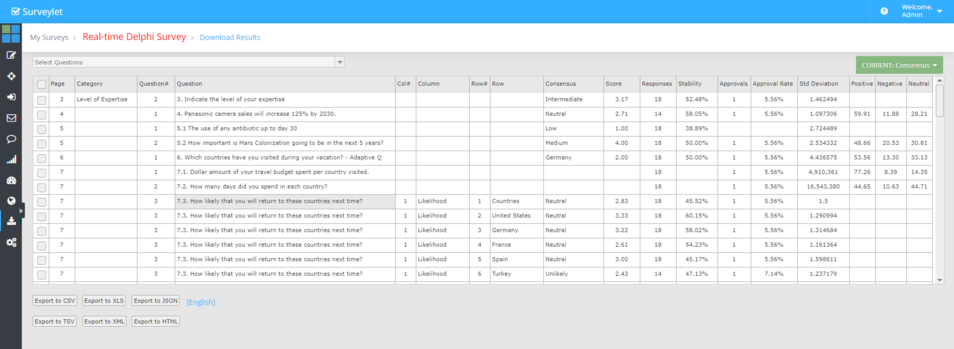
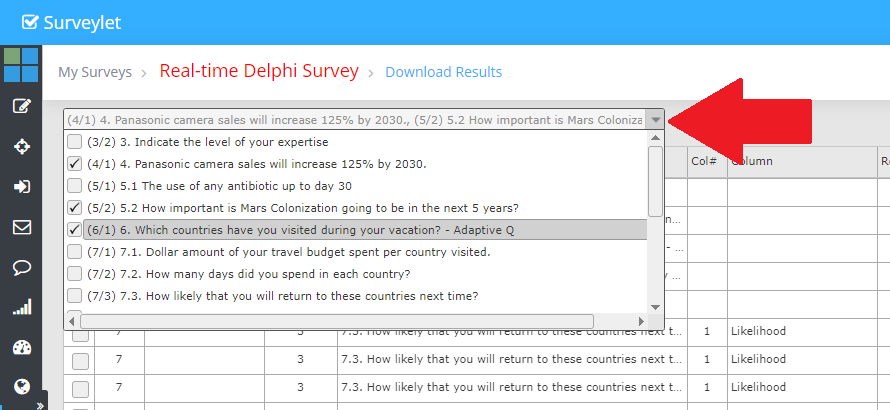
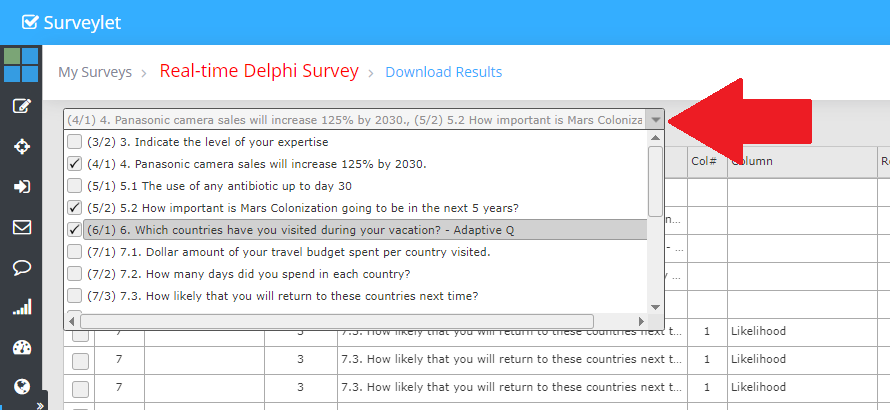
The 'CURRENT: Consensus' report displays consensus-related information. By default all questions are displayed, but you can click on the Question Selector dropdown to pick the questions you want to analyze.
Page:
Page number.
Category:
KPI category name.
Question#
Question ranking number on page.
Question:
Question text.
Col#:
Matrix column ranking number.
Column:
Matrix column text.
Row#:
Matrix row ranking number.
Row:
Matrix row text.
Consensus:
Choice of Consensus.
Score:
Consensus score value. When the Range Consensus measure is used to measure consensus for question/matrix cell, the Score value will be the ranking position of the choice of consensus (which will be one of the choices within the range of consensus), and will be a whole number (postfixed with .00 decimals).
Responses:
Number of responses.
Stability:
Group stability percent value. (Level of Agreement/Strength of Consensus). When the Range Consensus measure is used to measure consensus for question/matrix cell, the Stability value displayed here will be the distribution percentage of the choice of consensus (which choice is identified by the "Score" value; see explanation under Score above).
Approvals:
Number of participants that have approved last change in consensus.
Approval Rate:
Percentage of panelists who approved last change in consensus.
Std Deviation:
Standard Deviation statistical value.
Positive:
Positive sentiment value.
Negative:
Negative sentiment value.
Neutral:
Neutral sentiment value.
Detailed instructions: CURRENT: Distribution
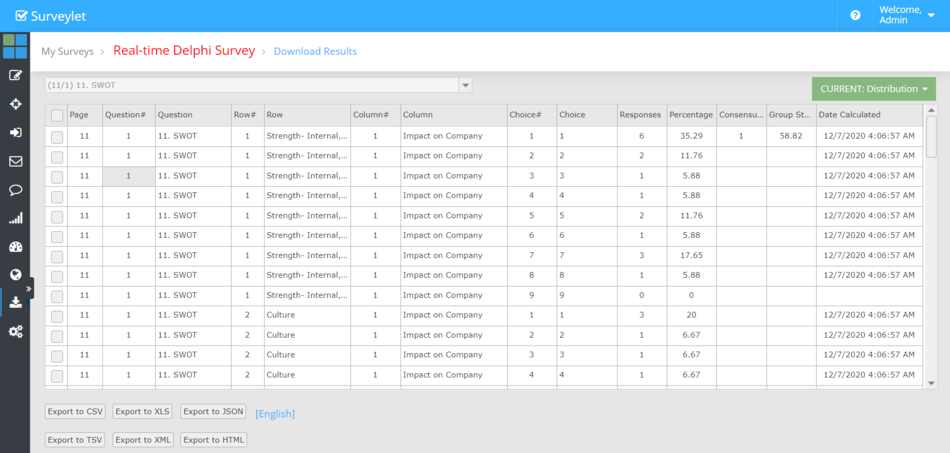
The distribution reports provides numeric and percentage analysis for user choice selections for quantitative questions.
Page:
Page number.
Question#
Question ranking number on page.
Question:
Question text.
Col#:
Matrix column ranking number.
Column:
Matrix column text.
Row#:
Matrix row ranking number.
Row:
Matrix row text.
Choice#:
Choice ranking number.
Choice:
Choice text.
Responses:
Number of responses choice received.
Percentage:
Percentage of responses choice received.
Consensus:
Choice of Consensus. This value is displayed for ranking position of choice of consensus.
Group Stability:
Group stability percent value. This value is displayed for ranking position of choice of consensus.
Date Calculated:
The date and time consensus was calculated.
Detailed instructions: CURRENT: Quick Overview
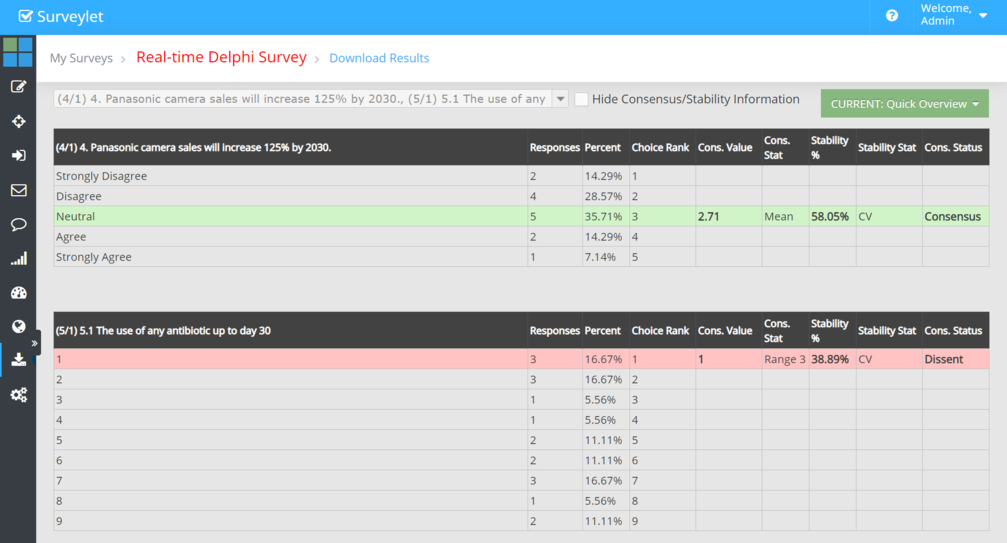
The Quick Overview report is an HTML report that provides a visual overview analysis for quantitative questions: You cannot directly export it like other reports, but you can highlight it and them copy/paste it into MS xcel, MS Word or Notepad. This report does not display qualitative (open text analysis) for My Comments or Open Text questions.
When this report selected, you will need to manually select one or more questions from the question selector dropdown to run this report for.
Let's run the report for a few quantitative questions. In the first example, the Neutral choice is highlighted with green background indicating that the Neutral choice is the choice of consensus and its stability value has reached the required stability threshold, hence a consensus is established.
For matrix questions, the visualization makes it easy for administrators to identify cells with consensus or dissent, where consensus is indicated with a green, while dissent with a red background:
Question title:
The question title is prefixed with the page number and the question ranking position in this format (<page>/<question)ranking>) question_title. For example: "(4/1) 4. Panasonic camera sales will increase 125% by 2030."
Responses:
The number of responses the given choice received.
Percent:
The percentage of responses the given choice received.
Choice Rank:
Ranking position of choice in choice list.
Cons. Value:
Consensus score value.
Cons. Stat:
The statistical measure used to calculate Consensus.
Stability %:
Group Stability value (in percentage).
Stability Stat:
The statistical measure used to calculate Group Stability.
Cons. Status:
Status of consensus (Consensus/Disagreement).
Detailed instructions: CURRENT: Statistics
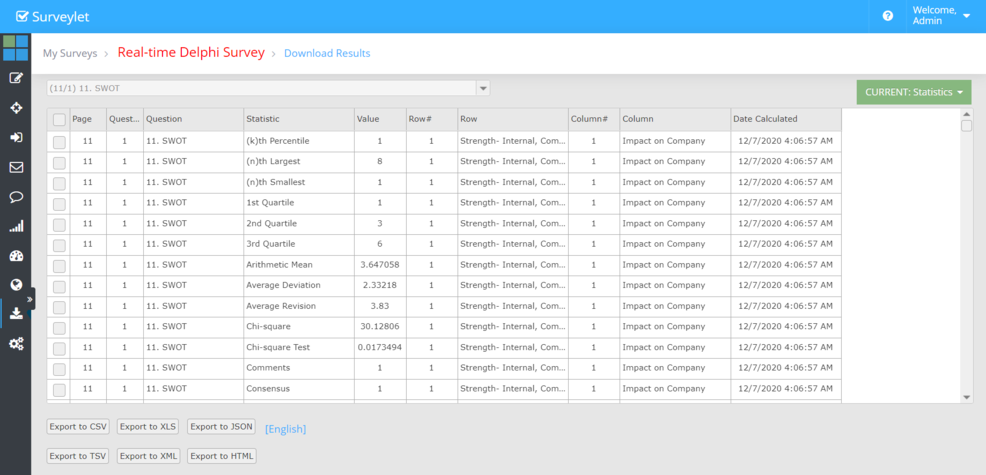
This report displays the statistical values collected during the survey (e.g. 1st Quartile, Arithmetic Mean, Average Deviation, etc.). Only statistics that were enabled at the beginning of the surveys collect data and are displayed here. For more information see Survey Statistics.
Page:
Page number.
Question#
Question ranking number on page.
Question:
Question text.
Statistics:
Name of statistics.
Value:
Value of statistics.
Row#:
Matrix row ranking number.
Row:
Matrix row text.
Col#:
Matrix column ranking number.
Column:
Matrix column text.
Date Calculated:
The date and time statistic was calculated.
Detailed instructions: Download Results
Besides visual analysis that is provided by the Analyze Survey page, you have the option to see analysis in gridview table format and export them into text, XML, JSON, etc. files. The Download pages allow you to download current and historical data sets alike.
You can select different reports based on your needs and what kinds of questions you want to analyze or if you want current of historical data sets.
By default all questions are displayed, but you can click on the Question Selector dropdown to pick the questions you want to analyze. When you close the dropdown the grid will be refreshed and only data for the selected questions will be displayed. You cannot select specific rows/columns in a matrix question, only the entire question with all rows and columns.
By default all questions are displayed, but you can click on the Question Selector dropdown to pick the questions you want to analyze.
The gridview table will only display columns that have any data in them. If a gridview column does not have any data across all rows, then that column will not be displayed.
Occassionally, when a large number of records are exported, the export may fail. To circumvent this problem, you can do the following trick.
1) Run your report and display data in the display grid
2) With your mouse, click anywhere inside the grid and leave your mouse there
3) Select all rows by clicking on the checkbox in the upper left corner (left to the "Page" column). This will select all rows.
4) Do a "CRTL+C" (this will copy the data from the gridview into your
5) Open MS Excel, and paste the data into a worksheet by "CTRL+V". It will copy all grid data but without the column headers.
6) Add the column headers manually.
By default all questions are displayed, but you can click on the Question Selector dropdown to pick the questions you want to analyze.
You can export the data loaded into the gridview as one of the following file formats:
Comma-delimited text file (CSV - comma-separated values).
XLS - Excel.
JSON.
TSV
XML
HTML.
Detailed instructions: USERS: Open Text
This report provides open text analysis for qualitative questions and the open text reasoning (My Comments) for quantitative questions.
Page:
Page number.
Question#
Question ranking number on page.
Question:
Question text.
Statistics:
Name of statistics.
Value:
Value of statistics.
Row#:
Matrix row ranking number.
Row:
Matrix row text.
Col#:
Matrix column ranking number.
Column:
Matrix column text.
Choice#:
Choice ranking number.
Choice:
Choice column text.
Owner:
Name of panelist that provided the comment.
Comment#:
The ranking position of comment in chronological order starting with 1 as first comment.
Comment:
The actual comment text provided by panelist.
Detailed instructions: USERS: Page Navigation
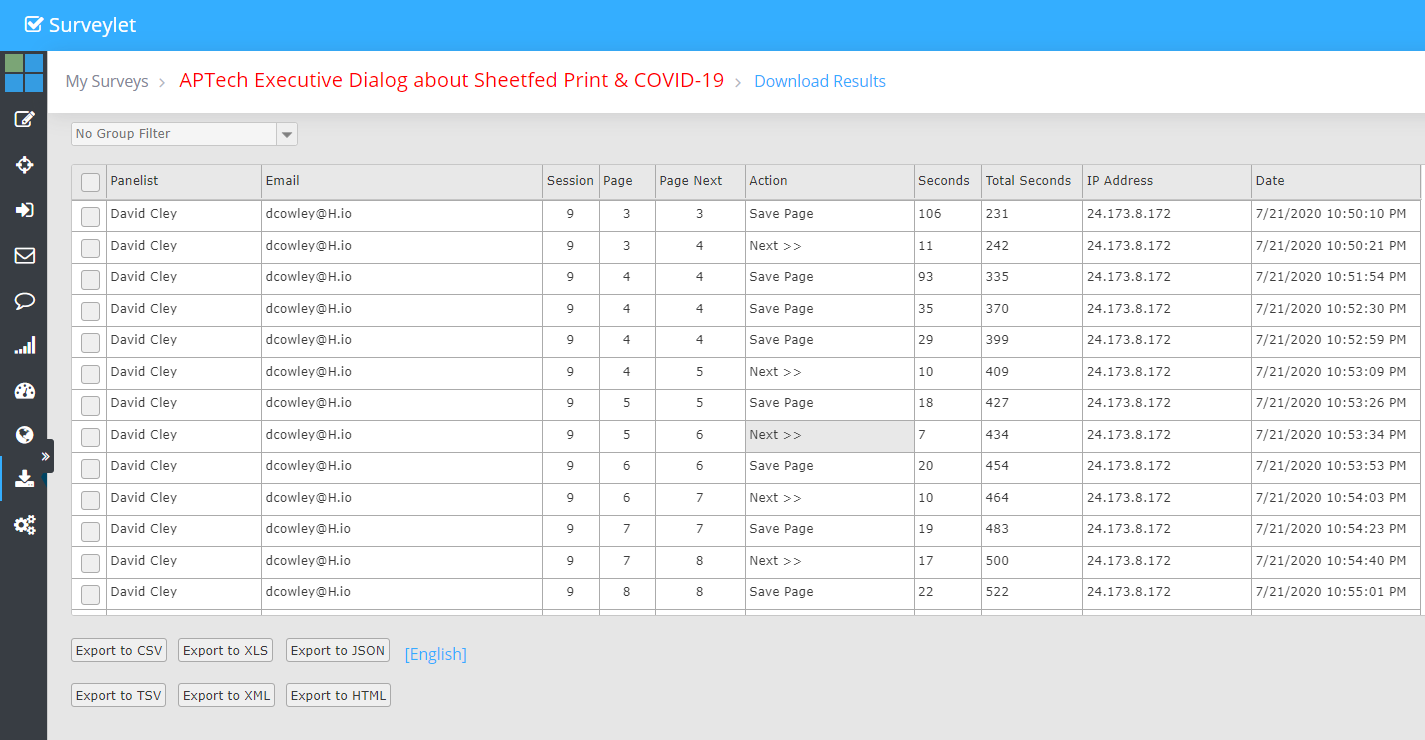
The page navigation report displays user navigation journey page by page and time spent on each page. It explains if user clicked on Next or Back buttons or Saved the page or jumped forward using the question selector. It also provides information on the number of times the panelist entered the survey ("Session") and the IP Address the user accessed the survey from. Depending on the survey's privacy level, the IP Address may not be collected or displayed.
Panelist: Name of panelist.
Email: Email address of panelist.
Session: The browser session. Which is the number of times the panelist entered the survey via clicking on the survey invitation link. If panelist closes the survey or switches to another device and enters the survey, a new session is created.
Page:
Current page.
Page Next:
The new page the panelist was taken when the event happened (Next, Back, Save).
Action:
Displays one of the navigation events that took place by user action:
"Start Session": user clicked on survey invitation link
"Next >>": user clicked on Next>> button;
"<< Back": user clicked on <<Back button;
"SavePage": user clicked on Save button which saved all answers on page.
"Exit Session": user clicked on Exit button and exited the survey
Seconds: The duration user spent on page (in seconds).
Total Seconds:
The overall length of time the panelist spent in the survey in current session.
IP Address: The IP Address of panelist. May not be collected/displayed if survey privacy level is set to Low, or if "Track Panelists' Location" was set to No.
Date:
The date navigation record was created.
Detailed instructions: USERS: Responses
The Responses report displays panelists' responses for each individual quantitative question. It does not display open text data provided for qualitative questions (open text, essay). It however display My Comments text (in "Comment" field) provided by panelists in the My Comment box as a reason for their answer.
User Name:
Full name of panelist who provided the response.
Page:
Page number.
Question#
Question ranking number on page.
Question:
Question title.
Row#:
Matrix row ranking number.
Row Title:
Matrix row text.
Col#:
Matrix column ranking number.
ColumnTitle:
Matrix column text.
User Selection:
Label of choice user selected for question.
User Selection Score:
The ranking value of user selection choice.
Comment:
User's reasoning provided in the My Comment textbox.
User Positive Sentiment:
The percentage level of positive sentiment provided by user in My Comment box.
User Negative Sentiment:
The percentage level of negative sentiment provided by user in My Comment box.
User Percentile Ranking by Positive Sentiment in Question:
The percentile of user by the level of positive sentiment s/he gave to this question in the My Comment box.
User Percentile Ranking by Negative Sentiment in Question:
The percentile of user by the level of negative sentiment s/he gave to this question in the My Comment box.
Detailed instructions: USERS: SPSS
Displays SPSS report for selected survey round. A survey round must be selected in the Survey Round Selector dropdown before any data is displayed in the grid below.
Display of SPSS data for selected survey round. In the SPSS report, the questions are listed on rows and panelists on columns.
Common questions
Why is a column missing from the export grid?
The guide documents that columns with no data across all displayed rows can be hidden. Check the selected dataset and the expected fields before concluding data is missing.
Can I export only one row or column of a matrix through the question selector?
The documented question selector selects the whole matrix question. Export it and filter the intended row or column in your analysis workflow, preserving the identifiers.