Configure rows and columns separately, keep scales consistent, and check each matrix cell in the participant view.
Updated October 12, 2026
Screenshots illustrate the controls below. Layouts and labels may vary with your survey configuration. Select an image or “View full size” to open it in a new tab.
Design a clear matrix
Use a matrix when several items share the same response structure. Rows usually represent items; columns represent response dimensions such as importance and feasibility. Matrix columns can have different input types.
Create the matrix and set its rows and columns.
Enter descriptive row and column labels.
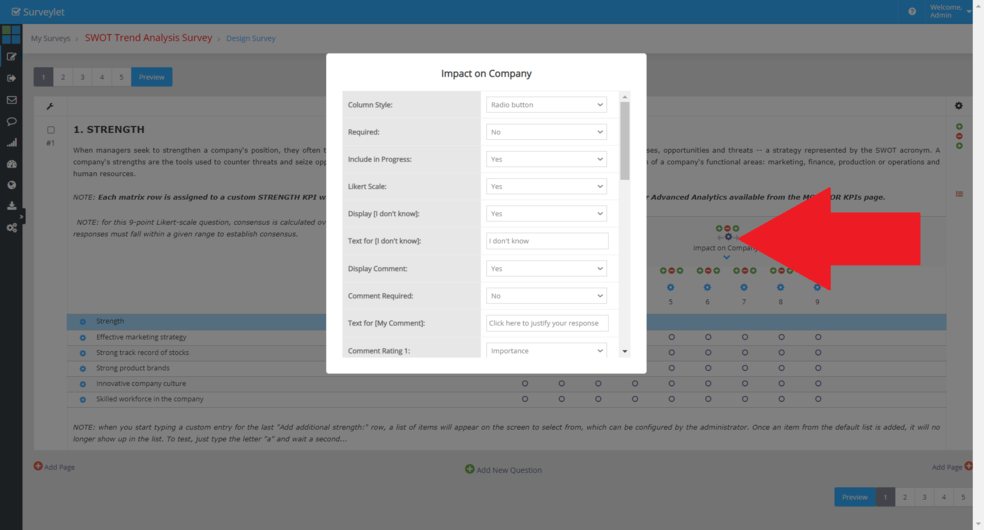
Configure each column’s type, choices, required status, comments, virtual “I don’t know,” consensus measure, and feedback.
Review row-specific settings, including KPI assignment, visibility, and help text.
Preview and test the matrix on a small screen and with keyboard navigation.
Display Visual Charts controls whether supported matrix analytics use visual charts rather than compact numeric displays. Help Window Position controls whether row help appears to the left, right, or below the relevant label.
Matrix row visibility can be Visible, Locked, Hidden, or Hide Voting Area. Hide Voting Area retains descriptive labels while hiding the input columns. Row titles can separate blocks for supported row randomization.
A matrix can collect several answers from one person, one for each relevant cell or row/column combination. Counts for the whole matrix, a single cell, and the whole survey are therefore different. Check the row and column identifiers in exports.
Large matrices may be hard to read on a phone. Split dense sections into smaller matrices or pages and shorten labels without losing their meaning. Test required fields, comment popups, Save, and the footer together.
Detailed instructions: Matrix Column Settings
To access matrix column properties, click on the cog icon above column name.
Visit the Question Settings page for all options available for Matrix Column Settings.
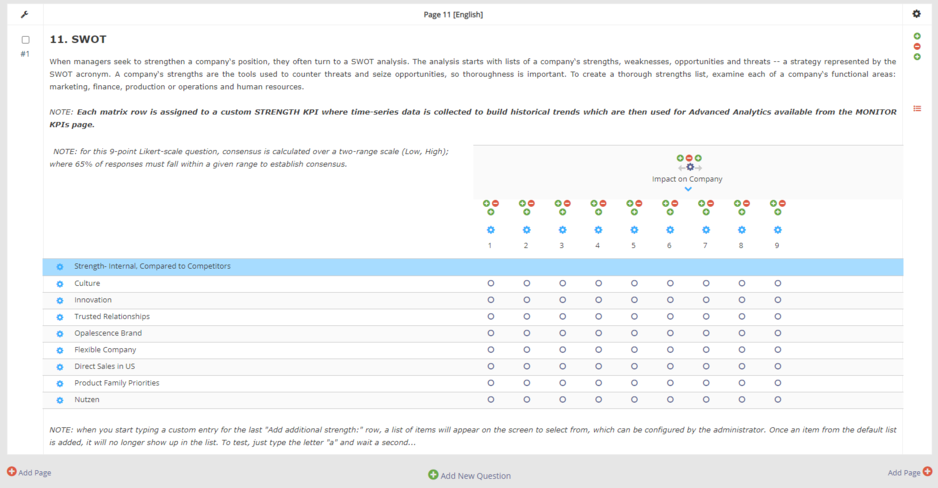
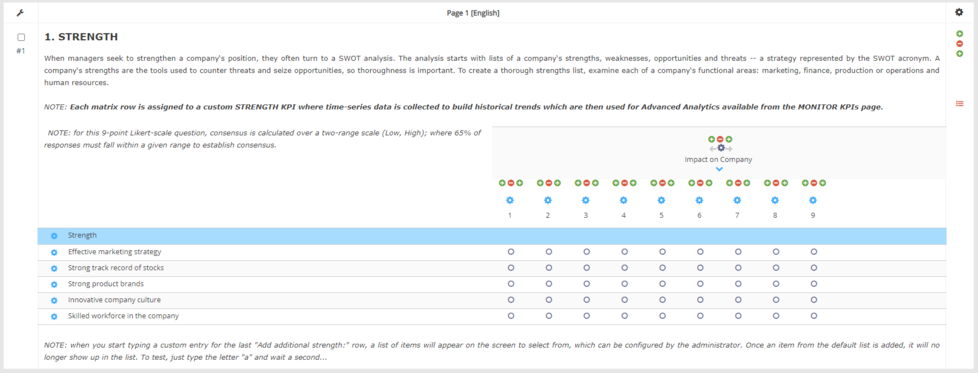
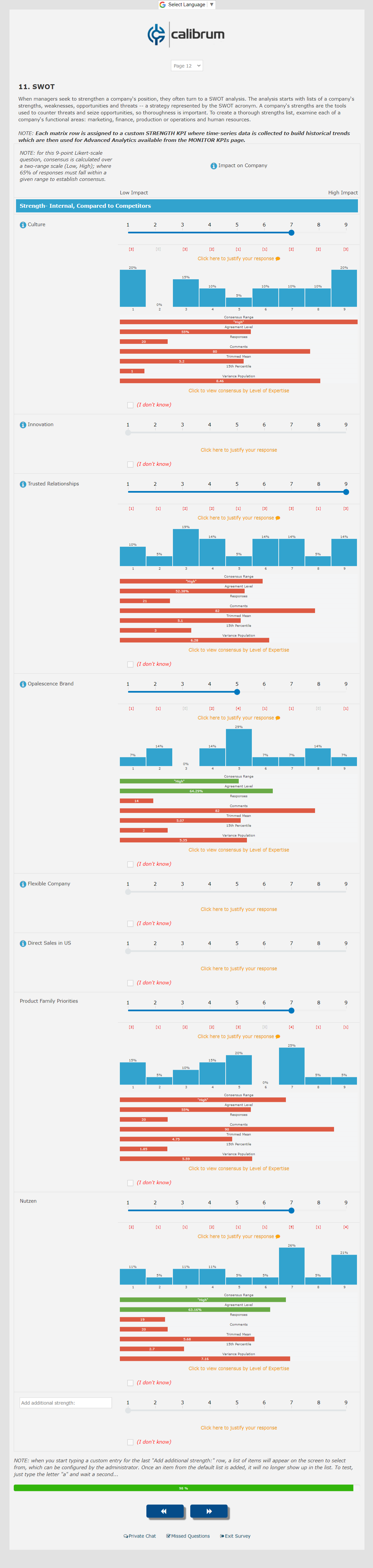
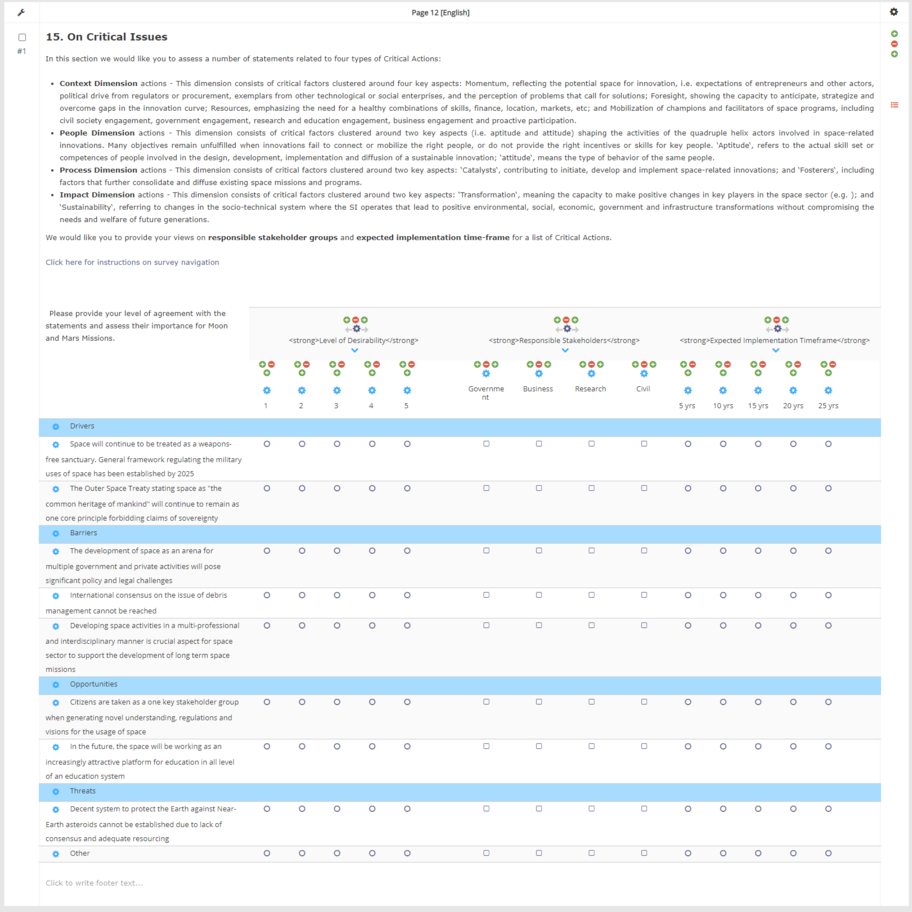
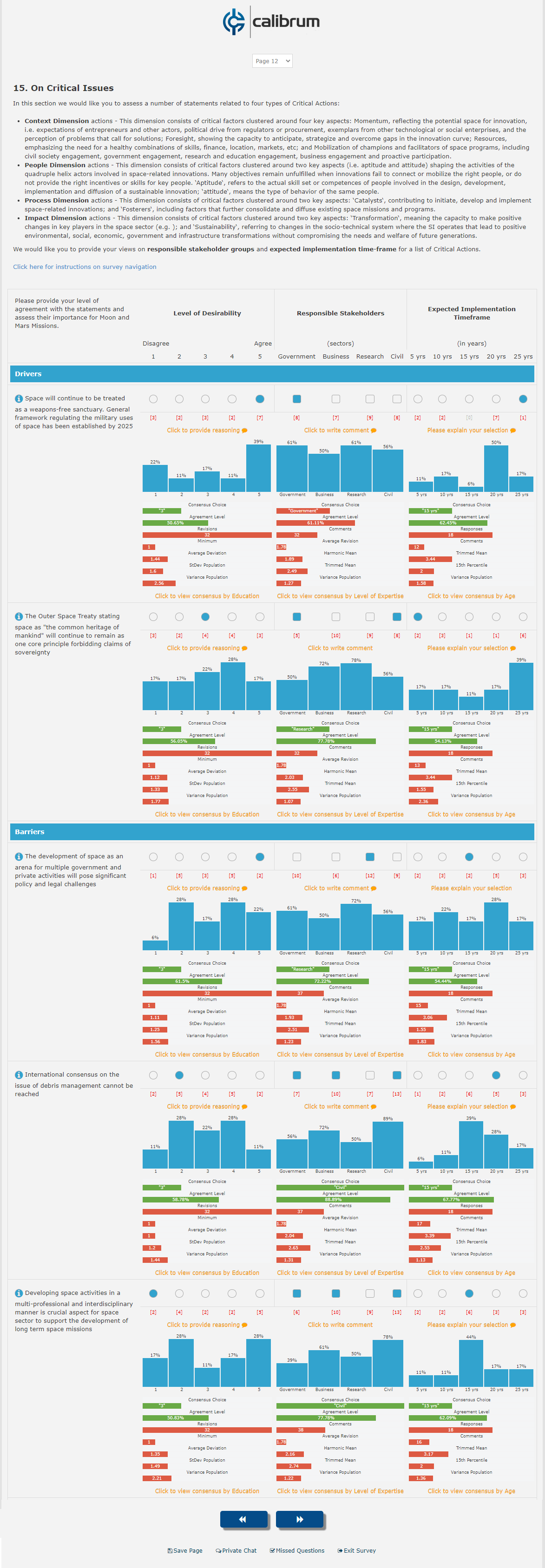
Detailed instructions: Matrix Examples
Admin View
Panelist View
Admin View
Panelist View
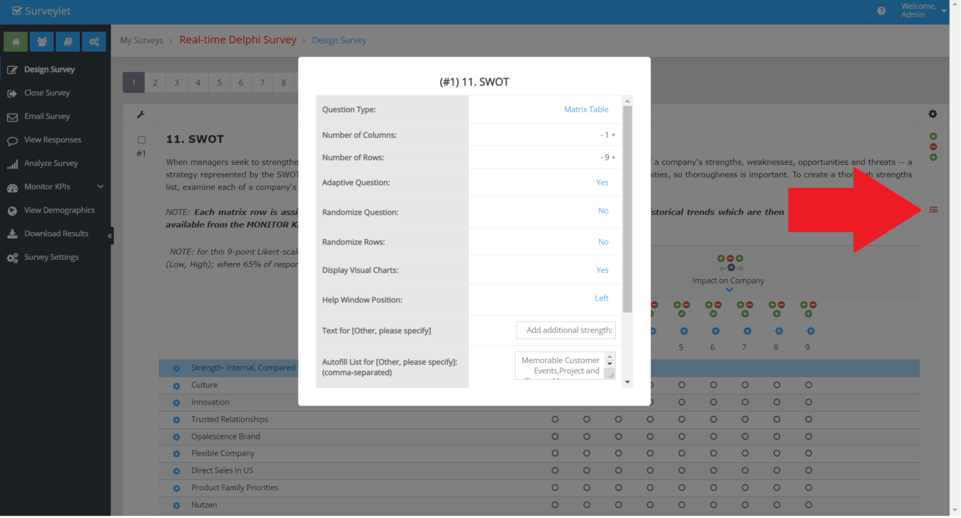
A matrix has 3 settings available: Question Settings, Matrix Column Settings and Matrix Row Settings.
Detailed instructions: Matrix Question Settings
For information on the different question settings options available for the matrix question type, visit Question Settings.
1. Question Type
Type of question.
2. Number of Columns
The number of columns in matrix.
3. Number of Rows
The number of columns in matrix.
4. Adaptive Question
Adaptive question is a question whose list of rows are not fixed and new rows can be appended by the survey participants themselves through the custom text row titled ([Other, please specify") which is displayed as last row in matrix.
5. Randomize Question
If set to Yes, this matrix question will be added to the randomizable questions list on page. Randomization happens within page where order of questions will be randomly scrambled.
6. Randomize Rows
You may randomize matrix rows (through scrambling). Randomization is done within blocks within Matrix, where blocks are separated by matrix Row Titles.
7. Display Visual Charts
By default numerical analysis is displayed for each matrix cell due to space constraint. However, you can override this settings and display visual graphical analysis instead of numbers. To display sliders in Matrix Columns, this settings needs to be set to Yes.
8. Help Window Position
Position of the Help windows displayed for Matrix rows.
-Left: display it on a clickable help icon shown before each matrix row.
-Right: add new column next to matrix row title and display it there.
-Below: display it in a read-only textbox under the matrix column title for each row.
9. Text for [Other, please specify]
The default text displayed for [Other, please specify] custom matrix rows. To enable this option, you must set the Adaptive Question property for the matrix to Yes.
10. Autofill List for [Other, please specify]
To display a list of items to show up when panelist starts typing text for [Other, please specify], you add all available options to choose from here separated by comma. Any new custom matrix row will be automatically added to the autofill list.
11. Adaptive Source Question
Make matrix question adaptive question. This means that panelist will be able to add their own matrix rows (which is displayed as a textbox as last row of the matrix), which option will be saved as a new row for the matrix and then all panelists will then be able to see that matrix row and answer it from then on hereanout.
12. Visibility
You can control the visibility of matrix rows.
Visible (row is visible, default option)
Locked (row is visible but readonly)
Hidden (row is hidden)
Hide Voting Area (row is visible but only descriptive label columns are displayed, any other columns, i.e. the voting area, are hidden)
Detailed instructions: Matrix Row Settings
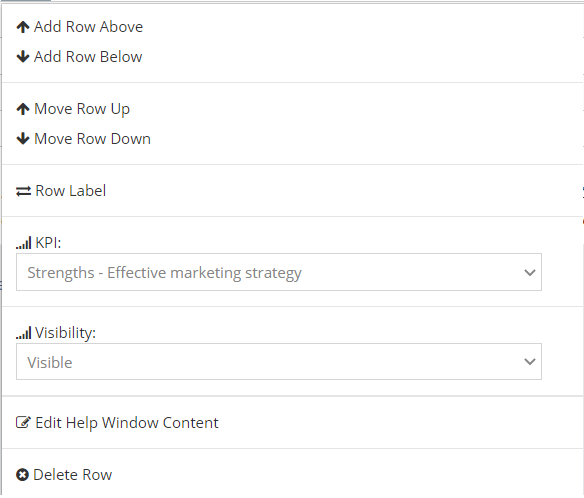
Use the Question Properties window to add/remove matrix rows. You may also use the Matrix Row Properties window to do so same. To access the Matrix Row Properties window, click on the cog icon in front of each matrix row which will display the following menu:.
Add Row Above: adds new row above selected matrix row.
Add Row Below: adds new row below selected matrix row.
Move Row Up: moves matrix row up.
Move Row Down: moves matrix row down.
Row Label: makes current row a Matrix Row Label. See Matrix Examples for Row Labels (rows with blue background).
Edit Help Window Content: add Help content to selected matrix row.
Delete Row: delete selected matrix row.
Common questions
Can I set different rules for two matrix dimensions?
Review the settings for each matrix column. A shared matrix title does not mean all columns have the same scale, consensus rule, or feedback configuration.