Use individual user records or the text import format to add people to your participant group.
Updated October 12, 2026
Screenshots illustrate the controls below. Layouts and labels may vary with your survey configuration. Select an image or “View full size” to open it in a new tab.
Import a list from text
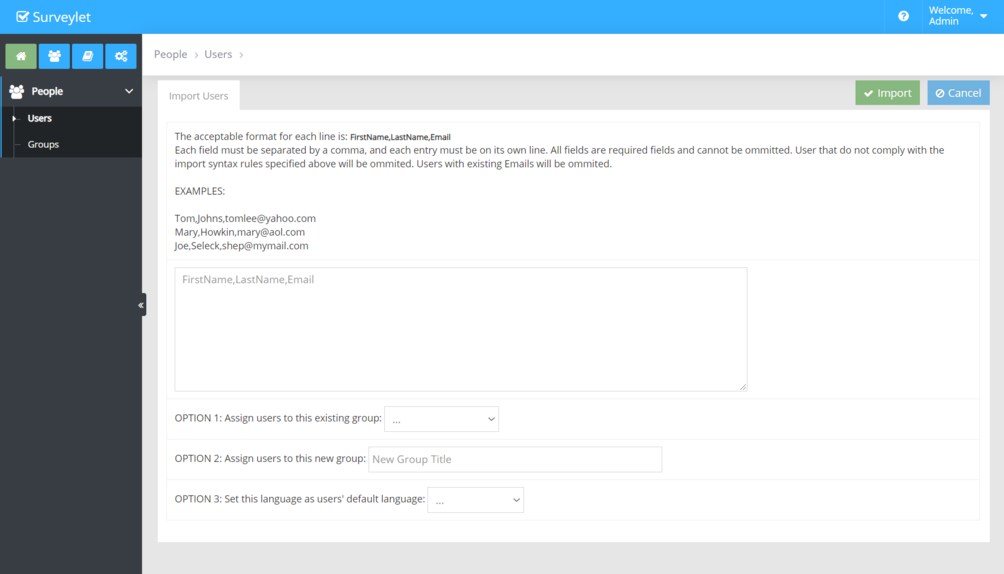
Open Users → Import from Text. Use one person per line in this format:
Use Add New User for an individual record, or open an existing user to edit details and group membership. Check the user’s language and email address. Save the record before leaving the page.
Avoid creating another user record for the same person just to resend an invitation. A duplicate identity or another personalized link can create separate questionnaire records and complicate analysis.
Use the documented comma-separated fields and one record per line.
Review addresses for typos and duplicate entries.
If a name contains a comma or your data needs more complex formatting, test a small sample or use individual user entry.
Use Import from Text for this workflow. Do not rely on Import from File if it is unavailable in your account.
Detailed instructions: Add New User
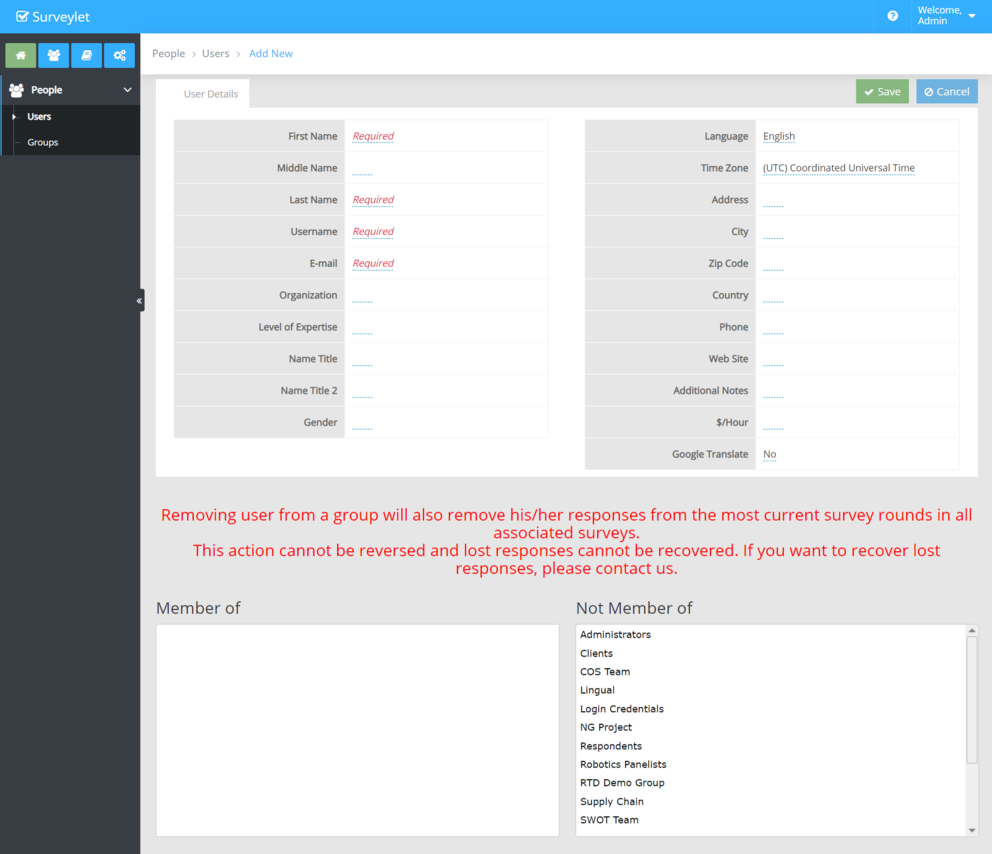
To manually add a new user, click on the "Add New User" menu. It will take you to the page shown below. Here you specify User Details and can add the user to one or more Groups.
What needs to be pointed out here is that most of the user details listed on this page are unused and to be deprecated. To utilize user details information and combine it with collected survey data for analysis (e.g. cross-reference analysis of survey question based on user's gender or country, etc.), you will need to use Demographics KPI's and create survey questions for these information that your panelists will fill out.
First Name
First name of user. Required field.
Middle Name
Middle name of user. Optional.
Last Name
Last name of user. Required field.
Username
Login id for user. Must be unique across all users. Normally keep it the same as email address.
Password
Login password to access account.
Email
Email address for user. Do not need to be unique but strongly recommended.
Organization
Deprecated field.
Level of Expertise
Deprecated field.
Name Title
Name title for user. Used in email templates for email variables "{~user_nametitle~}".
Name Title 2
Custom name title for user. Used in email templates for email parameter "{~user_nametitle~}".
Gender
Deprecated field.
Language
Default language of panelist. Email templates will be sent in the user's language (if available) automatically. Users can also be filtered on the Email Survey page based on their languages.
Time Zone
Time zone of user. Dates and times are displayed throughout all Surveylet pages in this time zone.
Address
Deprecated field.
City
Deprecated field.
Zip Code
Deprecated field.
Country
Deprecated field.
Phone
Deprecated field.
Website
Deprecated field.
Additional Notes
$/hour
Deprecated field.
Google Translate
When set to Yes, the Google Translate language dropdown will be displayed on top of survey pages to this panelist. If user is a survey administrator, then the Google Translate language dropdown will be displayed on top of all Surveylet pages except for the Design Survey pages.
Detailed instructions: Edit User
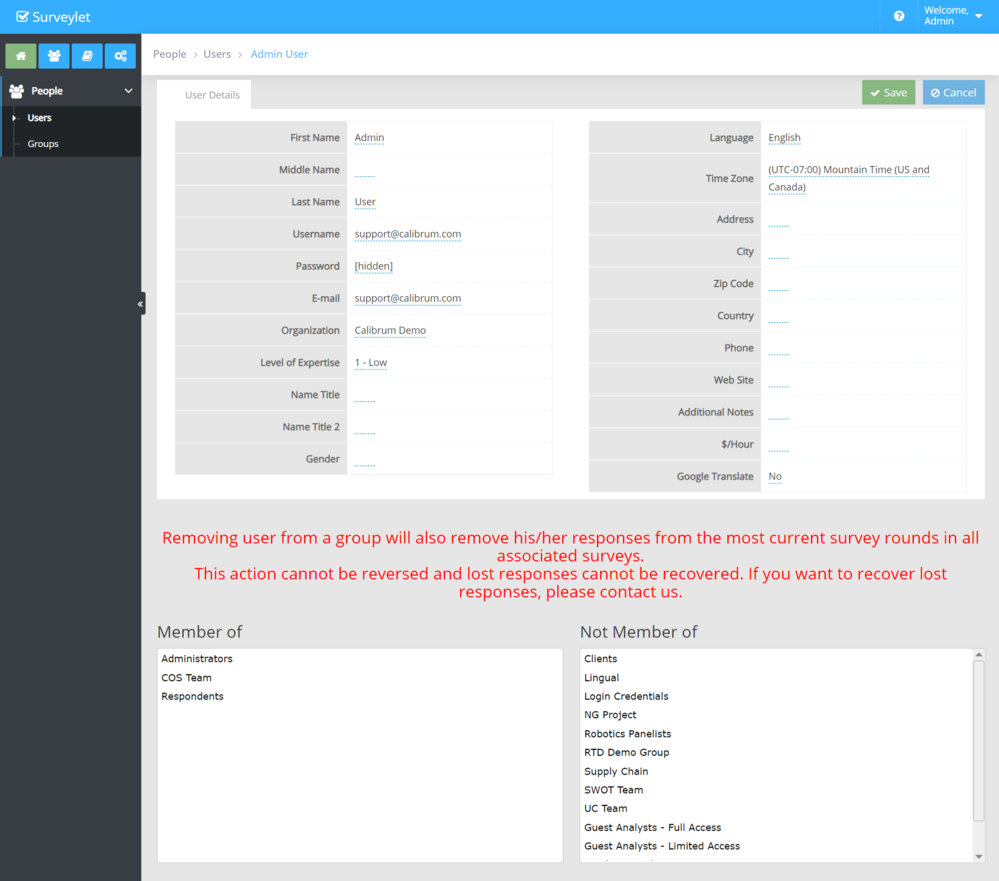
To edit an existing user click on the user's name in the Users List grid table. It will take you to the page shown below.
What you need to be careful is removing users group groups as that will remove them from all surveys that that group is assigned to as their survey participants group and that action will delete all questionnaires for this user from all current survey rounds for all surveys affected (previous survey rounds will not be affected, only the most current one, regardless if the survey round is open or closed). This action cannot be reversed. If it still happens and you accidentally delete your user's data, contact us and we can restore it for you, however this service is a paid-for service which is not included in your subscription.
What needs to be pointed out here is that most of the user details listed on this page are unused and to be deprecated. To utilize user details information and combine it with collected survey data for analysis (e.g. cross-reference analysis of survey question based on user's gender or country, etc.), you will need to use Demographics KPI's and create survey questions for these information that your panelists will fill out.
First Name
First name of user. Required field.
Middle Name
Middle name of user. Optional.
Last Name
Last name of user. Required field.
Username
Login id for user. Must be unique across all users. Normally keep it the same as email address.
Password
Login password to access account.
Email
Email address for user. Do not need to be unique but strongly recommended.
Organization
Deprecated field.
Level of Expertise
Deprecated field.
Name Title
Name title for user. Used in email templates for email variables "{~user_nametitle~}".
Name Title 2
Custom name title for user. Used in email templates for email parameter "{~user_nametitle~}".
Gender
Deprecated field.
Language
Default language of panelist. Email templates will be sent in the user's language (if available) automatically. Users can also be filtered on the Email Survey page based on their languages.
Time Zone
Time zone of user. Dates and times are displayed throughout all Surveylet pages in this time zone. The default time zone for newly added users is "UTC Coordinated Universal Time".
Address
Deprecated field.
City
Deprecated field.
Zip Code
Deprecated field.
Country
Deprecated field.
Phone
Deprecated field.
Website
Deprecated field.
Additional Notes
$/hour
Deprecated field.
Google Translate
When set to Yes, the Google Translate language dropdown will be displayed on top of survey pages to this panelist. If user is a survey administrator, then the Google Translate language dropdown will be displayed on top of all Surveylet pages except for the Design Survey pages.
Detailed instructions: Import from File
This feature is currently not available and will be deprecated.
Detailed instructions: Import from Text
This feature allows you to quick-import your list of users into Surveylet Groups. It accepts the following format: firstname,lastname,email. Records with invalid format will be ignored and skipped during import. Each user must be on its own line. Blank lines are skipped.
OPTION 1: Assign users to this existing group.
You can select a group from the list of non-Admin groups that appear in the Groups dropdown. You can only select one group at a time, but you can always go back after you submitted the page and assign the list of users to another group. If a user already exists in that group by that email address, the user will not be added twice.
OPTION 2: Assign users to this new group.
If you want to assign the list of users to a new group that does not yet exist, you can specify the new group name in the textbox. If the group exists, then users will be added to the group under that group name.
OPTION 3: Set this language as users' default language.
The default languages users will be imported as is the language that you assigned your organization on the Account Settings page. You can override that by selecting a language from the language dropdown.