Select registration, direct access, or unique random identifiers while planning for return visits and response usage.
Updated October 12, 2026
Screenshots illustrate the controls below. Layouts and labels may vary with your survey configuration. Select an image or “View full size” to open it in a new tab.
Enable public access when needed
In Survey Settings → Survey Details, enable Allow Public Access if participants should register themselves or use the public access options. Choose the appropriate link from Survey Access. Confirm that the survey is open and that sufficient responses are available.
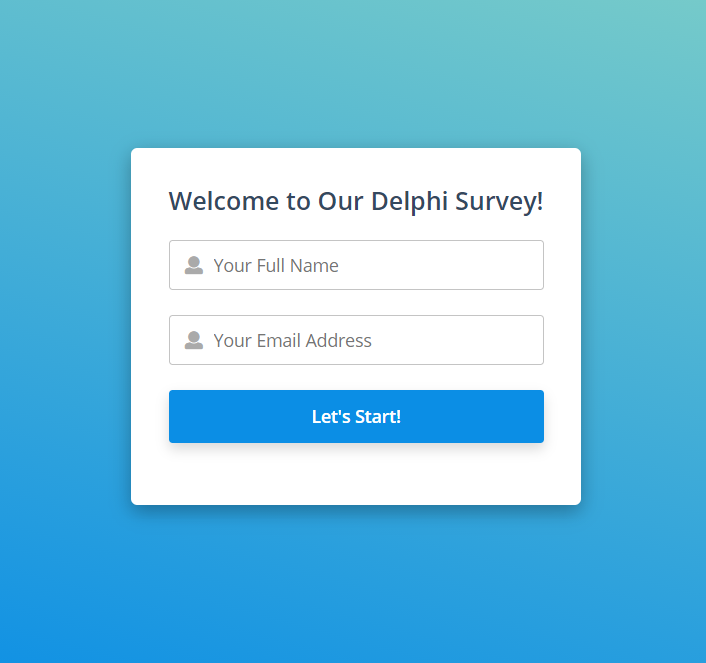
A shared registration link can request a name and email address and then send a personalized invitation, open the survey immediately, or do both. Test the registration flow and the default invitation template in every required language.
If you do not want to store participant email addresses, use a different randomly generated identifier for each participant’s direct link. Keep any mapping to actual identities with your study team. Give each participant only their own link.
Identifiers that are not real email addresses cannot receive invitation emails or reminders through Surveylet. Your team must distribute and manage those links externally. Review privacy settings separately.
Do not promise reliable re-entry with a shared anonymous link. Returning from another device, clearing browser data, or starting another session may create another questionnaire and use another response.
For a study that requires repeated visits or multiple rounds, use tested individual links with stable unique identifiers. Before choosing shared anonymous access, test repeat clicks, a new browser, a new device, and an expired session; check both the questionnaires and Responses Used log.
Detailed instructions: Anonymous Survey Access
When using the "Anonymous Survey Access" survey URL, your panelists cannot switch devices, and cannot continue the survey where they were left off after they close their browser without a new response generated. There is no information collected about them so Surveylet cannot email them their private survey link to continue edit their responses later on.
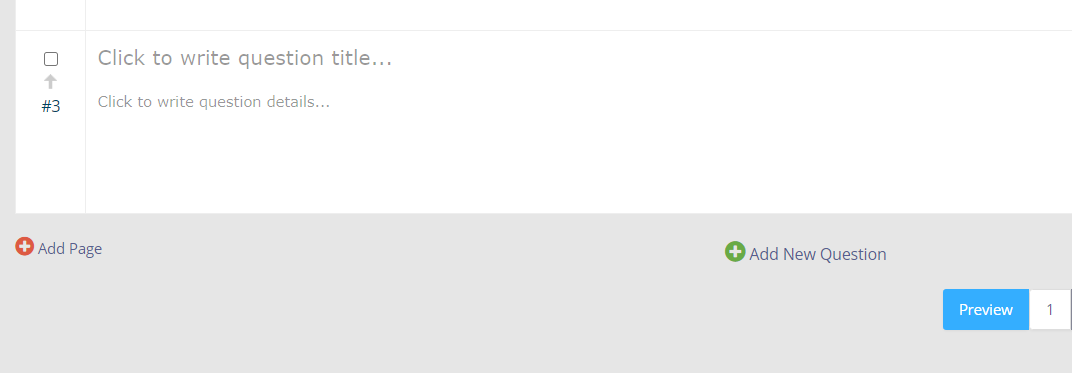
However, you can add a token into your survey that will allow them to see a private URL pointing to their own questionnaire which they can save and reuse for later access. The token is "<personal_survey_link>". It needs to be added into a Descriptive Label question's Question Details section. It does not work for any other question types.
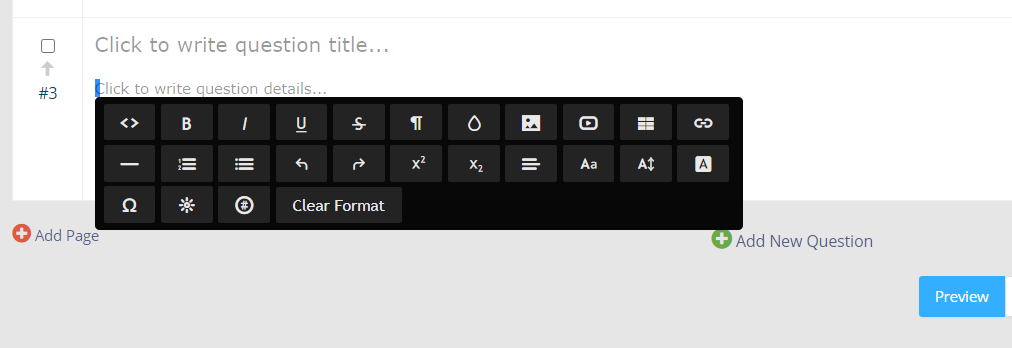
In the "Click to write question details..." section switch on the HTML source so you can directly edit the code. You can do it by double-clicking in the "Click to write question details..." text; or hit the space bar and highlight the empty text.
You will see the air toolbar showing up. The first icon ("</>") is the HTML source code icon:
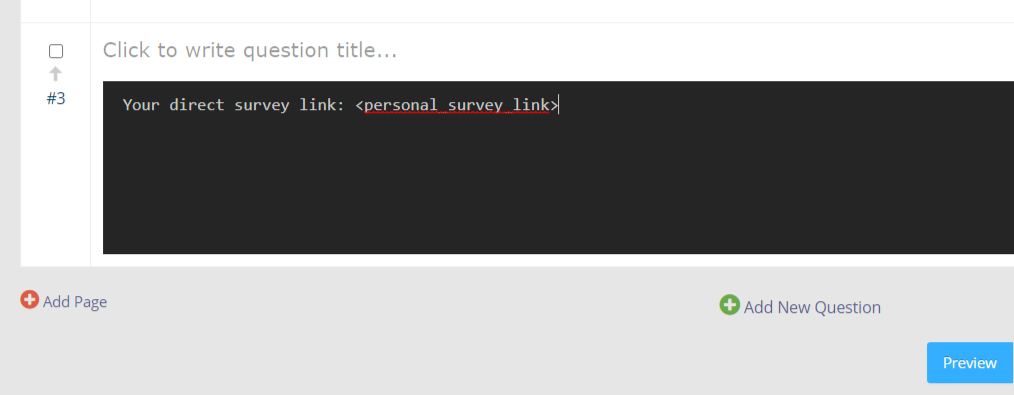
Add the <personal_survey_link> token with a description so panelists know what to do with it:
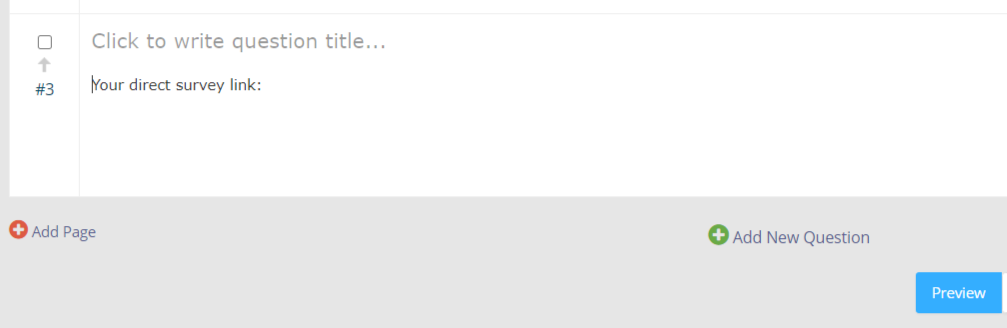
Click on the </> icon again to close the HTML source code editor. You will notice that the <personal_survey_link> token is not displayed, only your explanation:
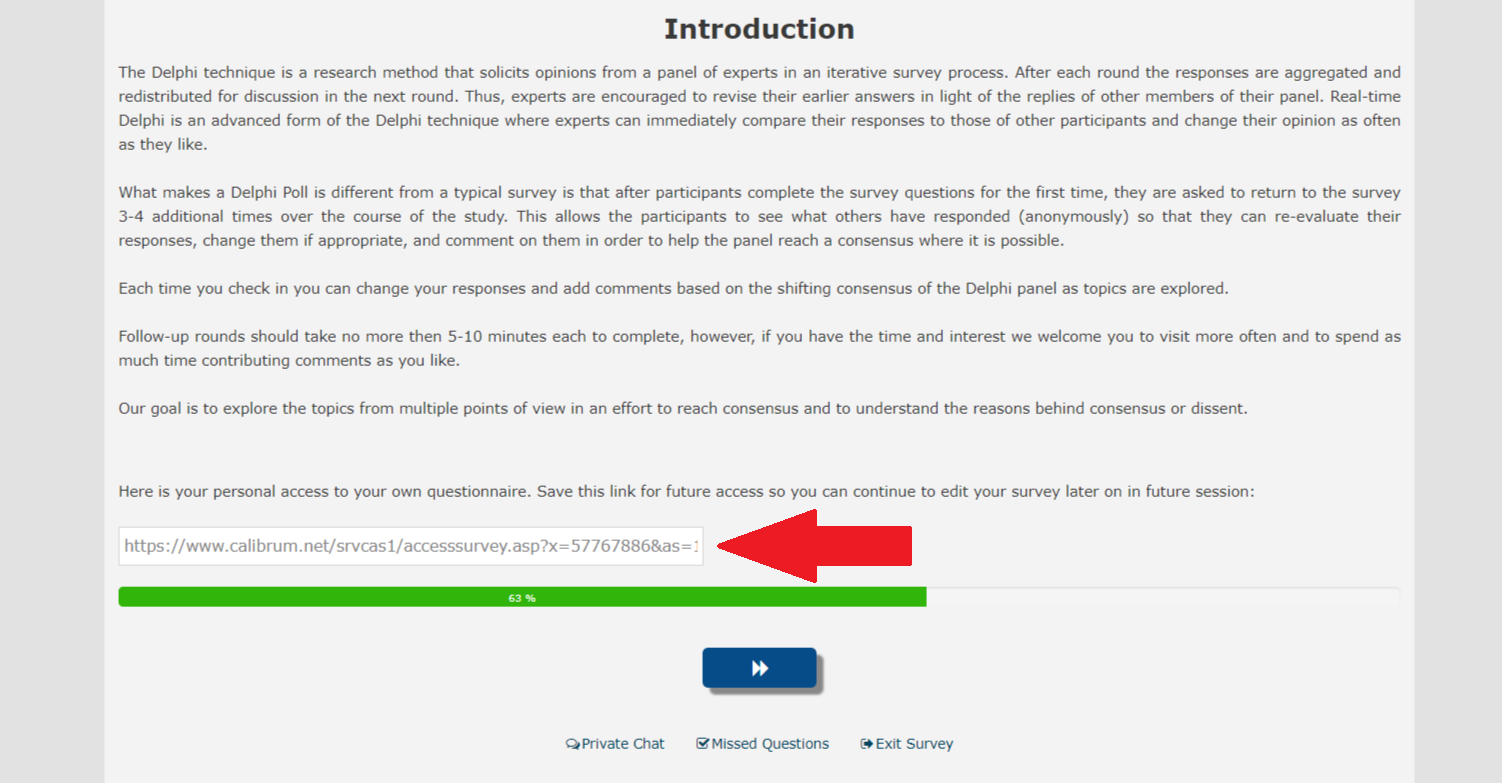
The <personal_survey_link> token is only displayed to the panelist, and it displays the panelist's private encrypted URL to this questionnaire:
Panelist can only access his/her existing questionnaire through different devices or different browser sessions through the link that is displayed. S/he needs to save the link displayed so s/he can continue to edit the same questionnaire in a new session on the same or another device. Any new click on the original Anonymous Survey Access URL may result in the generation of a brand new response.